
JPG vs PNG: Which Format Should You Use for Logos and Documents?
If you work with digital content in any capacity—whether you are a university student submitting a final assignment, a small business owner uploading a new company logo, a frontend developer building a UI, or a blogger posting daily photos—you deal with image files constantly. And without a doubt, the two undisputed kings of the digital image ecosystem are JPG (or JPEG) and PNG.
To the untrained eye, a picture is just a picture. As long as it opens on your phone, it seems fine. However, these two formats use entirely different underlying mathematical technologies and compression algorithms. Choosing the wrong format for the wrong task can result in massive, slow-loading files, ugly white boxes surrounding your brand logos, or blurry, heavily pixelated text on important scanned documents. Let’s break down the technical differences so you always make the right choice.
JPG (JPEG): The Champion of Real-World Photographs
JPG stands for Joint Photographic Experts Group. It was engineered specifically for rendering complex, real-world images that contain millions of distinct colors, smooth gradients, and shadows—like photographs taken with your smartphone or a DSLR camera.
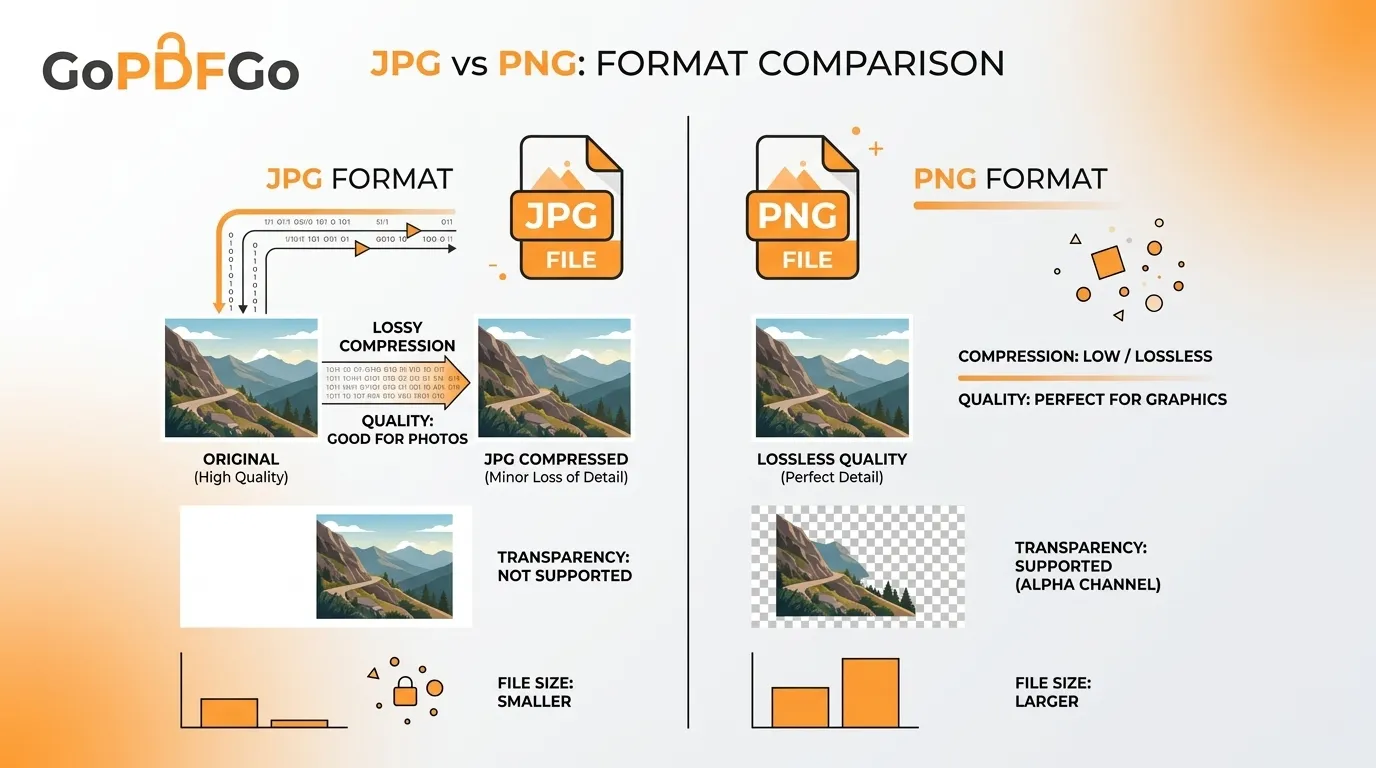
- The Good (File Size): JPG uses a highly effective method known as "lossy" compression. When you save a JPG, the algorithm analyzes the photo and permanently discards color data that the human eye cannot easily distinguish. This makes JPG files incredibly lightweight and perfect for website performance. If a photograph is still too large for an upload portal, you can easily run it through a Compress JPG tool to shrink it further without breaking the image.
- The Bad (No Transparency & Artifacting): JPG absolutely does not support transparency (an alpha channel). If you save a circular company logo or a free-floating graphic as a JPG, the software will forcefully fill the empty, transparent corners with a solid white or black box. Additionally, every single time you open, edit, and re-save a JPG file, it loses a tiny bit of visual quality, leading to "digital artifacting" (blocky, blurry edges).
PNG: The Master of Graphics, Text, and Logos
PNG stands for Portable Network Graphics. It was designed specifically as a web-friendly alternative for digital art, flat graphics, UI icons, and images containing sharp text.
- The Good (Lossless & Transparent): PNG utilizes "lossless" compression, meaning absolutely zero image data is lost when the file is saved. It keeps hard edges, sharp lines, and digital text crystal clear. Most importantly, PNG fully supports transparency. This is exactly why high-quality brand logos, website icons, and UI elements are almost always PNGs—they can be placed seamlessly over any colored background, video, or website div without an ugly white bounding box appearing.
- The Bad (Massive File Sizes): Because the PNG format stubbornly retains every single pixel of detail without discarding anything, PNG files are significantly heavier than JPGs. Saving a highly complex, 24-megapixel nature photograph as a PNG will result in a massive file that will eat up your hard drive space and drastically slow down your website.
The Golden Rules: When to Use Which Format?
Follow these simple, professional rules for perfect digital file hygiene:
- Use JPG for: Profile pictures, nature photographs, complex real-world images, large website hero banners, and scanned physical documents (like an Aadhaar card or PAN card) where maintaining a small file size is the top priority for a web portal.
- Use PNG for: Brand logos, website navigation icons, charts, graphs, infographics, digital illustrations, and screenshots that contain a lot of readable text or require a transparent background.
How to Instantly Fix Format Mistakes
What happens if you are stuck with the wrong format? Perhaps a graphic design client sent you a massive 12MB photograph saved incorrectly as a PNG, and your WordPress media library simply won't accept it because it is too heavy. You don't need to email them and wait days for a revision.
You can instantly fix this massive file by using our Convert PNG to JPG tool. This client-side utility will intelligently strip the heavy lossless data, flatten the layers, and give you a lightweight, web-optimized JPG file perfect for immediate use.
On the flip side, if you have a graphic or an image that you absolutely need to preserve in a lossless format for further editing in design software, you can seamlessly convert it up using our Convert JPG to PNG tool.
Understanding the architecture behind image formats is a fundamental digital skill. By utilizing JPGs and PNGs in their correct contexts, you ensure your professional documents look incredibly sharp, your logos blend perfectly, and your websites load at lightning speed.