Can’t Open WebP in Photoshop? Fix ‘Unsupported Format’ in 5 Seconds
You're putting together slides for a Monday meeting, or pulling reference images off the web into a Photoshop file. You find the image you want, right-click, hit "Save Image As...", and glance at your downloads folder.
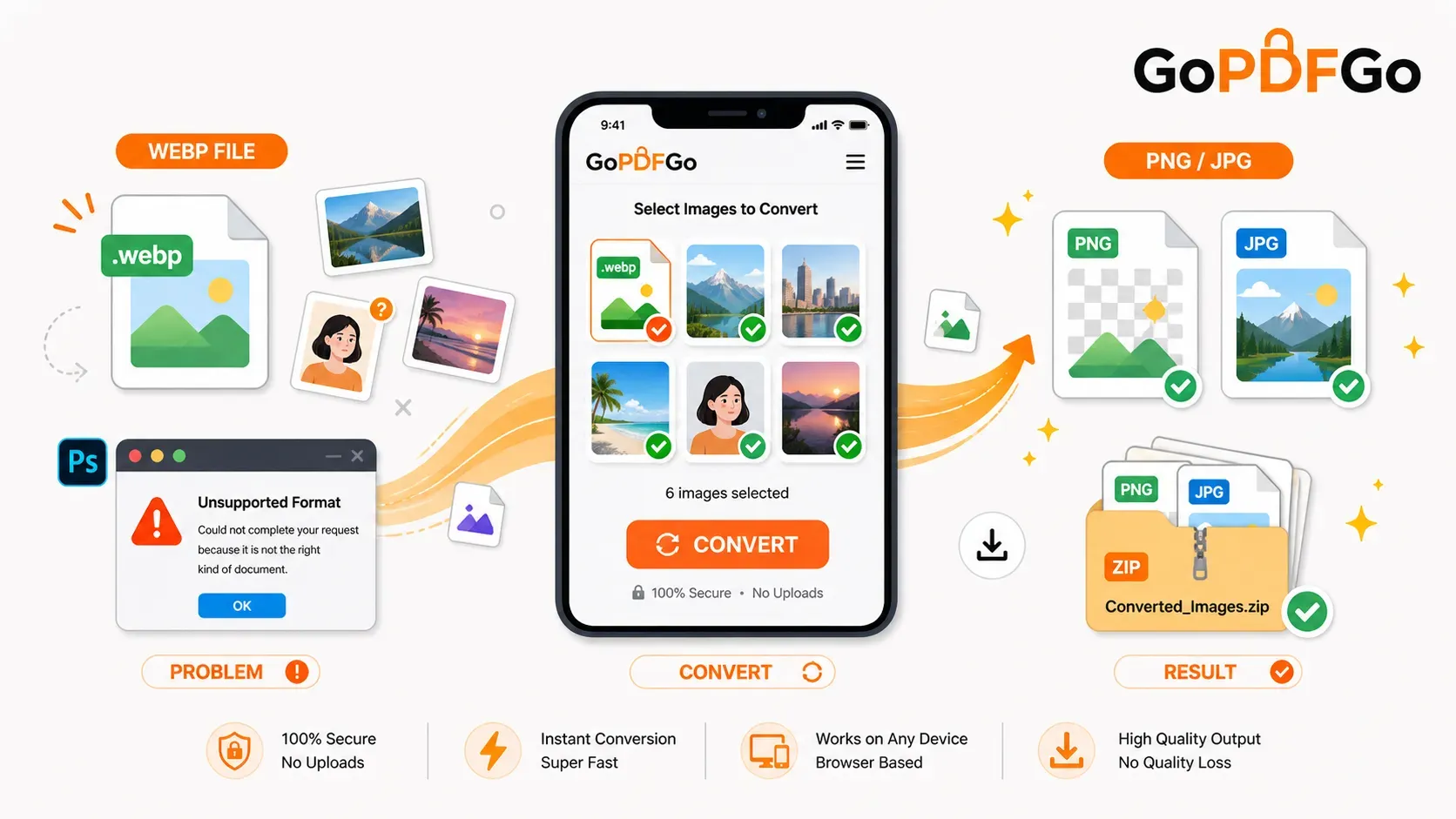
But instead of the familiar .jpg or .png file extension, the file ends in .webp. When you attempt to drag this file into your older design software, Word document, or video editor, your computer aggressively rejects it with a frustrating error message: "Unsupported File Format" or "Could not complete your request because it is not the right kind of document." And now you're stuck, because the one image you needed simply won't open.
What Exactly is WebP and Why is it Everywhere?
You are not doing anything wrong, and your computer isn't broken; the architecture of the internet is simply changing. WebP is a modern, "next-generation" image format developed specifically by Google. It was engineered with one primary goal in mind: to make websites load drastically faster.
A WebP image is incredibly efficient. It can maintain the exact same high-quality visual appearance and rich color depth as a standard JPEG, but at a noticeably smaller file size. Even more impressively, WebP supports transparent backgrounds (an alpha channel) exactly like a PNG file, but without the massive file size penalty that usually comes with high-resolution PNGs.
Because website loading speed is now a critical SEO ranking factor (Google's Core Web Vitals), almost all major websites—including Amazon, Wikipedia, Shopify stores, and millions of WordPress blogs—have updated their servers to automatically serve images in the WebP format. While this is fantastic for your mobile data and web browsing speed, it creates a massive headache for end-users who need to utilize those downloaded images in offline desktop software that hasn't updated its format compatibility yet.
The Danger of Shady Conversion Websites
When faced with this "Unsupported Format" error, most users quickly Google "Convert WebP to JPG." They click on the first free site, upload the image, wait in a slow server queue, and download the result.
However, uploading files to random cloud converters is a poor digital practice. These sites are often littered with intrusive pop-up ads, fake "Download Now" buttons that lead to malware, and heavy tracking scripts. Furthermore, if you are downloading a confidential reference image for a client project, uploading it to an unknown external server violates basic data privacy and NDA principles.
The Safe, Local Way to Convert WebP Back to Standard Formats
To use that image smoothly in your presentation or design software, you need a fast, browser-based solution that does the mathematical conversion directly on your computer's CPU—without ever uploading the file to the internet.
How to Convert Your Images in Seconds:
- Step 1: Decide on your Output Format. Look at the image you downloaded. If it is a standard photograph (like a person or a landscape), you can seamlessly convert it to a standard JPEG. Alternatively, if the image has a transparent background that you desperately need to keep for a UI mockup, you must use a dedicated Convert WebP to PNG tool to preserve that transparency.
- Step 2: Drag and Drop. Drag the stubbornly un-openable WebP file from your computer's downloads folder directly into the tool's interface.
- Step 3: Instant Local Conversion. Because the conversion algorithm runs locally in your browser, there is absolutely zero upload waiting time. The image data is instantly translated from the WebP structure into standard PNG or JPG pixel mapping right inside your browser's memory.
- Step 4: Download and Work. Click download. You now have a standard, universally recognized image file. You can effortlessly drag it into Photoshop, Premiere Pro, Microsoft Word, or any legacy software without triggering a single error message.
The Reverse Scenario: Embracing WebP for Your Own Site
While converting WebP back to older formats is essential for offline desktop workflows right now, it is important to recognize that WebP is the definitive future of digital publishing. If you are a web developer, an e-commerce store owner, or a blogger, you should actually be doing the exact reverse!
When you are ready to upload your own heavy JPG or PNG assets to your website, you should always use a Convert to WebP utility to modernize your images before they hit your server. After conversion, you can further squeeze out maximum performance by running them through a dedicated WebP compressor. Adopting this workflow ensures your website remains lightning-fast and ranks significantly higher on search engines.
Frequently Asked Questions (FAQ)
Q: Will I lose visual quality when converting WebP to JPG?
A: Because WebP is already a highly compressed format, converting it back to a high-quality JPG generally results in an identical visual appearance. You will not notice any pixelation or quality drop for standard web use or presentations.
Q: Will converting WebP to PNG improve the image quality?
A: No. While PNG is a lossless format, converting a compressed WebP into a PNG cannot magically add details that were already lost during the original WebP compression. It will simply change the file container to make it compatible with your software while preserving transparency.
Q: Why does my Mac Safari browser save all images as WebP now?
A: Recent updates to Apple's Safari browser now fully support the WebP format. When you save an image from a modernized website using Safari, it smartly saves the original WebP file to save disk space. You can use local conversion tools to change them when needed for offline work.