How to Extract a Single Page from a Massive 500-Page PDF Document
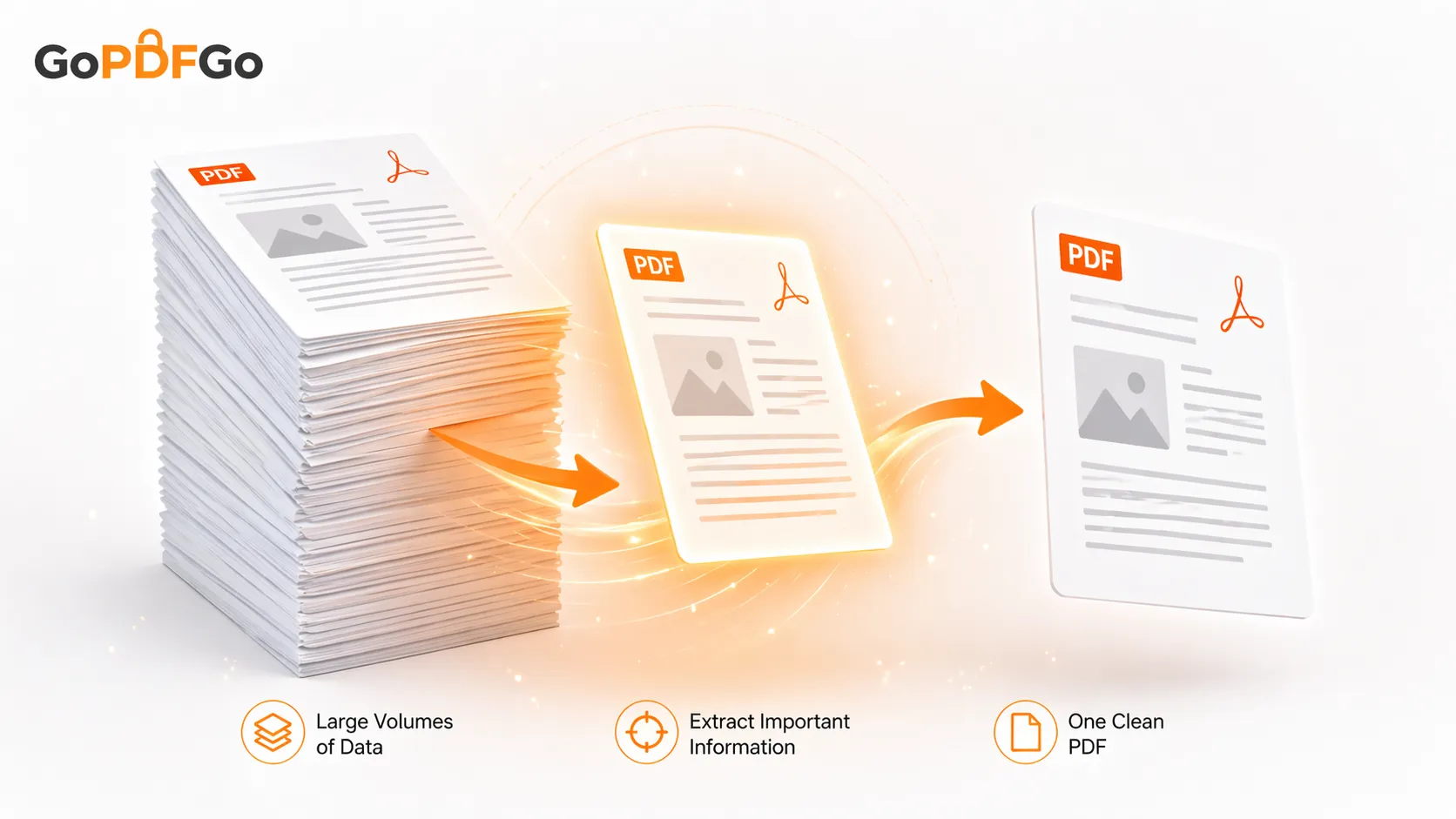
We all encounter massive, overwhelming PDF documents in our professional, personal, and academic lives. It could be a 500-page university merit list where you urgently need to isolate the single page proving your admission rank, a 200-page corporate master contract where you only need to sign the specific Annexure B, or a massive 50-page hospital medical record where you only want to send the latest blood test results to your specialist.
Sending a 500-page, 40MB document to someone and telling them to "just scroll down to page 342" is highly unprofessional and frustrating for the recipient. Moreover, it is often technically impossible due to strict email attachment size limits (which usually cap out at 25MB). You need to pull out that one specific needle from the digital haystack without sending the entire haystack along with it.
The Clunky Workarounds You Must Avoid
Without the right digital utilities, most people resort to highly inefficient, low-quality methods to save a single page. These "hacks" often do more harm than good:
- The Screenshot Method: You zoom out on your monitor to fit the whole page, take a screenshot, and save it as a JPG image. This is a terrible idea. It instantly destroys the high-definition quality of the text. The text is no longer searchable (you cannot use Ctrl+F), and if the recipient tries to print it on physical paper, it will look incredibly blurry and pixelated.
- The "Print to PDF" Method: While slightly better than a screenshot, using your web browser's "Print -> Save as PDF -> Custom Pages" feature is notoriously buggy. This method fundamentally rewrites the document using the browser's print engine. It frequently strips away clickable hyperlinks, ruins the original document margins, messes up layered vector graphics, and sometimes bloats a 100KB page into a 2MB file unnecessarily.
The Privacy Risks of Cloud-Based Extractors
When people realize screenshots don't work, they Google "Extract PDF pages online." They find a free tool, upload their massive 500-page file, type in the page number, and download the result. What they don't realize is the massive privacy risk they just took.
Massive documents almost always contain highly sensitive data. A university merit list contains thousands of students' names, roll numbers, and categories. A legal contract contains proprietary corporate secrets. A hospital record contains intensely private health data. By uploading these massive files to a random, cloud-based server, you are exposing sensitive information to external databases, potential server hacks, and unauthorized data scraping.
Extract the Page Locally, Quality Intact
To preserve the exact digital quality, vector graphics, and searchable text of the original document—without sacrificing your privacy—you need to structurally "extract" the pages locally. This involves taking the exact underlying code of that specific page and wrapping it securely into a brand new, lightweight PDF file.
How to Extract Your Pages Safely and Instantly:
GoPDFGo’s platform uses advanced browser-based technology, meaning the heavy lifting is done entirely by your own device’s CPU. Your massive files never leave your computer.
- Step 1: Load the File. Navigate to the secure Extract Pages tool on our platform and drag your massive file into the upload zone. Because it processes locally, even a 500-page, 50MB document will load incredibly fast.
- Step 2: Choose Your Extraction Mode. Our tool gives you complete visual control. You can either manually click the visual thumbnail of the specific page you want to extract, or, if you already know the exact page number, simply type it (e.g., "342") into the range input box.
- Step 3: Extract Multiple Pages or Ranges (Optional). If you need a continuous range, such as the entire Chapter 4, you can easily input "45-60". You can even combine ranges, like "1, 5, 10-15" to pull out multiple specific sections at once. The tool will seamlessly stitch these selected pages into one clean document.
- Step 4: Generate and Download. Click the extract button. Your new, highly targeted, lightweight PDF will be generated instantly and saved directly to your local hard drive.
The Post-Extraction Digital Workflow
Once you have successfully extracted the exact pages you need, your document workflow might not be completely finished. A true professional optimizes their file before hitting send. Here is how you can polish your new file using our other local utilities:
- Is the file still too large? Sometimes extracting a highly visual page (like an architectural map) still results in a heavy file. Run it through our Compress PDF tool to shrink it down for email attachments.
- Did the page scan sideways? If the extracted page was originally scanned horizontally, it will look awkward when sent alone. Fix it permanently by using our Rotate PDF utility.
- Need to combine it with another document? If you extracted a signed contract page and now need to attach a copy of your PAN card to it, simply use our Merge PDF tool to stitch them seamlessly together.
- Want to change the sequence? If you extracted pages "5, 10, and 15" but want them to appear in a different order, drop the new file into the Rearrange PDF visual organizer.
- Need fresh page numbers? Now that it is a brand new document, the old page numbers won't make sense. Use our Add Page Numbers tool to stamp fresh page numbers at the bottom.
Professional Benefits of Extracting Pages
Beyond just saving storage space and email bandwidth, extracting pages serves a vital professional and security purpose. For example, if you are a freelancer signing a Non-Disclosure Agreement (NDA) that is part of a larger 50-page client briefing document, you should only return the one signed signature page. Sending the entire 50-page document back, especially if you accidentally modified it or left a digital footprint, opens up the risk of altering other critical clauses without realizing it.
Furthermore, extracting exactly what you need makes your digital communication significantly clearer. It shows clients, professors, and colleagues that you value their time by giving them exactly the information they requested, and nothing more.
Frequently Asked Questions (FAQ)
Q: Will extracting a page reduce its visual quality?
A: Absolutely not. GoPDFGo’s extraction process is 100% lossless. We do not compress or alter the contents of the page; we simply extract the existing data and place it in a new file. The text remains sharp and searchable.
Q: Can I extract a page from a password-protected PDF?
A: If the document is locked with an open password (like a bank statement), remove it first with our Unlock PDF tool — you just type in the password you already know. Once unlocked, you can freely extract any pages you need.
Stop fighting with massive files and clunky browser print menus. Extract, focus, and share your documents smartly and securely.