How to Fix the Page Order of a Scanned PDF Document Instantly
You finally sit down to scan the rent agreement. Eleven pages, stamp paper on top, the annexure with the landlord's Aadhaar and PAN at the back. You feed the whole stack into the office ADF scanner, or you photograph each sheet with your phone, and a minute later you have one tidy PDF. Then you scroll through it. Page 4 is where page 7 should be. The signature page is sitting third from the top. And the stamp paper, the one page everyone looks at first, is right at the end.
This happens with marksheets scanned for a college admission, with a 40-page property file for a home loan, with a semester of handwritten notes, with a case bundle for a lawyer. The paper was in order. The scanner, or your thumb on the shutter button, was not. The good news is that fixing it takes about a minute and does not require re-scanning a single sheet.
Why You Cannot Just Fix It in the Reader
A PDF is built to behave like a printed booklet. That is its whole point: it looks the same on every device because nobody is supposed to move things around inside it. So the free readers most of us have, Adobe Acrobat Reader on a laptop, the built-in viewer in Chrome or Edge, the default PDF app on an Android phone, will happily show you the pages but give you no way to drag one somewhere else. The paid "Pro" versions will, for a subscription that makes no sense if you need this twice a year.
The other free option is to put the paper back in the scanner in the correct order and start over. For three pages, fine. For a 40-page loan file where the bank's branch wants everything by 5 pm, no.
What "Rearranging" Actually Does to the File
This part is worth understanding, because it explains why the fix is safe. A PDF keeps a list of its pages in a particular order, and each page's content, in a scan's case a single large image, sits separately. Reordering only rewrites that list. The Rearrange PDF tool does not re-scan, re-compress or redraw anything. The image on page 4 is byte-for-byte the image you scanned; it simply gets a new position. That is why the output is lossless, why the file size barely moves, and why a scan that was sharp going in comes out exactly as sharp.
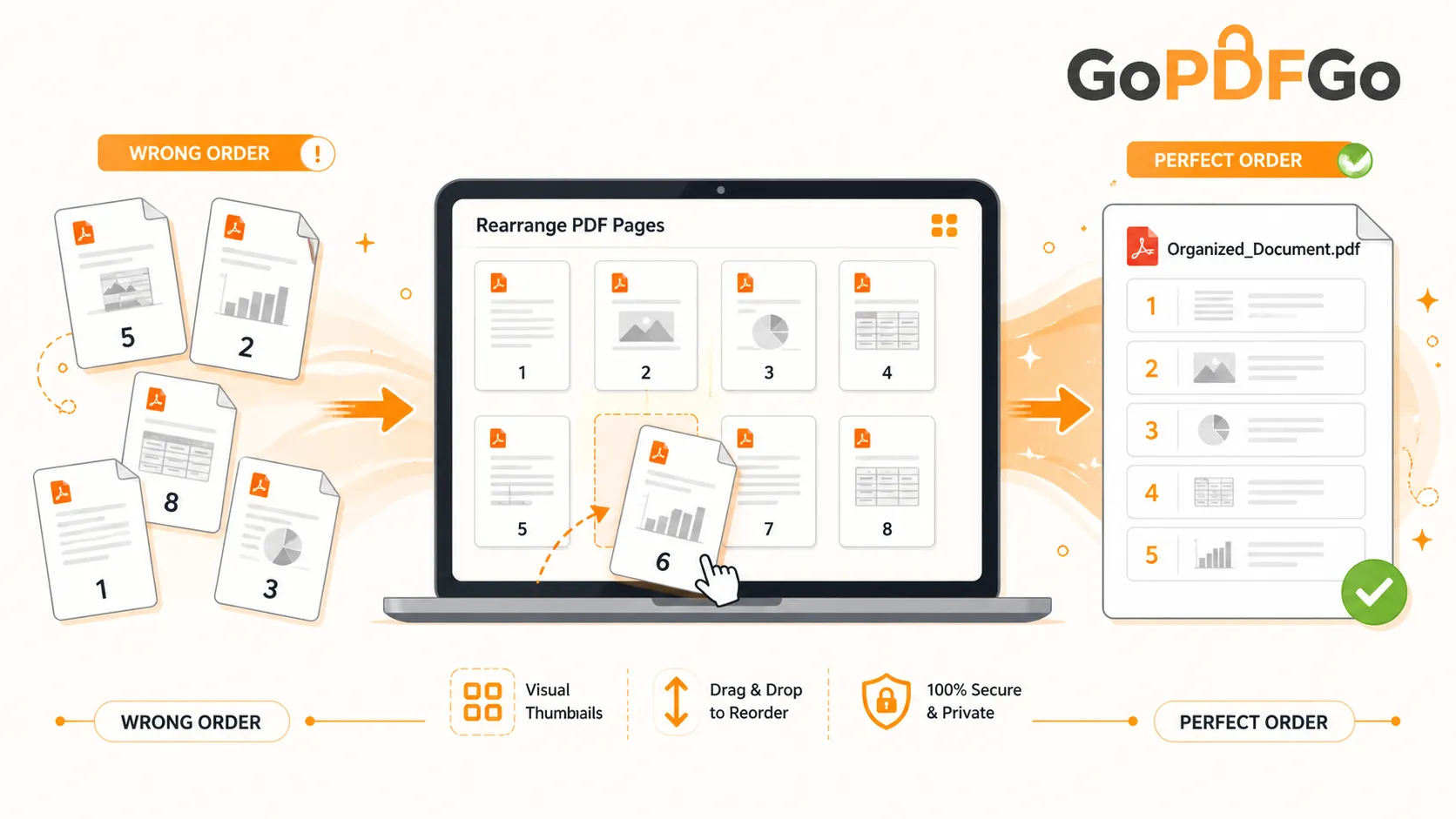
It also means the tool runs entirely on your own device. Every page is drawn into a thumbnail in your browser, you drag those thumbnails, and the new file is written right there. Nothing is uploaded. For a document that shows a landlord's Aadhaar, your salary slips or a client's case history, that is not a bonus feature, it is the reason to use this over a random "free PDF organizer" that quietly sends your file to a server you know nothing about.
How to Fix the Page Order of a Scanned PDF
- Step 1: Open the Rearrange PDF tool in your browser, on a phone or a laptop. The tool takes one PDF at a time.
- Step 2: Drop the messy PDF into the box or tap to choose it. Thumbnails of every page appear one by one. On a long or heavy scan this takes a few seconds per batch of pages, so wait until all of them have loaded before you touch anything.
- Step 3: Press and hold the thumbnail that is in the wrong place and drag it to where it belongs. The position numbers under the thumbnails update as you drop. Do this for every stray page; you can nudge as many as you like in the same session.
- Step 4: Scroll the whole grid once, top to bottom, and read the sequence like you would flip through the paper stack. This is the moment to catch the page you forgot.
- Step 5: Click Rearrange PDF Now. The reordered copy downloads as GoPDFGo_ followed by your original filename. Open it and flip through before you send it anywhere.
The Four Ways Scans Get Scrambled (and How to Unscramble Each)
The double-feed
An ADF scanner grabs two sheets at once, so page 6 goes missing and everything after it shifts. When you notice, you scan page 6 on its own and it lands at the very end. This is the easiest fix: drag that last thumbnail up to the sixth slot, and everything else slides into place automatically.
The front-then-back duplex mess
Scanning a double-sided document on a single-sided scanner usually goes like this: you scan all the fronts, flip the stack, scan all the backs. Depending on how you flipped, the backs come out in reverse. So a 10-page document arrives as 1, 3, 5, 7, 9, 10, 8, 6, 4, 2. You can absolutely fix this by dragging, but do it systematically: pull page 2 up under page 1, then page 4 under page 3, and so on. Watch the position numbers rather than trusting your eye, because two pages of dense Hindi text in a rent agreement look identical as thumbnails.
The phone-camera shuffle
When you photograph pages with a phone, the PDF follows the order the photos were taken, and one retake of a blurry page puts it at the end. Same fix as the double-feed. One tip: if the retake is now at the end, the blurry original is still sitting in the middle. Move the good one into position first, then remove the bad one afterwards with Delete PDF Pages. Doing the deletion first shifts every position number and makes the drag confusing.
The cover page at the back
The stamp paper, the front page of the marksheet, the executive summary of a report, whichever sheet everyone expects first, it somehow ended up last because it was the one you scanned separately. Drag the last thumbnail to position 1 and you are done.
Mistakes People Actually Make
- Dragging before the thumbnails finish loading. On a 60-page scan, some previews are still rendering while the first ones appear. Drop a page into a slot that is still filling and you can end up confused about what went where. Let the grid settle, then start.
- Exporting a split second too early. If you click the button while your last drag has not quite registered, the download reflects the order before that move. Always look at the grid once more, then click. If the downloaded file looks unchanged, that is almost always what happened; go back, confirm the order, export again.
- Trusting the number printed on the paper. The position numbers under the thumbnails are positions in the file, not the page numbers printed on the sheets. A marksheet's "Page 2 of 4" is just ink. What matters is which slot it is sitting in.
- Uploading the wrong file afterwards. The original stays untouched on your device, so you now have two files with nearly the same name. The reordered one starts with GoPDFGo_. Pick that one when the portal asks.
- Trying to fix a sideways page by moving it. Rearranging changes order, not orientation. A page scanned upside down stays upside down wherever you put it. That is a job for Rotate PDF, which fixes the rotation permanently instead of only on screen.
Where This Tool Stops
I would rather you know the edges before you start.
One PDF at a time. If your scan came out as two files, say the first 20 pages from the office scanner and the last 5 photographed at home, you cannot pull pages from the second file into the first here. Join them first with the Merge PDF tool, then reorder the combined file. Merge, by the way, also lets you set the order of whole files, which is often enough if each file is internally correct.
It does not rotate or delete. Reordering is the only thing it does, and it does it cleanly. If your scan needs all three, a page moved, a page turned and a blank back-side removed, the Organize PDF tool does reorder, rotate and delete on one screen. Rearrange PDF is the lighter choice when the order is the only thing wrong.
It refuses password-protected files. A locked PDF cannot be read to draw thumbnails, so the tool stops with a message pointing you to Unlock PDF. This catches people with bank statements and salary slips, which are often locked even when they seem to open normally. More on that in the questions below.
It does not guess the order for you. There is no automatic "sort by the numbers on the page". You are the one who knows that the annexure goes after the signature page. The tool gives you the thumbnails and the drag; the judgement is yours.
Big scans take a moment. Every thumbnail is rendered on your device, so a 150-page image-heavy file on an older phone will be slow to load and slow to scroll. It works, it just is not instant. If half of those pages are junk, remove them first so there is less to draw.
The Rest of the Post-Scan Cleanup
Order is usually the first problem you notice in a scan, not the only one. Once the sequence is right, the same batch of pages often needs a couple more passes, and it is worth doing them in a sensible sequence so you are not redoing work.
- Turn the sideways pages. Run the file through Rotate PDF to fix individual pages by 90, 180 or 270 degrees. It rewrites the page's rotation flag, so the fix sticks on every device, unlike the rotate button in a viewer that only turns the page on your screen.
- Drop the blank back-sides and the blurry retakes. Use Delete PDF Pages to tap the pages you do not want and export the rest untouched.
- Get it under the upload limit. A clean 30-page scan can easily be 15 MB, which no bank portal or Gmail attachment likes. Compress PDF typically brings a scan down 60 to 80 percent, and it never hands you back a file larger than the one you gave it.
- Stamp the numbers last. Once every page is where it belongs, use Add Page Numbers to print 1, 2, 3 or "Page 1 of N" into the footer margin. It works on scanned pages too, drawing the numbers over the image. Do this after reordering and deleting, never before, or the numbers will be wrong the moment you move anything.
Frequently Asked Questions
Q: My bank statement opens fine but the tool says it is password-protected. Why?
A: Many bank and payroll PDFs are "owner-locked": they open without asking anything but carry restrictions inside, and the tool cannot read them for reordering. Run the file through Unlock PDF using the password you already know (for statements, often your PAN plus date of birth), then bring the unlocked copy here. Note that the unlocked output is an image-based PDF; that is fine for reordering, which treats every page as an image anyway.
Q: Does reordering change the file size?
A: Only by a few kilobytes, because the page contents are copied over as they are and only the page list is rewritten. If the result is much smaller or much larger than the original, something else happened; a scan that lost a lot of weight was probably compressed elsewhere, not here.
Q: I dragged a page to the wrong slot. How do I undo it?
A: Drag it again to where it should be; nothing is final until you export. And because the original file on your device is never modified, the worst case is simply reopening it and starting the sequence fresh.
Q: Does it work on a phone?
A: Yes. Press and hold a thumbnail, then drag with your finger. On a small screen the grid shows fewer thumbnails per row, so for a 50-page file it is worth zooming your browser out a little to see more of the sequence at once before you export.
Q: Will the reordered file carry a watermark or any GoPDFGo branding?
A: No. The only change is the filename prefix, and you can rename the file to anything you like before submitting it to a portal.
Q: Can I reorder the same file twice?
A: Yes, as many times as you need. Because nothing is re-compressed, running a PDF through the tool three times leaves the page images exactly as they were the first time. Just remember each export gains another GoPDFGo_ prefix, so tidy the filename at the end.
The Short Version
A scrambled scan is a list-order problem, not a scanning problem. The pages are fine; only the sequence is wrong, and that sequence can be rewritten in a minute without touching the images, without re-scanning, and without sending a rent agreement or a loan file anywhere. Wait for the thumbnails, drag the strays into place, check the grid once, export. Then rotate, delete, compress and number, in that order, if the scan needs it.
Next time the stamp paper turns up on the last page, open Rearrange PDF and drag it to the front.