How to Split a Large PDF to Bypass the 25MB Email Attachment Limit
It is almost the end of the day and you finally have the monthly report ready to send. You open Gmail, write a quick note to your manager, click the paperclip to attach the PDF, and hit send.
Instead of a satisfying "Message Sent" notification, you immediately hit a brick wall. A bold, frustrating red message appears on your screen: "The file you are trying to send exceeds the 25MB attachment limit."
Almost all major email providers enforce attachment limits. Gmail and Yahoo cap attachments at around 25MB, and several other providers sit lower, often near 20MB, though the exact ceiling varies and changes over time. These limits keep mail servers from choking on huge files. But when you are on a strict deadline, this technical limitation can be incredibly stressful.
Why is Your PDF File So Huge?
Before fixing the problem, it helps to understand why your document became so heavy in the first place. PDFs usually bloat in size due to three main reasons:
- High-Resolution Scans: If you digitized physical papers using an office scanner set to 600 DPI (Dots Per Inch), every single page becomes a heavy, high-definition image.
- Unoptimized Design Assets: Documents exported directly from design software like Canva, Adobe Illustrator, or Photoshop often contain unflattened layers, invisible metadata, and embedded custom fonts that drastically increase the file size.
- Massive Page Counts: Sometimes, the file is simply too long. A 200-page corporate audit or thesis paper will naturally cross the 25MB threshold, regardless of how well it is optimized.
The Problem with Common Workarounds
When faced with this 25MB roadblock, most professionals immediately try one of two common workarounds. Unfortunately, both have significant professional flaws:
1. Aggressive Compression: You might try to run the 40MB file through a basic compressor. A basic, aggressive compressor will shrink the file but often ruins its visual integrity — high-resolution charts get pixelated, vector graphs blur, and small footnote text becomes unreadable. (A smarter, lossless-first compressor like ours avoids most of this, but for a genuinely huge file, splitting is still the cleaner fix.) For high-stakes client presentations, blindly crushing the file is a terrible idea.
2. Cloud Drive Links: You upload the heavy file to Google Drive, Dropbox, or WeTransfer, and send the recipient a link. While this works technically, it creates friction. Corporate firewalls often block third-party download sites like WeTransfer. Worse, if you forget to set the correct Google Drive permissions, your client clicks the link only to hit a "Request Access" wall, interrupting the flow of professional communication.
The Clean Solution: Splitting the PDF into Chunks
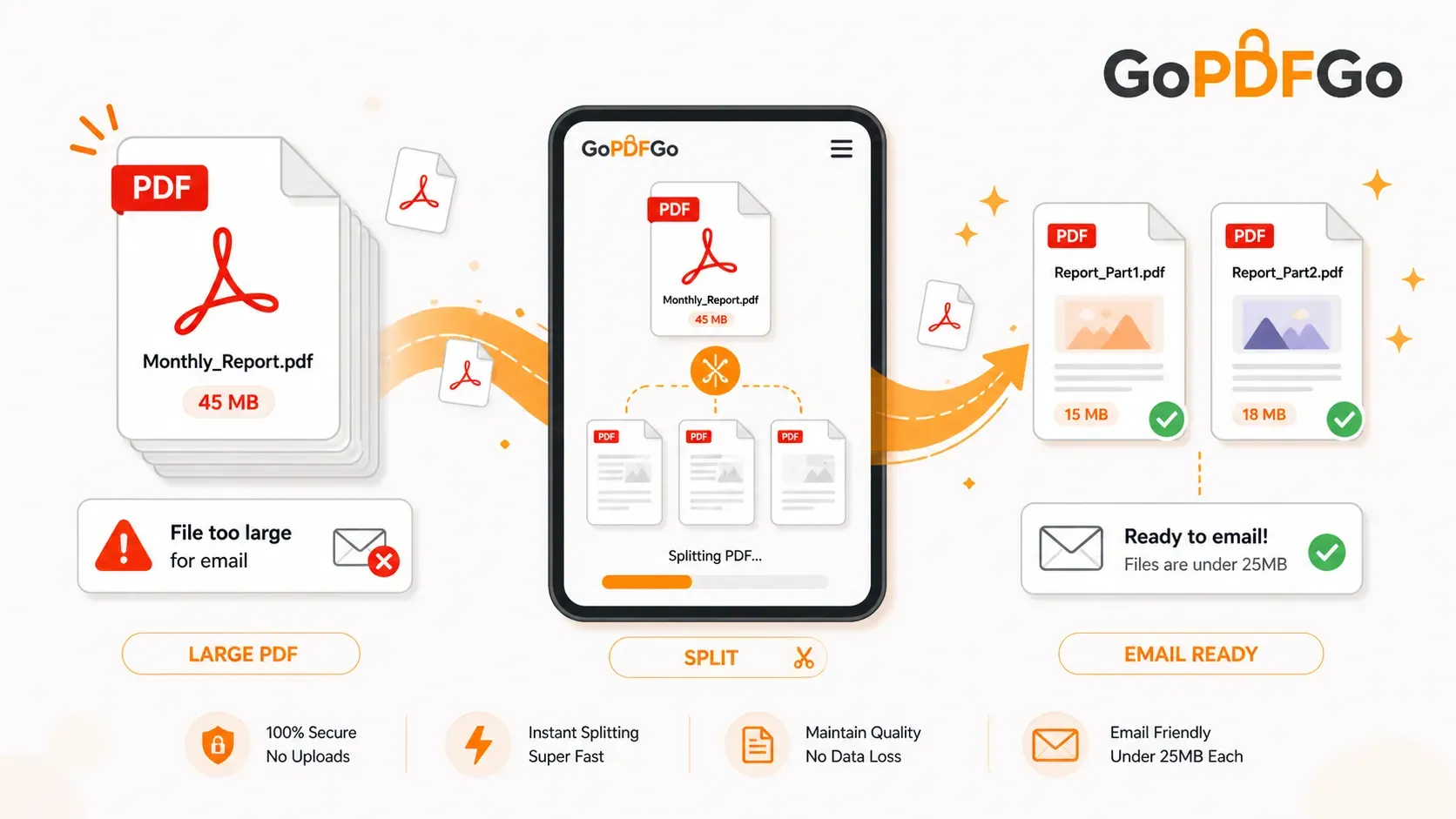
If you cannot compress the file without ruining its quality, and you want to avoid annoying cloud link permissions, the most professional solution is to digitally "chunk" the document. By dividing your massive file into two or three smaller, high-quality files (e.g., "Monthly_Report_Part1.pdf" and "Monthly_Report_Part2.pdf"), you can easily attach them to the exact same email.
How to Split Your PDF Securely in Seconds:
Because your business reports likely contain confidential financial data or proprietary strategies, you should never use cloud-based splitters that upload your company files to unknown servers. Instead, use a local, browser-based tool.
- Step 1: Open the Utility. Navigate directly to the Split PDF tool on the GoPDFGo platform.
- Step 2: Upload Locally. Drag and drop your heavy 40MB or 50MB file into the interface. Because the processing happens entirely within your browser's local memory, the upload is completely instantaneous.
- Step 3: Define Your First Range. Look at the total page count. If it is a 100-page document, you can extract the first half. Simply type "1-50" in the range box and download. (Tip: you can also enter several ranges at once, like 1-50, 51-100, and get each as its own PDF in a single download.)
- Step 4: Extract the Remaining Pages. Without needing to re-upload the heavy master file, simply change the extraction range to "51-100" and click download one more time.
- Step 5: Verify and Send. Check the file sizes of your two new PDFs on your computer. They should now comfortably sit around 15MB to 20MB each. You can now attach both files directly to your email and hit send without triggering any server alerts.
Targeted Splitting for Specific Recipients
Splitting isn't just a technical workaround for bypassing email limits; it is also a powerful exercise in relevance. If you have a 200-page corporate audit, the marketing team probably doesn't need to read the 50 pages of backend financial appendices.
Instead of sending the massive, overwhelming file to everyone on the team, use the splitting tool to extract only the 10 pages relevant to the marketing department. Send them a highly targeted, lightweight file. They will appreciate you saving their time and their inbox storage space.
Frequently Asked Questions (FAQ)
Q: Will splitting my PDF lower its resolution?
A: No. Splitting a document simply divides the existing pages into separate file containers. The original quality, text sharpness, and image resolution remain 100% untouched and lossless.
Q: What if I only want to send one specific page instead of a chunk?
A: The exact same tool allows you to pull out a single page. If you only need to send page 14 of a massive contract, simply enter "14" into the range box, and it will generate a lightweight, one-page document.
Q: Is there any way to actually shrink the 40MB file without splitting it?
A: If you absolutely must send it as a single document, your only option is compression. You can try a smart PDF compressor that optimizes invisible background data first, before it starts reducing image quality.
Splitting a PDF locally keeps every page at full quality, keeps the file on your own machine, and gets you past the attachment ceiling without a download link. And if the recipient sends the parts back and you need the whole thing in one piece again, our Merge PDF tool stitches them back together the same way, right in your browser.