The Best Way to Share Large PDF Files on WhatsApp Successfully
You finish a 60-page project report, attach it in a WhatsApp chat to your client, and WhatsApp throws back a red line: "The media file you have selected is larger than the maximum limit." For a lot of us, WhatsApp is now where work documents actually get sent, so hitting that wall on a deadline is its own special kind of annoying.
Below is how WhatsApp actually handles document sizes, why the usual workarounds let you down, and two reliable ways to get a heavy PDF into the chat using tools that process the file on your own device.
Understanding WhatsApp’s Hidden Document Limits
To solve the problem, you first need to understand the rules of the platform. Over the years, WhatsApp has increased its file-sharing limits, but there are still hard caps and practical limitations you must be aware of:
- The Official Limit: WhatsApp officially supports documents up to 2GB these days, but a huge file is still miserable to download on the other side. This cap applies to the "Document" sharing option, not the "Gallery/Media" option.
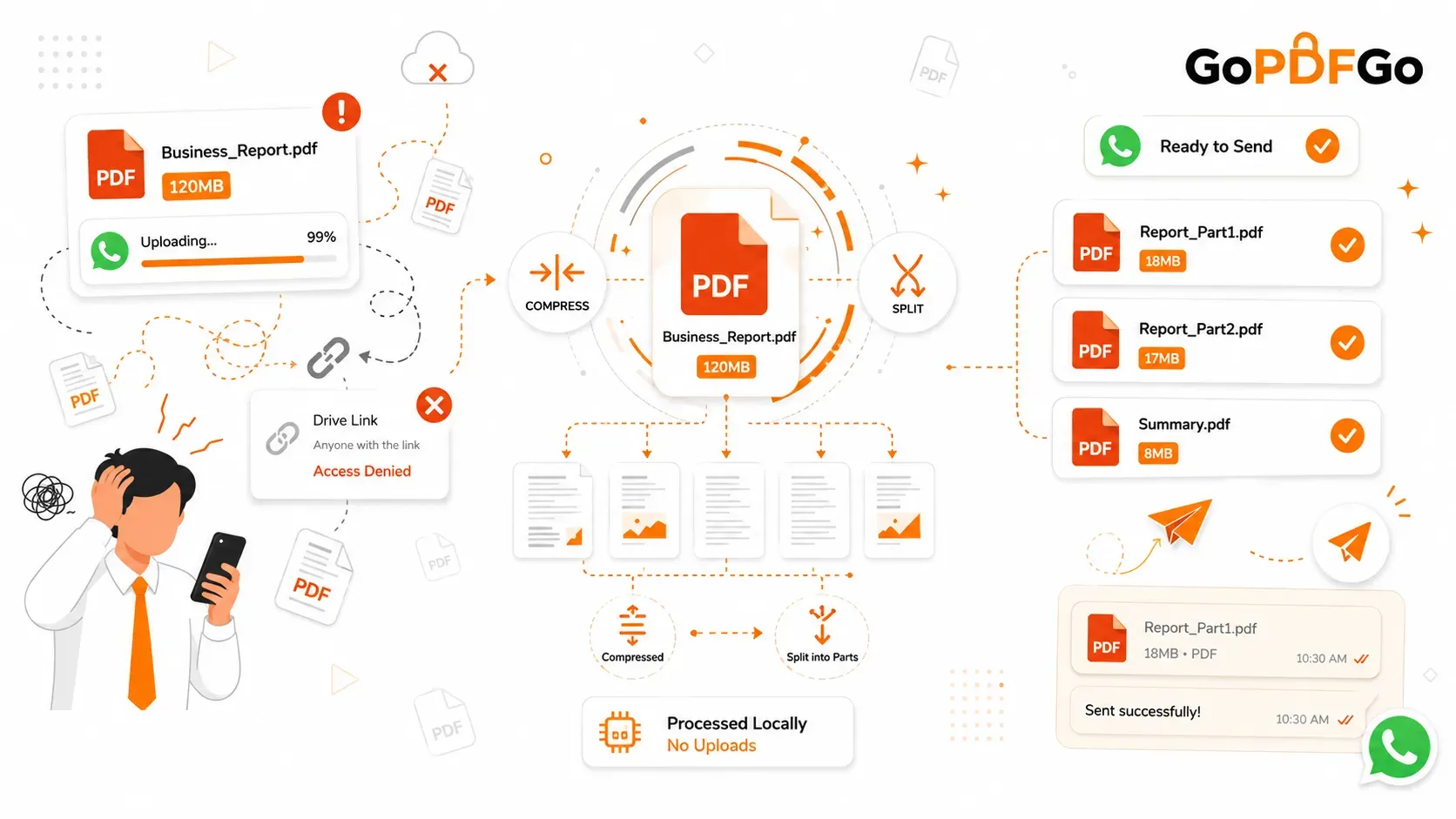
- The Practical Limit (Network Drops): Even if WhatsApp allows a 90MB PDF, attempting to send it over a standard 4G or unstable Wi-Fi network is a nightmare. Large files frequently fail to upload, get stuck at 99%, or take several minutes to download on the receiver's end, leading to a terrible user experience.
- The Storage Issue: Sending a 50MB PDF to a WhatsApp Group with 200 members means you are forcing 200 people to sacrifice 50MB of their phone's internal storage. This is highly inconsiderate and often leads to people deleting your file without reading it.
The Danger of the "Google Drive Link" Trap
When faced with a heavy PDF, the most common reflex is to upload the file to Google Drive, Dropbox, or OneDrive, and paste the link into the WhatsApp chat. While this technically works, it creates a massive amount of professional friction:
Firstly, it looks lazy and unprofessional. Secondly, human error is rampant with cloud links. If you forget to change the sharing permissions from "Restricted" to "Anyone with the link," the receiver will click the link, hit an "Access Denied" wall, and have to request permission. This delays communication and frustrates clients. Finally, uploading highly confidential corporate data to public cloud drives can violate strict corporate Non-Disclosure Agreements (NDAs).
Method 1: The Professional Solution (Smart Compression)
The simplest fix is usually to shrink the file without wrecking how it looks, so you can send the actual PDF straight into the chat and the other person can tap it open right there.
How to Compress PDFs for WhatsApp Securely:
Because your business reports likely contain confidential data, you should never use cloud-based compressors that upload your files to external servers. Use our secure, serverless utility instead.
- Step 1: Open the Compressor. Navigate directly to the Compress PDF tool on the GoPDFGo platform using your mobile phone or desktop browser.
- Step 2: Upload Locally. Select your heavy PDF. Because the tool runs in your browser, it loads the file directly into your device's local memory instantly, completely bypassing the internet.
- Step 3: Optimize. Click the compress button. Our compressor tries a lossless re-save first to shrink the file while keeping text sharp and selectable, and only rasterizes pages when that makes it even smaller — and it never returns a file bigger than the one you started with.
- Step 4: Download and Share. Save the lightweight file to your device. You can now attach it directly in WhatsApp, and it will upload in a fraction of a second.
Method 2: The Strategic "Chunking" Method (Splitting)
Sometimes, compression isn't enough. If you have a 500-page scanned textbook or a massive legal discovery file that is naturally 150MB, compressing it might still leave you with a 40MB file. Furthermore, the person receiving the file probably doesn't need to read all 500 pages right now.
The smartest workaround here is to digitally "chunk" the document. By splitting the massive file into smaller, highly relevant sections, you bypass the size limits and provide a much better reading experience.
How to Split Massive PDFs for WhatsApp:
- Step 1: Load the File. Go to the Split PDF tool on GoPDFGo.
- Step 2: Define Target Ranges. Instead of sending the whole 500-page book, extract only "Chapter 1" (e.g., Pages 1-45). Type this range into the input box.
- Step 3: Extract Instantly. Click to split. The tool will instantly generate a new, lightweight PDF containing only those 45 pages.
- Step 4: Send Contextually. Send "Part 1" on WhatsApp today. When the client or student finishes reading it, you can extract and send "Part 2" tomorrow. This keeps file sizes tiny and prevents information overload.
Bonus Formatting Tips for WhatsApp Sharing
To ensure your document is received perfectly, always follow these final polish steps before hitting send:
- Rename the File: WhatsApp displays the file name prominently in the chat bubble. Sending "Document_final_v3_edit.pdf" looks messy. Rename it to something authoritative like "Q3_Financial_Report_2026.pdf".
- Check Orientation: Mobile users hate having to turn their phones sideways to read a vertical document. If you scanned the file, ensure all pages are upright. Use a Rotate PDF tool to fix sideways pages permanently before sharing.
- Add Page Numbers: If you are discussing the document in a WhatsApp voice note or group call, you need reference points. Use an Add Page Numbers tool so you can quickly tell the group, "Look at the chart on page 14."
Compress when the file just needs to be lighter, split when the reader only needs part of it, and rename it to something readable before you hit send. Do those three things on your own device and the PDF lands in the chat without the size error, without a broken Drive link, and without forcing 200 group members to burn storage on a file they may never open.
Frequently Asked Questions (FAQ)
Q: Does WhatsApp compress my PDF when I send it?
A: No. WhatsApp compresses photos and videos you send through the gallery, but documents sent via the "Document" option go through untouched. The PDF the other person downloads is byte-for-byte the one you attached, which is exactly why a heavy file stays heavy on their phone too.
Q: Why does my file get stuck at 99% and never finish?
A: That last 1% is usually the upload finalising on WhatsApp's servers, and a weak 4G signal or unstable Wi-Fi is what stalls it. A 40MB file on a patchy connection can sit there for minutes or fail outright. Compressing the PDF first or splitting it into smaller parts makes this far less likely.
Q: What is the real size limit for a PDF on WhatsApp?
A: The official cap is now 2GB per document. But the practical limit is much lower, because a large file is painful to upload, slow to download, and eats the recipient's storage. Aim to keep important documents under 10MB if you want them actually opened.
Q: Is sending a Google Drive link better than attaching the file?
A: Only when the file is genuinely too big to send directly. Links break when the sharing permission is left on "Restricted," and confidential work files on a public drive can run into company NDA rules. For most documents, compressing and sending the file itself is cleaner.