How to Combine 20+ Assignment Photos into One PDF on Mobile
In the modern era of digital classrooms, distance learning (like IGNOU or regular university portals), and online submissions, students frequently face a very tedious task: submitting long handwritten assignments digitally. You spend hours writing 15 or 20 pages of a project, and then you take photos of each page with your smartphone. Now, you have a phone gallery full of 20 separate, out-of-order images.
If you attempt to attach 20 different .JPG files to an email or upload them directly to a university portal (like Canvas, Google Classroom, or Blackboard), your professor is going to have a nightmare trying to grade them. The images might download out of order, fail to load due to slow internet, or simply look completely unprofessional. The universally accepted academic standard is to submit one single, continuous PDF file.
The Challenge of Mobile PDF Creation
Most students try to solve this image-clutter problem by downloading heavy scanner apps from the Google Play Store or Apple App Store. While these apps work, they come with extremely frustrating downsides:
- They demand expensive monthly subscriptions just to remove their ugly, distracting watermarks from the bottom of your assignment.
- They force you to watch aggressive, 30-second video ads before letting you save or export your own file.
- They drain your phone battery and take up unnecessary storage space that you'd rather use for photos and apps.
The Web-Based Solution: No Apps Required
You absolutely do not need to install anything to create a professional, multi-page PDF. You can do it directly from your mobile browser (Safari, Chrome, or Brave) using GoPDFGo. Our platform is fully responsive, optimized for touch devices, and 100% free of annoying watermarks.
How to Convert Your Gallery Photos to PDF:
- Step 1: Prep Your Photos. Take clear photos of your assignment pages in a well-lit area (preferably near a window). Make sure to capture them in chronological order so they are easier to select. Turn on your camera's grid lines to keep the phone parallel to the paper.
- Step 2: Open your mobile browser and navigate to the Image to PDF tool on GoPDFGo.
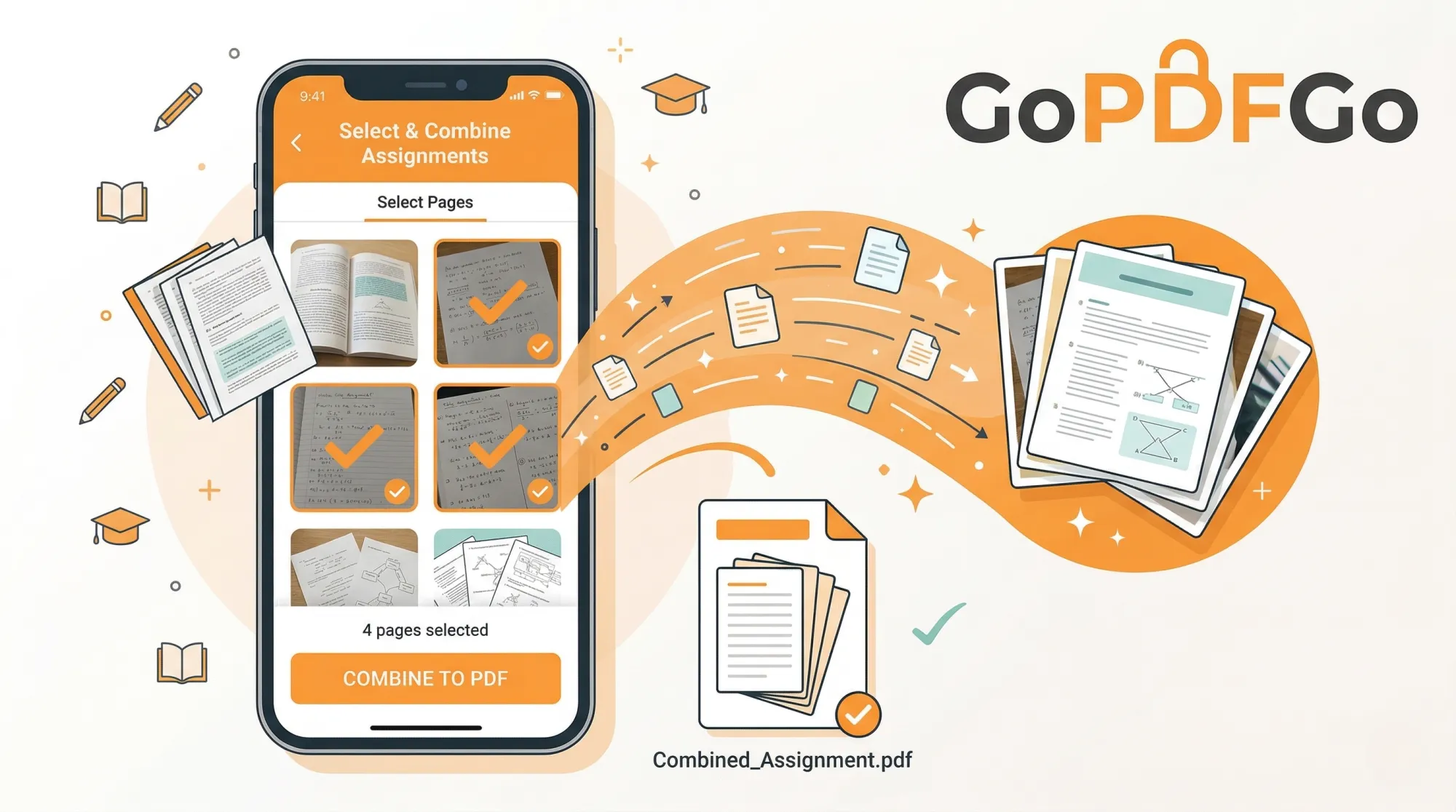
- Step 3: Upload the Images. Tap the upload area. Your phone's native file picker will open. Select all 20 images at once from your gallery.
- Step 4: Reorder if Necessary. If page 5 accidentally uploaded before page 4, don't panic. Simply long-press, drag, and drop the image thumbnails on your screen to reorder them perfectly.
- Step 5: Convert and Save. Tap the convert button. In seconds, your images will be stitched together into one lightweight, professional PDF document, ready to be emailed or uploaded to your student portal.
Pro Tip: Keep the Final File Size in Check
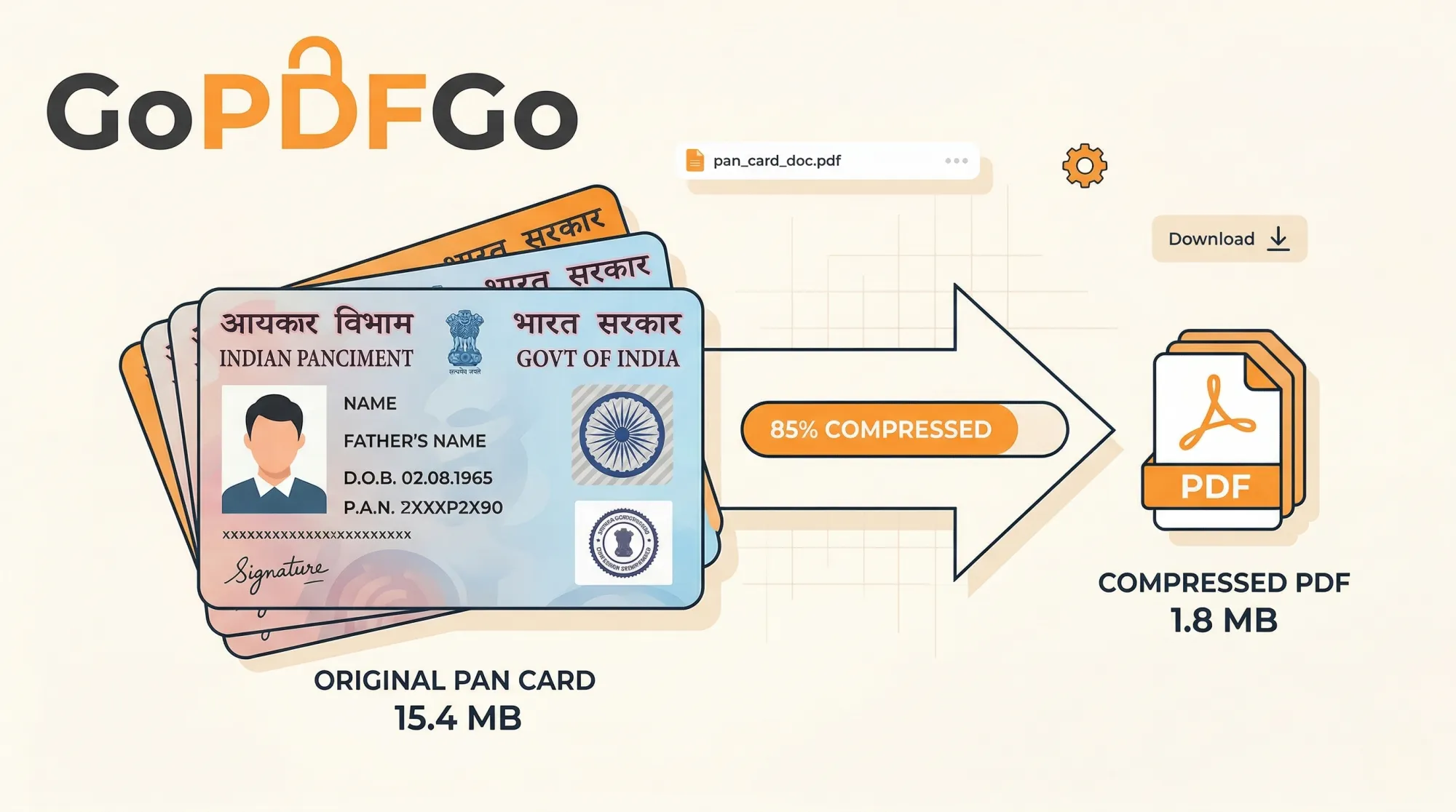
Modern smartphone cameras take extremely high-resolution photos (often 3MB to 5MB per picture). If you combine 20 photos into a single document, your final PDF could be a massive 80MB file! This will definitely bounce back from your professor's email inbox and will fail to upload on most university portals that have a 10MB limit.
To easily fix this, once you have created your single PDF, immediately run that file through our Compress PDF tool. This will reduce the file size dramatically (making it fast to upload and email-friendly) while ensuring your handwriting and diagrams remain perfectly sharp and legible for grading.
Get the Page Order Right Before You Hit Convert
Reordering after upload is easy, but the smarter move is to never get the order wrong in the first place. Phone galleries don't always sort by the time you took the photo. Sometimes they sort by file name, and if you re-shot page 7 twice, the retake jumps to the bottom. So before you select anything, open your gallery and actually scroll through the 20 shots in sequence. Delete the blurry duplicates right there. Half the reordering headaches come from having three versions of the same page and not knowing which one you picked.
Once the images are in, do one slow scroll through the thumbnails and read the first line of each page. Don't just trust that the count looks right. A 20-page assignment that submits with page 12 and 13 swapped reads fine to you because you wrote it, but the examiner hits a broken sentence and assumes you didn't bother checking. If two pages refuse to behave, long-press and drag them into place. And if you only realise the mistake after the PDF is made, you can still fix it without redoing everything by running the file through Rearrange PDF.
Lighting and Glare: Keep the Handwriting Actually Readable
This is where most assignment scans fall apart. You write neatly, but the photo turns half the page into a grey smudge. The usual culprits are a tubelight directly overhead throwing a hard shadow of your own hand, or a glossy gel-pen line catching the flash and disappearing into a white streak. Shoot near a window in daylight instead, with the light coming from the side, not from behind you. Daylight is softer and your handwriting keeps its contrast.
A few things that genuinely help:
- Flatten the page. Press it down on a hard table or slide it under a clear file folder so the paper isn't curling at the edges and going out of focus.
- Turn the flash off. On-camera flash is the number one reason pen ink vanishes into glare. Move to better light instead.
- Shoot straight down, not at an angle, so the page is a clean rectangle and the lines don't tilt.
- Fill the frame with the paper. Crop out the table and your thumb later if needed using the Crop tool, which has aspect-ratio presets so every page comes out the same shape.
A scan that's a little dark beats one washed out by flash every time. The examiner has to read your answer, not squint at it.
Beat the Portal Size Limit and Name the File Properly
Plenty of university portals reject anything over 2MB, and some IGNOU and AKTU upload boxes are even stingier. If your compressed PDF still won't go through, you usually don't need to touch the PDF again. Shrink the photos first with Compress JPG, which has a target-size mode where you tell it the size you want per image, then convert the smaller images into your PDF. Twenty leaner photos make a leaner document, and the handwriting survives because you're cutting file weight, not resolution you actually need.
And please, rename the file before you upload. A submission called IMG_20260420_193344.pdf or scan(3).pdf tells the professor nothing and is a pain to locate in a folder of 80 students. Use something your evaluator can read at a glance, like RollNo_Subject_AssignmentName.pdf. Most portals show the file name in the gradebook, so a clean name genuinely counts toward looking like you have your act together.
Doing the Whole Thing on a Phone in the Hostel
No laptop, deadline at midnight, patchy hostel Wi-Fi? This is exactly the situation the browser tool is built for. The conversion runs on your phone itself, so once the page has loaded you can finish even if the Wi-Fi drops to one bar. You're not waiting on a 60MB upload to some server before anything happens. Pick the photos, reorder, convert, done, all on the device in your hand.
One practical tip for hostel life: keep a separate gallery album for each subject so the right 20 photos are sitting together instead of scattered between mess selfies and meme screenshots. When the deadline hits at 11:50pm, you want to tap one album and select all, not hunt page by page. Get the PDF made, give it a sensible name, drop it on the portal, and go back to your chai with five minutes to spare.
Make a great impression on your professors. Submit clean, organized, and properly formatted digital assignments every single time.
Frequently Asked Questions
Q: How do I combine assignment photos into one PDF on my phone?
A: Open the Image to PDF tool in your mobile browser, add all the page photos, and download a single PDF — no app to install.
Q: How do I fix the page order?
A: After adding the photos, drag each one into the correct sequence before you convert. The order you see is the order in the PDF.
Q: Some pages came out sideways. How do I fix that?
A: Convert first, then use the Rotate PDF tool to permanently turn any sideways pages upright.
Q: The finished PDF is too big to submit. What should I do?
A: Shrink it with the Compress PDF tool using Target Size (KB) mode to meet your portal’s limit.