5 Fatal PDF Mistakes Ruining Your Online Job Applications
The modern job market is hyper-competitive. When a premium corporate role, a lucrative freelance gig, or a high-paying software engineering position opens up, HR departments and recruiters are instantly flooded with thousands of applications. A recruiter often spends just a few seconds on a first pass through an application before deciding whether to set it aside for a closer look or move on to the next one.
With so little time to make an impression, your skills and experience are only half the battle; the presentation of your documents is the other half. If your application materials are disorganized, heavy, or improperly formatted, you create "friction" for the recruiter. And in recruitment, friction equals instant rejection. Here are the 5 fatal PDF mistakes candidates make, and exactly how to fix them using free, secure, local browser tools.
Mistake 1: The "Fragmented File" Nightmare (Not Merging)
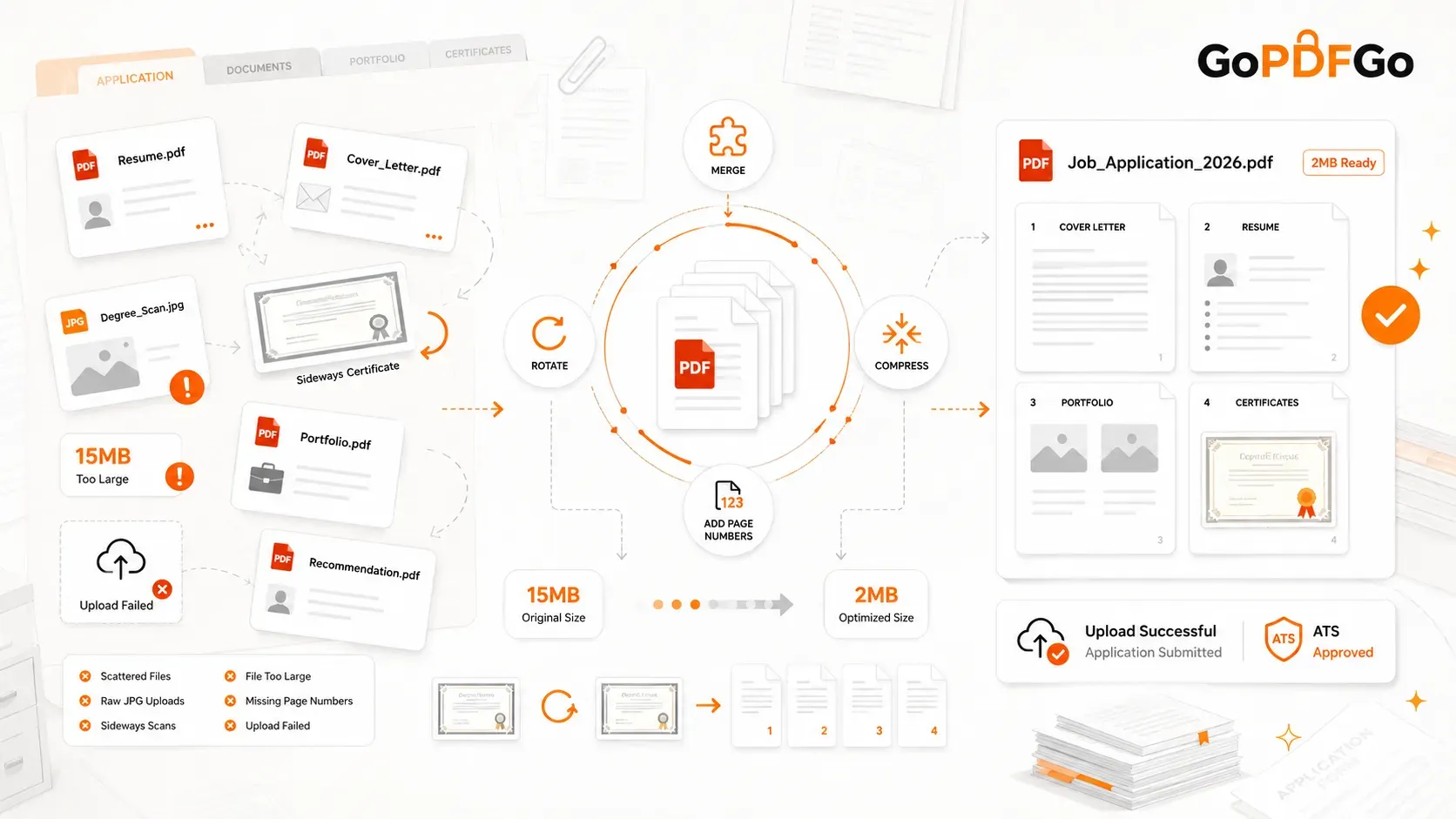
The most common and frustrating mistake candidates make is treating the recruiter’s email inbox like a personal dump drive. They attach five separate files: Resume.pdf, Cover_Letter.pdf, Degree_Scan.jpg, Recommendation.pdf, and Portfolio.pdf.
Recruiters absolutely hate this. They have to download each file individually, open multiple tabs, and try to piece your professional story together. Even worse, if you upload fragmented files to an ATS (Applicant Tracking System) portal, the system might only parse the first file and ignore your certifications entirely.
The Fix: You must create a "Master Application File." Always submit a single, continuous document. Use a highly secure, local Merge PDF tool to combine your documents in a logical, chronological order. The golden sequence is: Cover Letter -> Resume -> Portfolio/Projects -> Certifications/Degrees.
Mistake 2: Ignoring Strict File Size Limits
Corporate job portals like Workday, Lever, and Taleo have extremely strict file size limitations—often capping uploads at 2MB or 5MB to save server space. If your beautifully designed, 10-page graphic design portfolio is 15MB, the portal will reject it with an "Upload Failed" error at the very last step of the application.
Desperate candidates often try to bypass this by taking blurry screenshots of their resume, destroying the resolution. If the recruiter zooms in and the text is pixelated, they will move on to the next candidate.
The Fix: Never compromise your visual quality. Once your master file is compiled, run it directly through a Compress PDF utility. A smart compression engine will optimize invisible background metadata and scale the DPI perfectly for screens, turning a heavy 15MB file into a crisp, web-friendly 2MB file instantly.
Mistake 3: Sideways Scans and Upside-Down Certificates
We have all been there: you scan your graduation degree or a letter of recommendation using a mobile scanner app, and the resulting page is saved sideways (in landscape mode). You don't bother fixing it, assuming the recruiter will just tilt their head or rotate their screen.
They won't. If an HR manager opens your merged application file and page 3 is upside down, it screams "lack of attention to detail." If you cannot format a basic document correctly, why would they trust you with complex corporate workflows?
The Fix: Before finalizing your application packet, open your documents and review every page. If you spot a sideways scan, do not use the temporary "Rotate View" button in your PDF reader. Instead, use a permanent Rotate PDF tool to write the correct orientation into the page itself (its rotation flag) so it opens perfectly upright on any device.
Mistake 4: Missing Page Numbers in Long Portfolios
If you are applying for a role in architecture, graphic design, content writing, or software development, your application will likely include a long portfolio of your past projects. If a hiring manager is conducting a panel interview and says, "Let's discuss the case study in the middle of your portfolio," chaos ensues if there are no page numbers to reference.
The Fix: Navigation is a key element of professional documentation. Once your master PDF is fully merged and compressed, make it look hyper-professional by using an Add Page Numbers tool. Stamping sequential numbers at the bottom of the pages shows meticulous organization and makes panel interviews much smoother.
Mistake 5: Uploading Raw Photographs (JPGs) Instead of PDFs
Sometimes a portal asks for a scan of your ID proof (like a PAN card or Driver's License) for background verification. Candidates frequently upload raw .JPG photos taken directly from their camera roll. Raw images lack standard margins, often open at massive sizes zooming into a single pixel, and look highly unprofessional.
The Fix: Every document you submit to an employer should be a standardized PDF. If you have photos of your ID or physical certificates, use an Image to PDF converter to wrap those photos into a clean, A4-sized digital document before merging them with your resume.
The Ultimate Privacy Warning for Job Seekers
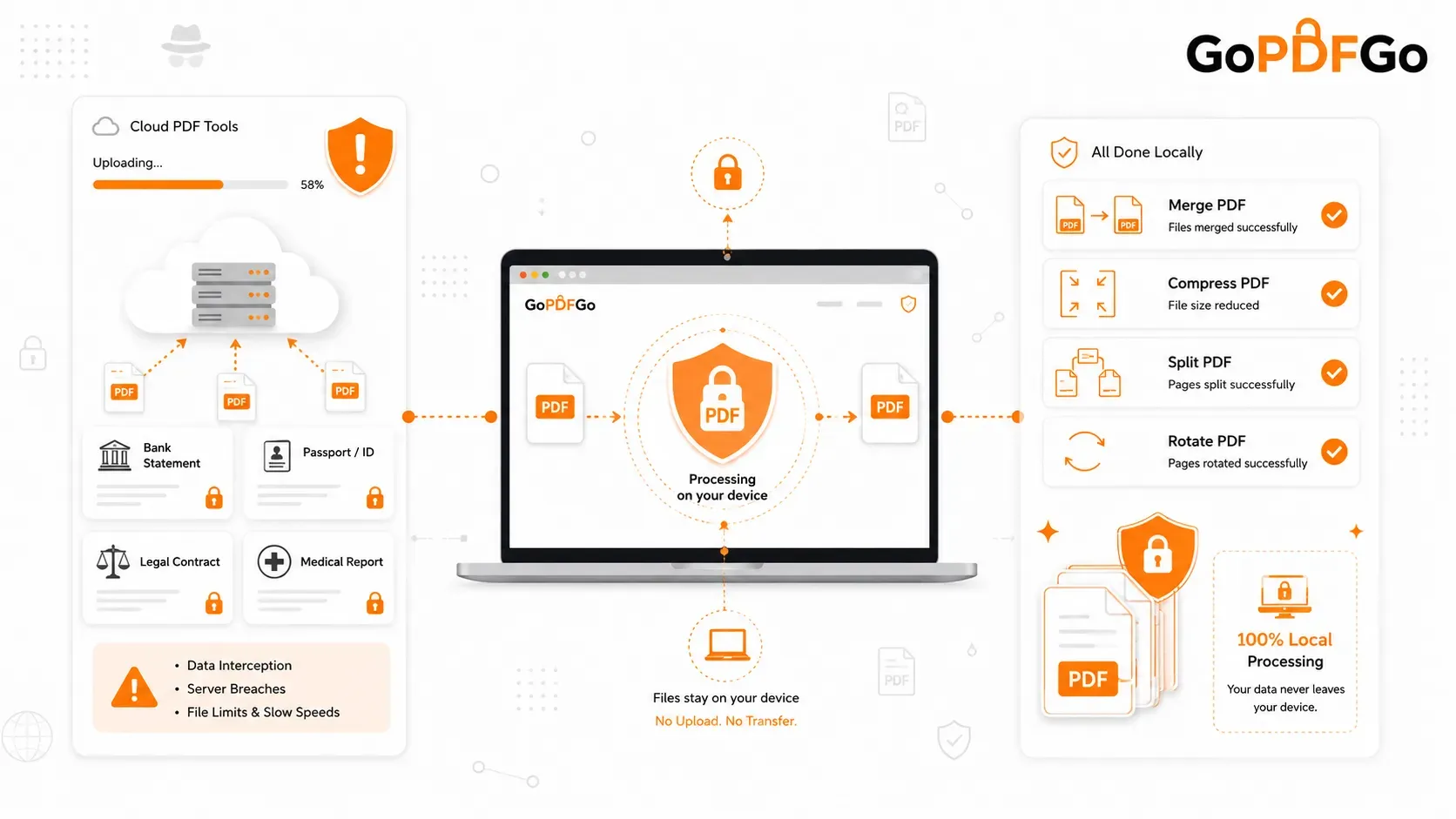
Your resume contains your entire life's data: your personal phone number, home address, educational history, and entire employment timeline. Never upload your resume to random, cloud-based free PDF websites. You are risking severe identity theft.
Always build, merge, and compress your master application file using platforms like GoPDFGo that utilize client-side, in-browser technology. This guarantees your sensitive professional data is processed locally on your own computer and never transmitted across the internet. Protect your privacy while you hunt for your dream job!
Frequently Asked Questions
Q: Why do job portals keep rejecting my PDF?
A: Usually it is the file size, the wrong format (PDF vs JPG), or wrong pixel dimensions for the photo and signature. Read the portal’s notification for the exact rules.
Q: How do I get my document under the portal’s size limit?
A: Use the Compress PDF tool with Target Size (KB) mode and set the exact cap the portal asks for.
Q: The portal wants a JPG photo, not a PDF. What do I do?
A: Resize the photo to the required pixels with Resize Image, then compress it under the KB limit with Compress JPG.
Q: Is it safe to prepare my application documents online?
A: On GoPDFGo, yes — every tool runs inside your browser, so your certificates and ID proofs are never uploaded to a server.