How to Find the Exact Color Code (Hex/RGB) from a Logo or Photo
A client sends you their logo and says "just match the blue for the buttons" with no brand guide attached, no hex code, nothing. You're left staring at a JPG, trying to reproduce one specific shade. Pick something that's only "close enough" and the mismatch is obvious the moment your button sits next to their logo on the same page.
The same problem shows up when you spot a colour you like somewhere else, say a sunset photo on Pinterest, and want that exact orange for a headline in a React project. Your eye can't read a hex code off a screen, and guessing on a colour wheel rarely lands. What you actually need is to point at the pixel and have it tell you the number.
Understanding Digital Color: HEX and RGB Codes Explained
Computer monitors, smartphone screens, and digital displays do not natively understand human language concepts like "light sky blue" or "dark cherry red." Instead, they rely on specific, mathematically precise alphanumeric codes that dictate exactly how much Red, Green, and Blue light the screen's pixels need to emit. To replicate a specific color perfectly across different platforms, you need to extract its exact code:
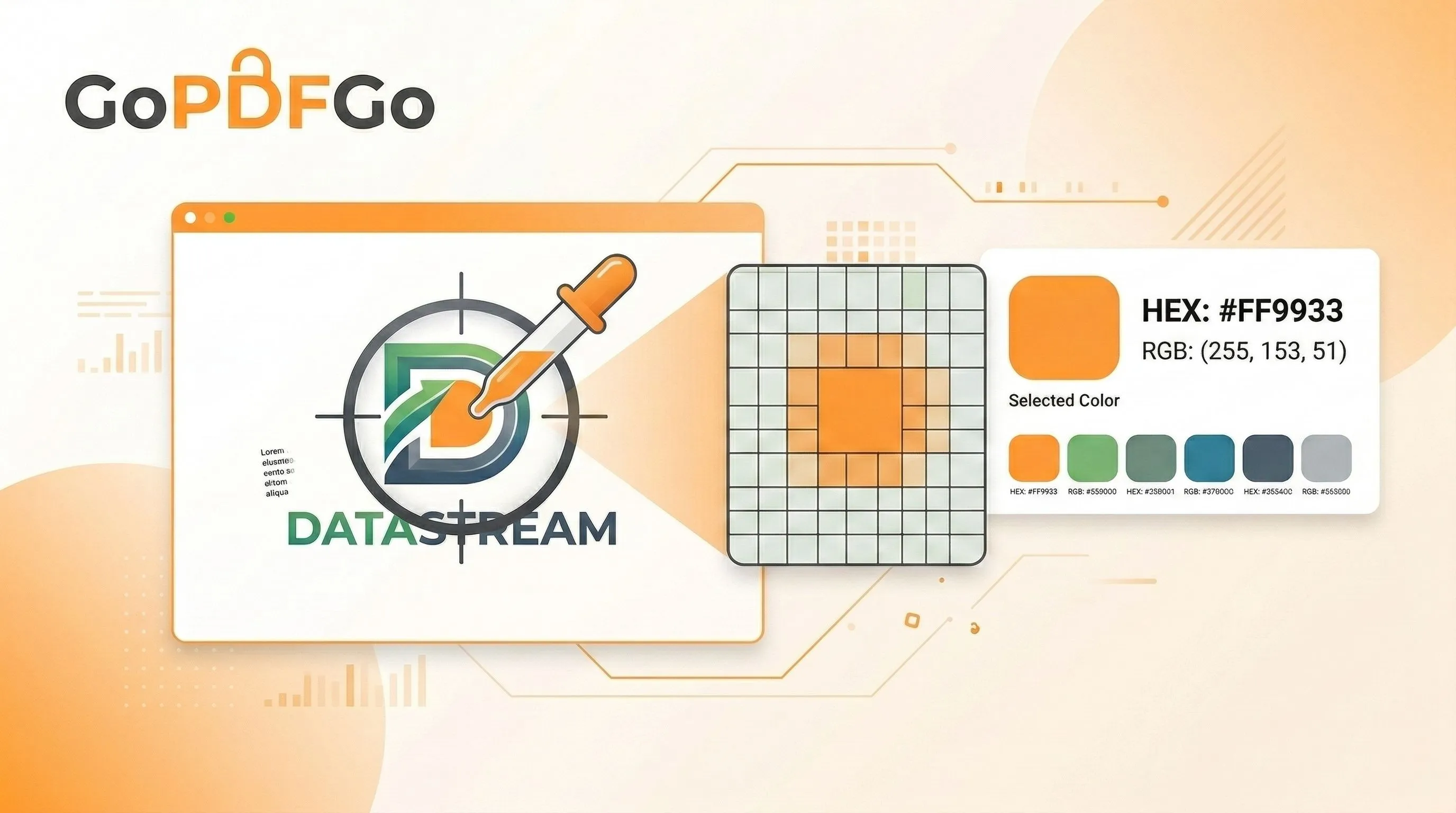
- HEX Code (Hexadecimal): A 6-character alphanumeric code preceded by a hashtag (for example,
#FF9933for GoPDFGo's vibrant orange). HEX codes are the absolute industry standard in web development, CSS styling, HTML, and graphic design software like Adobe Illustrator and Figma. - RGB Code: A format consisting of three specific numbers, each ranging from 0 to 255, representing Red, Green, and Blue values (for example,
rgb(255, 153, 51)). This format is heavily used in digital display configurations, game development, and basic photo editing software.
How to Extract the Exact Color Code from Any Image
Historically, to get an exact color code, you had to purchase and open heavy, expensive desktop software like Adobe Photoshop just to use their internal eyedropper tool. Today, you don't need to waste time or money. You can effortlessly extract the exact mathematical color profile from any image directly in your web browser.
Step-by-Step Color Extraction Guide:
- Step 1: Get Your Source Image. Take a clean screenshot or download the specific logo, UI mockup, or photograph that contains your target color. (Note: If the image downloaded as a Next-Gen WebP file that your operating system won't preview easily, quickly use our Convert WebP tool to shift it to a standard JPG first).
- Step 2: Access the Utility. Open the completely free Color Picker tool located in the GoPDFGo utilities section.
- Step 3: Upload the Target Image. Load your source picture into the tool's interface.
- Step 4: Utilize the Eyedropper. Hover your mouse cursor (or carefully drag your finger if you are on a mobile touch screen) over the image. Pinpoint the exact pixel containing the specific shade you want to capture.
- Step 5: Copy and Paste. The tool will instantly calculate and display the exact HEX and RGB values for that specific pixel cluster. Simply click the provided code to copy it to your clipboard, and paste it directly into your CSS file or design software.
Why Local Processing Matters
If you're picking colours off a client's unreleased logo or a pre-launch mockup, you'd rather that image didn't get uploaded to some random site you've never heard of. The simple truth here: our Color Picker never uploads your image. It reads the pixels right inside your browser, so the file stays on your own device the whole time.
That's it, no fine print. The picture you load never reaches our servers, which means a confidential design or a screenshot you'd rather not share isn't sitting in someone else's storage just so you could grab one hex code.
Frequently Asked Questions (FAQ)
Q: The colour looks different on my screen than in the exported file. Why?
A: The hex code itself doesn't change, but how it looks can. Screens vary in calibration and colour profile, so the same #FF9933 reads warmer on one monitor and flatter on another. Exporting through software that applies a colour profile (sRGB versus a wider gamut) can also shift the on-screen appearance. The number you copy is the reliable reference; trust the code over your eyes.
Q: Can I pick a colour from a PDF?
A: Not directly, since a PDF isn't an image file the picker can read. Convert the page to an image first with our PDF to Image tool, then load that PNG into the Color Picker and sample the pixel you want.
Q: Why does the same logo give me two different hex codes?
A: Usually it's because you sampled two different pixels. Logos often have subtle gradients, anti-aliased edges, or JPG compression artefacts that make neighbouring pixels slightly different shades. Click well inside a flat, solid area of the colour rather than near an edge, and you'll get the value the designer actually intended.
Stop guessing and stop settling for "close enough." Pull the exact hex and RGB values off any image in a couple of clicks, and your buttons, headings and brand colours line up the way they should.