How to Securely Add Page Numbers to Legal Documents & Court Filings
In the legal profession, precision is everything. When advocates, paralegals, or corporate lawyers prepare a massive case file, a sworn affidavit, or a complex contract annexure, formatting rules are not just casual suggestions—they are strict procedural mandates enforced by court registries and senior judges.
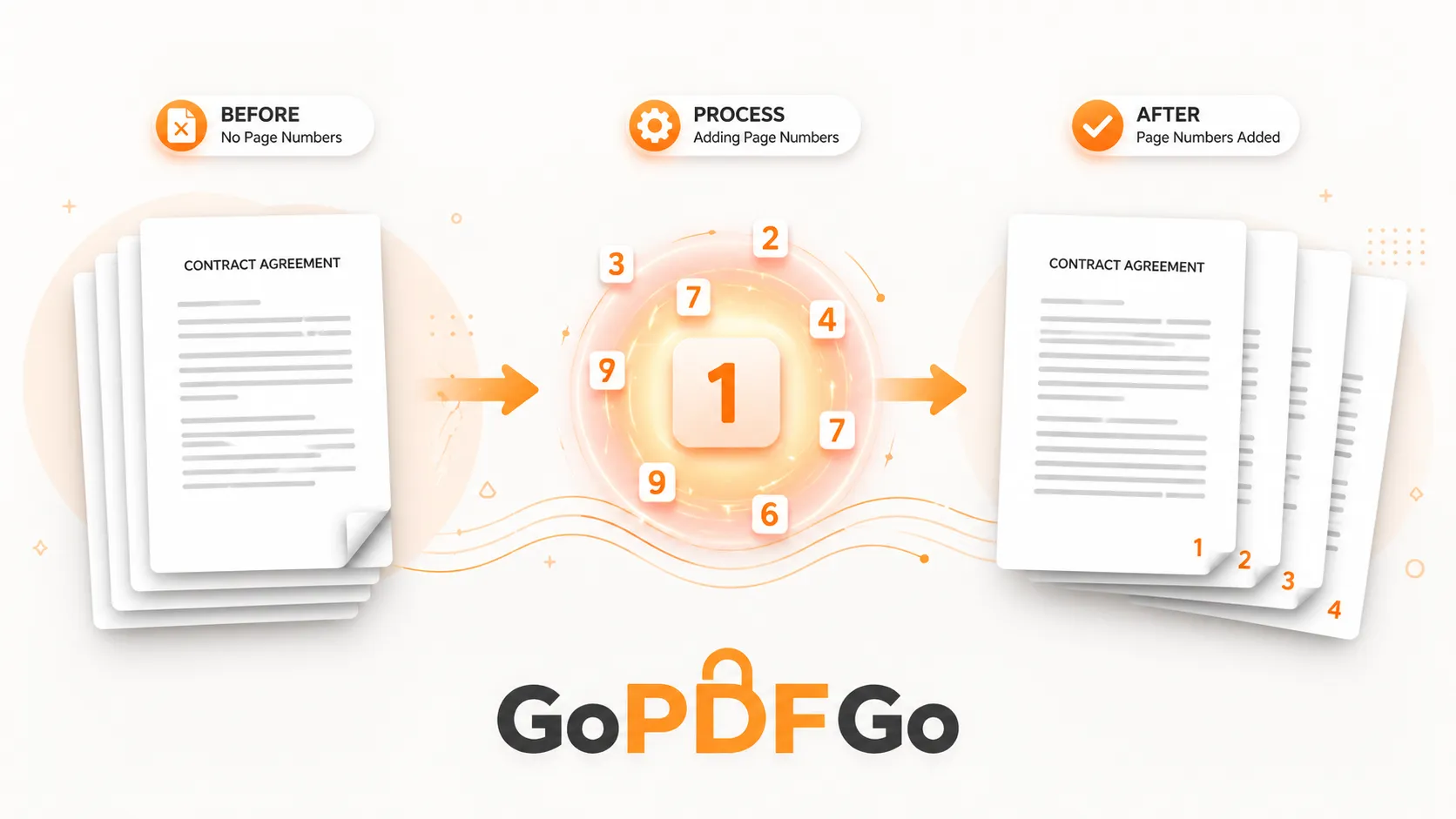
Whether you are physically binding a 500-page dossier or submitting a digital docket through a modern e-Filing portal, one of the most universal and non-negotiable requirements is strict, sequential pagination. When a judge asks the courtroom to "turn to page 142, paragraph 3," every single advocate, clerk, and witness needs to be looking at the exact same text. If you have compiled a massive PDF from various sources—like scanned police reports, typed petitions, downloaded emails, and photograph exhibits—and the page numbers are missing or jumbled, your filing will almost certainly be rejected by the registry desk, causing severe delays for your client.
To securely add page numbers to confidential legal documents, you must use a local, browser-based PDF utility that processes files directly on your device's CPU. This guarantees that your sensitive files are never uploaded to cloud servers, ensuring strict attorney-client privilege while achieving perfect court-compliant formatting.
The Extreme Privacy Risk of Standard Online Tools
It is 2:00 AM on the night before a major filing deadline. The legal team realizes the final merged PDF lacks continuous page numbers. The immediate temptation for a stressed junior lawyer or paralegal is to Google "Add page numbers to PDF online." They click the first free tool they see, upload their 300-page case file, get the numbers stamped, and download the result.
This is a catastrophic breach of client confidentiality.
By uploading unredacted legal documents to a third-party cloud server, you are exposing highly sensitive data—including client names, financial records, sworn testimonies, medical histories, and proprietary corporate trade secrets—to potential cyber breaches. Many free PDF manipulation websites explicitly state in their lengthy terms of service that they are allowed to store, analyze, or process uploaded documents for "service improvement." Furthermore, cross-border data transfers might violate GDPR, HIPAA, or local data protection laws. For any reputable legal professional, handing over case files to an unknown server is an unacceptable malpractice risk.
The Secure Solution: Zero-Upload Client-Side Pagination
To strictly adhere to client confidentiality agreements and Non-Disclosure Agreements (NDAs) while still achieving perfect digital document formatting, law firms must transition to client-side technology. GoPDFGo was engineered exactly for high-security, high-stakes use cases.
Our tools operate locally using advanced browser-based technology. This means the mathematical processing and structural editing of the PDF happen entirely inside your computer's RAM (Random Access Memory). The document physically never leaves your machine, and no data is ever transmitted to our backend servers. It is as secure as using premium, expensive offline desktop software, but completely free and instantly accessible from your browser.
The Pre-Filing Checklist Before You Number
Paginating your document is the very last step of building a case file. Before you permanently stamp those numbers onto the bottom of the pages, you must ensure the structural integrity of the file is perfect. Here is the highly recommended workflow for legal professionals:
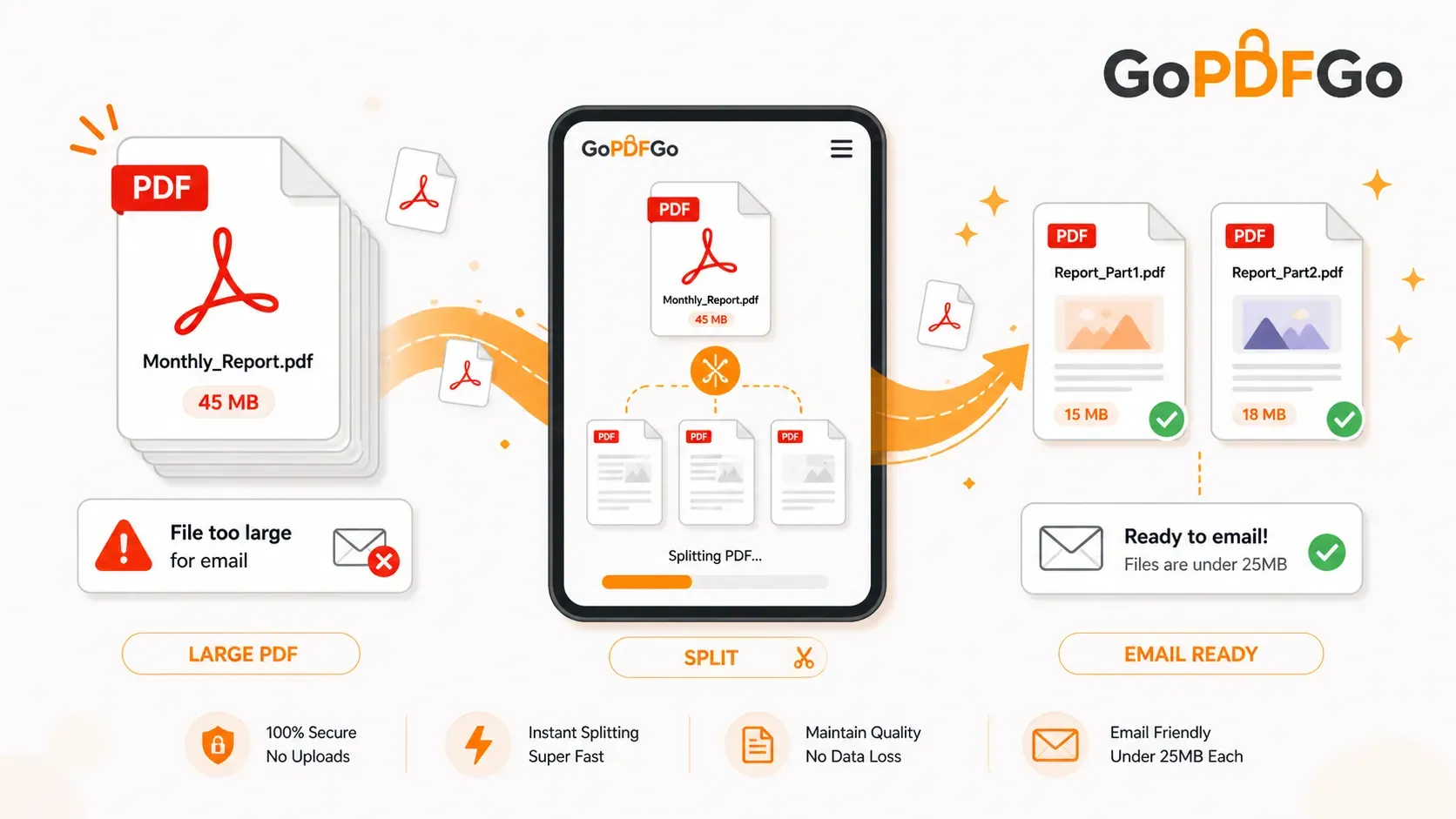
- Step 1: Combine the Evidence: A case file is rarely born as a single document. You usually have a Word document petition, PDF bank statements, and JPEG image exhibits. First, use a secure Merge PDF tool to combine all these disparate file types into one continuous master document.
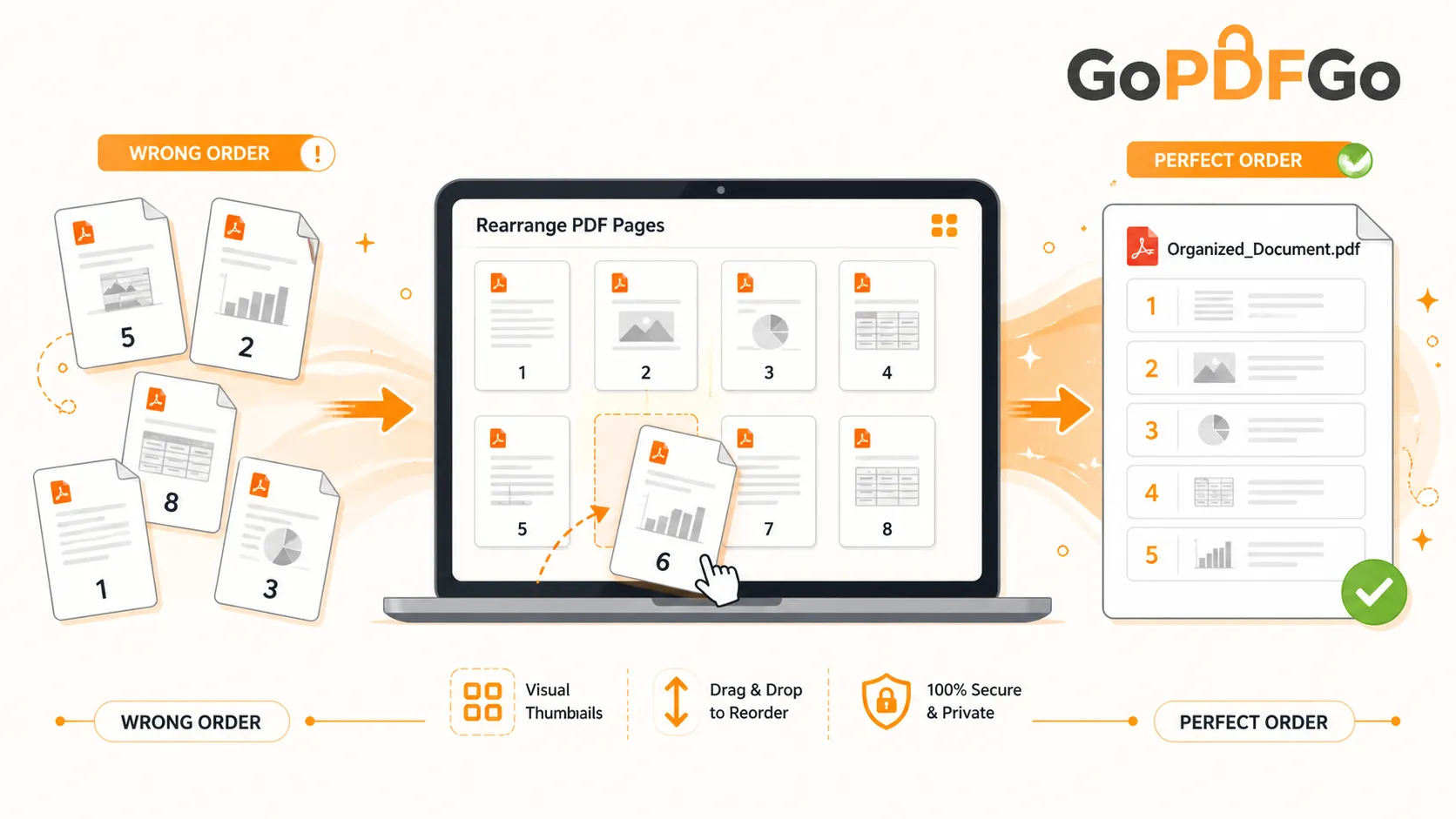
- Step 2: Sequence the Annexures: Did Exhibit C accidentally end up before Exhibit B? Before numbering, use a visual Rearrange PDF organizer to drag and drop your pages into the exact chronological order dictated by your index.
- Step 3: Fix Scanned Orientations: When dealing with hundreds of pages of scanned discovery evidence, it is incredibly common to find a few pages that scanned upside down. If you stamp page numbers on an upside-down page, the number will appear at the top instead of the bottom. Do a quick visual check and use a Rotate PDF utility to permanently fix the orientation of those specific sideways pages.
How to Paginate Your Final File Safely:
Once your master file is perfectly merged, ordered, and upright, it is time to finalize the filing.
- Access the Utility: Open our Add Page Numbers tool. Notice the speed of the upload—it is instantaneous because it is simply loading into your local browser, not uploading to the internet.
- Choose Placement: Court registries heavily prefer page numbers to be placed at the Bottom Center or Bottom Right of the page to avoid clashing with top-printed letterheads. Select your desired placement in our intuitive interface.
- Generate: Click apply. The local processing engine will iterate through hundreds of pages in milliseconds, stamping a clean, uniform, and perfectly aligned sequential number on every single page.
- Save and File: Download the accurately paginated document directly to your secure local hard drive, ready for immediate printing, binding, or uploading to the court's e-Filing portal.
Frequently Asked Questions (FAQ)
Q: Is this considered Bates Numbering?
A: Standard pagination adds sequential numbers (1, 2, 3) to the document. While Bates Numbering often includes alphanumeric prefixes (e.g., ExhibitA-001), standard page numbering is usually sufficient for court indexes, petitions, and standard annexures.
Q: Will the page numbers overwrite the text already on the page?
A: Our tool strategically places the numbers in the standard margin areas of the document (the footer). Unless your document has text stretching to the absolute millimeter edge of the paper, the numbers will sit cleanly in the blank space.
Q: Can I process massive 1,000-page discovery files?
A: Absolutely. Because the tool utilizes your own computer's processing power, there are no artificial server-side file size or page count limits. As long as your device has sufficient RAM, it will paginate massive files seamlessly.
Q: Can anyone access my legal documents after I close the tab?
A: No. Because everything happens in your browser's temporary memory, the data is permanently destroyed the moment you close the browser tab or refresh the page.
Number Once, File Without Surprises
Maintain your rigorous professional integrity, protect your client's most sensitive data, and ensure your legal filings are perfectly formatted. Bookmark secure, local PDF tools to streamline your firm's administrative workflow today.