How to Fix Mirrored Selfies and Upside-Down Photos Before Uploading
Open a bank account from your phone, finish a video KYC for a Demat or trading app, or sign up on a freelance marketplace, and at some point you hit the same instruction: "Take a selfie while holding your ID card (Aadhaar, PAN, or Passport) next to your face."
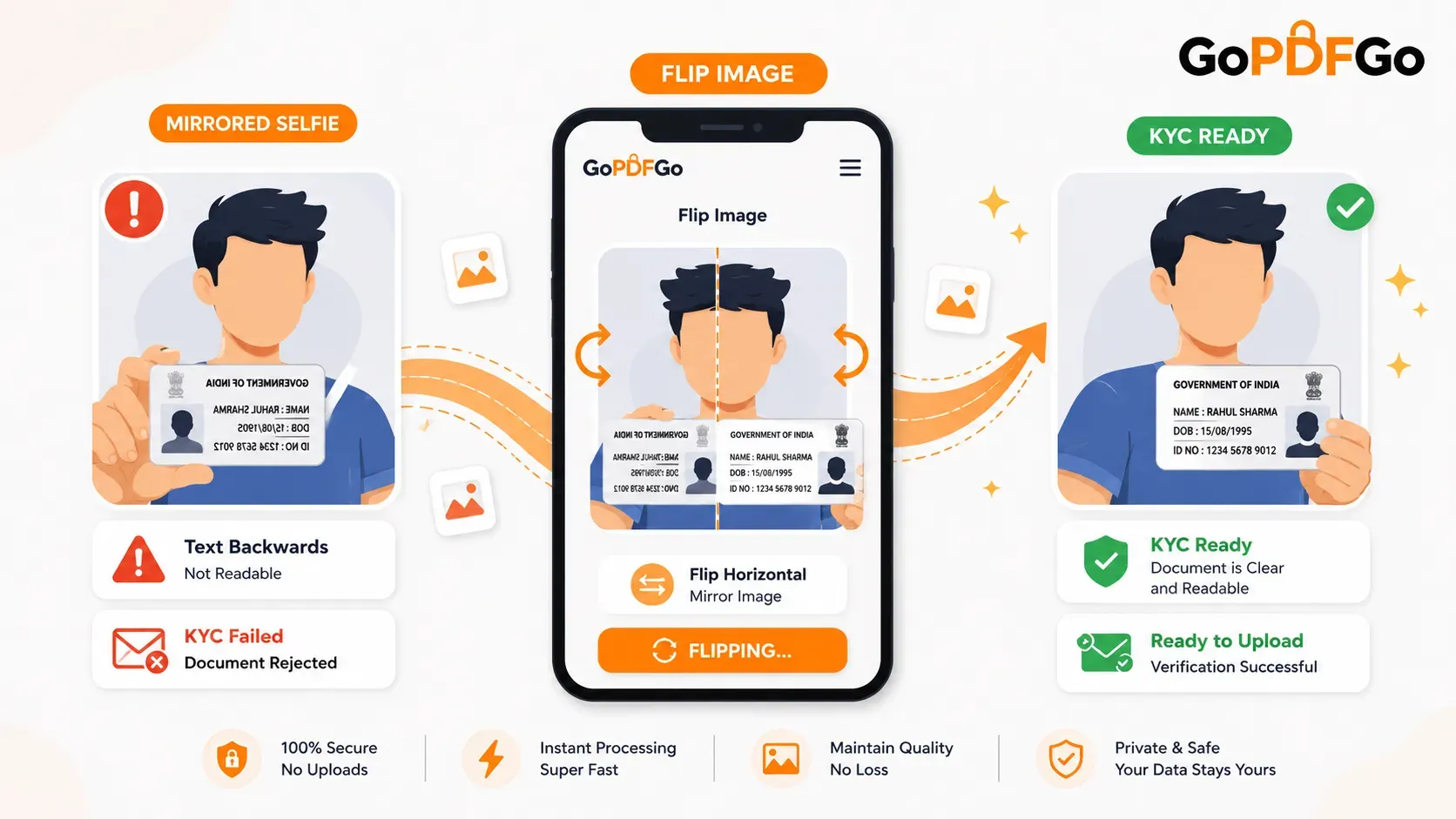
You carefully align your face, hold up the ID card to the camera, and snap the photo. But when you preview the image before hitting submit, you notice a massive, frustrating problem: The text on your ID card is completely backwards. It looks exactly like you are reading it in a mirror. If you upload this mirrored image, the automated OCR (Optical Character Recognition) bot will instantly fail to read your name and ID number, and your KYC application will be automatically rejected.
To fix a mirrored selfie, you need to flip the image horizontally. Use a secure, local online image flipper to instantly reverse the mirror effect, making backwards text on ID cards or clothing completely readable again.
Why Do Smartphones Mirror Selfies?
It is not a bug; it is a psychological feature built into almost all Apple iPhones and Android devices. When you look at your phone's front-facing camera, the software intentionally mirrors the live preview so that it acts exactly like a physical bathroom mirror. Humans are deeply accustomed to seeing their own reflection. If the camera didn't mirror the preview, moving your right hand would make the image move to the left on the screen, which would severely disorient your brain and make framing the photo nearly impossible.
While some modern smartphones have a hidden camera setting to "Save selfies as previewed," the factory default simply saves the mirrored image. This is perfectly fine for casual Instagram posts, but it is an absolute disaster for official documents containing text.
The Difference Between Rotating and Flipping
When faced with backwards text, many users try to fix the issue by opening a basic photo editor on their phone and repeatedly hitting the "Rotate" button. They quickly realize that rotating the image 90, 180, or 270 degrees does not make the text readable; it just makes the backwards text sideways or upside down.
To fix a mirrored image, you do not need to rotate it—you need to unmirror photo by flipping it horizontally along its vertical axis.
How to Unmirror Your Photos Securely:
Because you are dealing with a photograph containing your face and your most sensitive government ID card, uploading it to a random online photo editor is a massive data privacy risk. You must use a local, client-side tool that processes the image without uploading it to a cloud server.
- Step 1: Access the Utility. Open the Flip Image tool on the GoPDFGo platform using your mobile browser or laptop.
- Step 2: Secure Upload. Select the mirrored selfie from your gallery. Because the tool runs in your browser, the image loads instantly into your browser's local memory.
- Step 3: Flip Horizontally. Click the "Flip Horizontal" button (the icon usually shows two triangles pointing away from a center line). Instantly, the image will physically swap from left to right.
- Step 4: Verify the Text. Look closely at the preview screen. You should now be able to read your name and ID numbers normally, from left to right.
- Step 5: Download. Save the corrected, unmirrored image back to your phone. It is now perfectly compliant and ready for your KYC upload.
What If the Image is Also Sideways?
Sometimes, smartphone gyroscopes get confused when you hold the phone at an odd angle, and the image saves completely sideways (Landscape mode instead of Portrait mode). If this happens, you need a quick two-step fix.
First, use a Rotate Image tool to turn the image 90 degrees left or right until your head is pointing up. Once the orientation is correct, if the text is still backwards, run it through the Flip tool as described above to achieve the perfect result.
Frequently Asked Questions (FAQ)
Q: Will flipping my selfie reduce the image quality?
A: No. Flipping an image horizontally only reverses the pixel arrangement; it does not compress the file or lower the high-definition resolution required for ID verification.
Q: Can I prevent my phone from mirroring photos in the future?
A: Yes. On an iPhone, go to Settings > Camera, and toggle on "Mirror Front Camera". On Android, open the Camera app settings and look for "Save selfies as previewed" or "Mirror photos" and adjust the toggle.
How to Spot a Mirrored Photo Before You Submit It
Your face looks fine flipped or not, so the mirror effect is easy to miss until a verification bot throws it back at you. The trick is to look for any text or letters in the frame. Read whatever is written somewhere on the photo: the brand on your t-shirt, the lettering on a coffee mug behind you, the office name tag clipped to your shirt, or the print on the ID card in your hand. If even one word reads back-to-front, the whole image is mirrored.
A few quick tells I rely on:
- A shirt or company logo that reads like it's reflected in a spoon.
- Your wristwatch sitting on the "wrong" hand from how you actually wear it.
- A mole, scar, or parting in your hair that has jumped to the opposite side of your face.
- Any signage, poster, or whiteboard in the background showing reversed letters.
Spot any of these and one horizontal flip in the Flip Image tool sets it right. No letters in the shot at all? Then the mirror genuinely doesn't matter, and you can submit as-is.
Flip First, Then Upload to Forms, Listings and IDs
Mirrored photos cause the most damage right at the upload step, where you usually can't fix anything afterwards. A few places where a quick flip saves a rejection:
- Government and exam portals. SSC, UPSC and many state recruitment sites run an automated check on your photo and signature. A reversed signature or a back-to-front roll number on a slate is an instant flag, and re-uploads on those portals are a slow, painful business.
- Marketplace and OLX-style listings. Selling a phone or a book? If the model number or cover title in your photo reads backwards, buyers assume the listing is fake and scroll past. Flip it so the printing looks legit.
- Passport-size and ID photos. A studio scan or a self-clicked photo that came out mirrored will get bounced by the operator. Fix it before you walk into the Xerox shop, not after.
Sort the orientation in the browser before the file ever touches the form. If the photo also needs to slim down to hit a 50KB or 200KB upload cap, the Compress JPG tool handles that in the same sitting.
Check Your Signatures and Document Scans Too
It's not only selfies. Snap a quick photo of a signed letter, a cheque, or a handwritten declaration using the front camera by mistake, and the writing comes out reversed. With a signature this is sneaky, because squiggly handwriting doesn't obviously look "wrong" the way printed text does. But a bank officer comparing it against your specimen signature will notice straight away that the slant runs the other way.
Before you send any photographed document, hold it up against the original on paper. If the strokes lean the opposite direction, run it through the flip tool once. And if you photographed a full sheet at a tilt so the whole page sits sideways, square it up with the Rotate Image tool first, then check the mirror. Two quick passes and your scan reads exactly like the paper in your hand.
Don't let a simple smartphone camera quirk delay your banking, trading, or job applications. Fix your mirrored selfies securely in your browser and submit your digital KYC documents with absolute confidence.