How to Rotate Scanned Assignment Pages Permanently in 2 Clicks
We have all experienced this exact digital frustration. You use a mobile scanner app, a hardware flatbed scanner, or an office printer to digitize a 20-page legal document, a contract, or a handwritten assignment. You excitedly open the file on your computer to review it. While the first 10 pages look perfectly fine, page 11 is suddenly sideways, and page 15 is completely upside down.
If you are using basic PDF readers like Adobe Acrobat Reader or Mac Preview, you can easily click "View -> Rotate View" to read the document comfortably on your screen. However, a lot of people don't realize that this is just a temporary visual fix. It only rotates your screen view, not the actual file. If you attach that PDF to an email and send it to your boss, your professor, or a client, it will open upside down for them too. Submitting a sideways document looks incredibly unprofessional and shows a lack of attention to detail.
Why Do Scanners Mess Up Page Orientation?
Scanners and mobile phone cameras rely on internal hardware gyroscopes to guess the orientation of a page. If the paper was fed slightly angled into an automatic document feeder (ADF) tray, or if you held your phone completely flat over a desk while taking a picture, the software often gets confused. It saves the image with the wrong EXIF metadata. When you convert those raw images into a PDF, that incorrect, sideways orientation gets hard-locked into the file's code.
The Real Solution: Permanent File Rotation
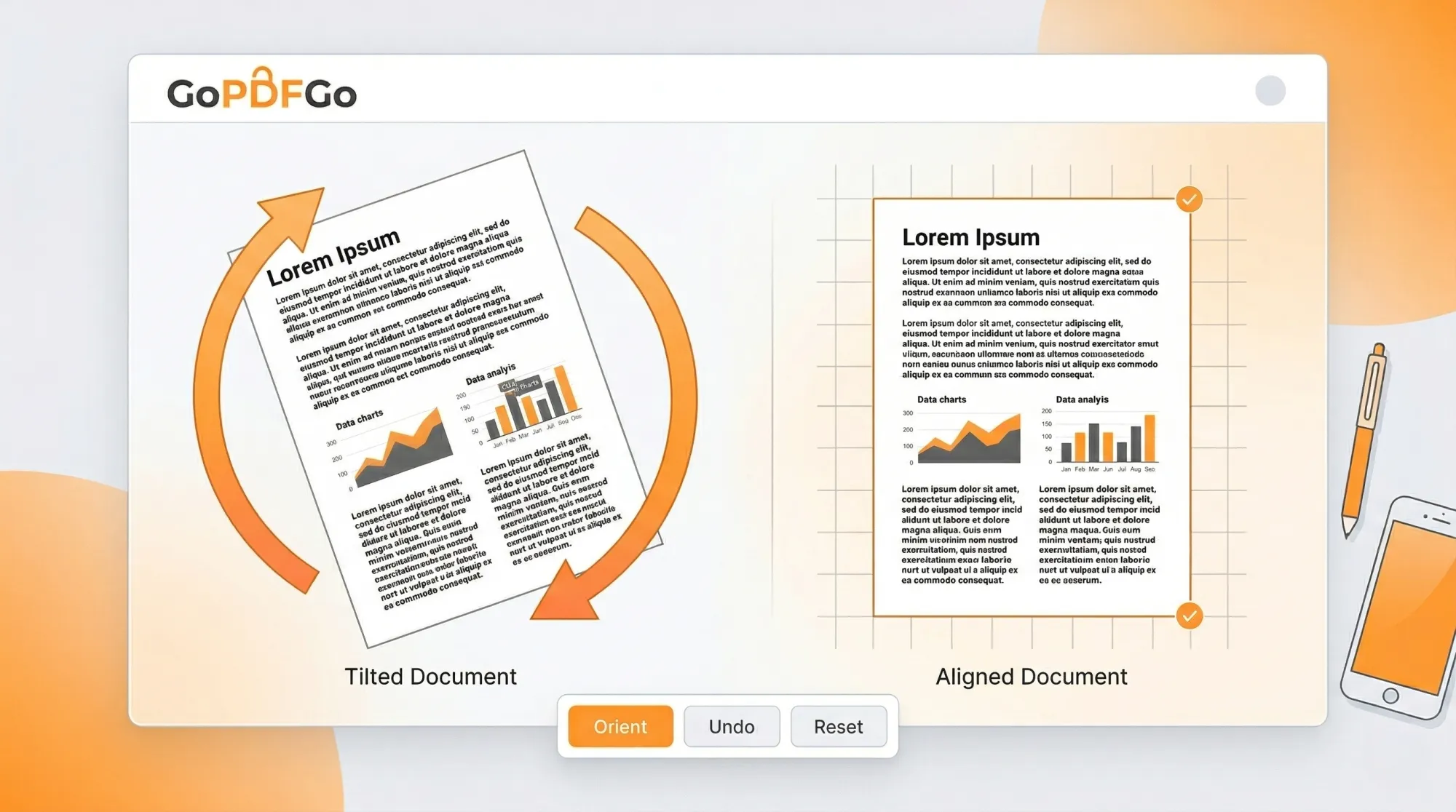
To fix this issue once and for all, you must alter the underlying code of the PDF file to rewrite the orientation metadata. You need a tool that permanently saves the new rotation state so that no matter who opens the file, or what device they use, it always displays correctly.
How to Permanently Rotate PDF Pages:
Using the Rotate PDF tool on GoPDFGo ensures that your orientation changes are hardcoded into the file securely and instantly, without uploading your data to the cloud.
- Step 1: Upload. Drag and drop your messy, misaligned PDF into the Rotate tool.
- Step 2: View the Thumbnails. Our tool will instantly generate a visual grid showing every single page in your document. You will easily spot the exact pages that are sideways or upside down.
- Step 3: Rotate Specific Pages. Hover your mouse (or tap on mobile) over the incorrect page and click the rotate icon (↻) until the text is facing up. You can rotate individual pages without affecting the rest of the correctly oriented document.
- Step 4: Rotate All (Optional). If your entire document scanned sideways (in landscape instead of portrait), simply use the "Rotate All Left/Right" bulk buttons at the top of the screen to fix everything in one click.
- Step 5: Save and Download. Click "Rotate PDF Now." The new file you download will now open perfectly straight on any device, browser, or email client.
What if I need to delete a page instead of rotating it?
Sometimes, while visually reviewing the thumbnails to rotate them, you notice a page that shouldn't be there at all—like a blank back-page, a blurry scan, or a duplicate. If you need to remove pages entirely to clean up the document, the cleanest fix is our Delete PDF Pages tool — just tap the bad pages to drop them and keep the rest. (To instead pull specific pages out into a new file, our Split PDF tool works too.)
When some pages are sideways and others are upside down
The really annoying batches aren't the ones where every page is wrong the same way. Those are easy. You hit "Rotate All" and you're done. The headache is the mixed bag: page 3 needs a quarter-turn clockwise, page 9 is flipped a full 180, and pages 4 to 8 are perfectly fine. This happens a lot when you scan a thick file in chunks, or when an automatic feeder pulls a few sheets in crooked while the rest go through straight.
Trying to fix that in a normal reader is a nightmare because the rotation isn't even saved. With a thumbnail grid you treat each page on its own. A landscape page that reads bottom-to-top usually needs one tap; a page that's genuinely upside down needs two taps of 90 degrees to swing it the full 180. Walk down the grid, fix only the odd ones out, leave the good pages untouched, and apply once. Five minutes of clicking beats re-scanning the whole stack.
Phone scans that quietly save themselves rotated
Most of us scan with our phones now, not a flatbed. Hold the phone flat over a page on the desk and the gyroscope has no real "up" to lock onto, so apps like the camera scanner or DigiLocker exports sometimes guess wrong. On screen in the gallery it looks fine because your phone auto-spins the preview. The moment you share it on WhatsApp or open it on a laptop, it lands sideways. So the fix isn't only for old office scanners — your own phone does it too, and you won't notice until someone else opens the file.
If you built the PDF yourself from a bunch of photos, the cleaner habit is to fix orientation at the source. Our Image to PDF tool lets you drop in your JPGs, drag them into the right reading order, and auto-fits each one to the page before you ever export. Straighten the shots there and you skip the rotate step entirely.
Check the orientation before you submit or print
This is the part people skip and regret. Before you upload a file to the SSC portal, the Income Tax site, or some college submission box, actually scroll through every page. A lot of these portals reject or silently mangle files, and once it's submitted you can't take it back. The same goes for the Xerox shop — hand them a sideways PDF and you'll get a stack of sideways printouts, plus a second trip and a second payment.
One more thing worth a glance: if you're going to stamp page numbers on the file afterwards, fix the rotation first. Our Page Numbers tool places the number at the bottom-centre of each page and it's rotation-aware, so it follows whatever orientation the page is actually in. Number a sideways page and the digit ends up running up the side. Straighten, then number.
Rotate before you merge, not after
Say you're stitching together a few scanned files into one packet — an assignment plus a cover sheet, or three separate sets of receipts. If one of those source files has crooked pages and you merge first, you now have to hunt for the bad pages buried inside a 40-page combined document. Far easier to straighten each piece on its own, confirm it reads top-to-bottom, and only then send everything into Merge PDF. The combined file comes out consistent from page one to the last, and nobody on the receiving end has to tilt their head to read it.
The principle is boring but it holds: fix orientation as early in your workflow as you can. Every later step — numbering, merging, printing, submitting — just inherits whatever state the pages are in. Get them straight once, save it permanently, and the rest of the chain stays clean.
Sending a properly oriented document is a basic digital courtesy. Take the extra 30 seconds to permanently fix your PDFs before sharing them with the world.
Frequently Asked Questions
Q: How do I permanently rotate scanned PDF pages?
A: Open the Rotate PDF tool, turn the sideways or upside-down pages upright, and download — the new orientation is saved into the file itself.
Q: Why does my PDF go sideways again after I close the viewer?
A: Most viewers only rotate the on-screen view, not the file. Our tool rewrites the page orientation so it opens correctly for everyone, everywhere.
Q: Can I rotate only a few pages, not the whole document?
A: Yes. Rotate just the pages that need fixing and leave the rest untouched.
Q: Is it safe for private or scanned documents?
A: Yes. Rotation happens inside your browser on your own device — nothing is uploaded.