Why Government Websites Reject Perfectly Fine PDFs (And How to Fix It)
There are few things more anxiety-inducing than staring at a ticking countdown timer on a government job recruitment portal, a visa application site, or a tax filing system, only to have your document completely rejected. You have spent weeks preparing for the SSC, UPSC, or state-level exam. You click the final "Submit" button, and the screen abruptly flashes a vague, unhelpful red error message: "Upload Failed. Invalid File", "File Format Not Supported," or simply "Error 500."
You frantically double-check the file on your computer. The PDF opens perfectly in Adobe Acrobat Reader. The text is razor-sharp, the document is highly legible, the photograph is yours, and the extension clearly says .pdf. So why on earth is the massive government server rejecting it? The frustration often leads applicants to take desperate measures like taking blurry screenshots of their own documents just to get the system to accept it.
In almost all cases, the rejection has absolutely nothing to do with the visible content of your document. The human reviewer hasn't even seen it yet. It is being rejected by an automated script based on the hidden technical parameters encoded into the file itself. Here is a deep dive into the top three reasons official portals reject perfectly fine PDFs, and exactly how to fix them professionally using secure tools.
Reason 1: The Hidden "Bloat" Exceeding Strict Size Limits
To understand the rejection, you must understand the infrastructure. Most government portals run on outdated, legacy server architectures. During the final days of an application window, millions of students are logging in simultaneously. To prevent these aging servers from completely crashing under the weight of millions of uploads, software developers place incredibly strict hard caps on file sizes—often limiting uploads to a tiny 50KB or 100KB.
Even if your document is just a single page containing a scanned signature or a basic text affidavit, if it was scanned at a high DPI (Dots Per Inch) setting or exported from modern, heavy software like Microsoft Word, it carries what developers call "invisible bloat." This includes embedded font subsets, extensive XML metadata, high-resolution color profiles, and document edit histories. This invisible bloat pushes a simple 1-page document to 2MB or 3MB, resulting in an instant automated rejection from the server.
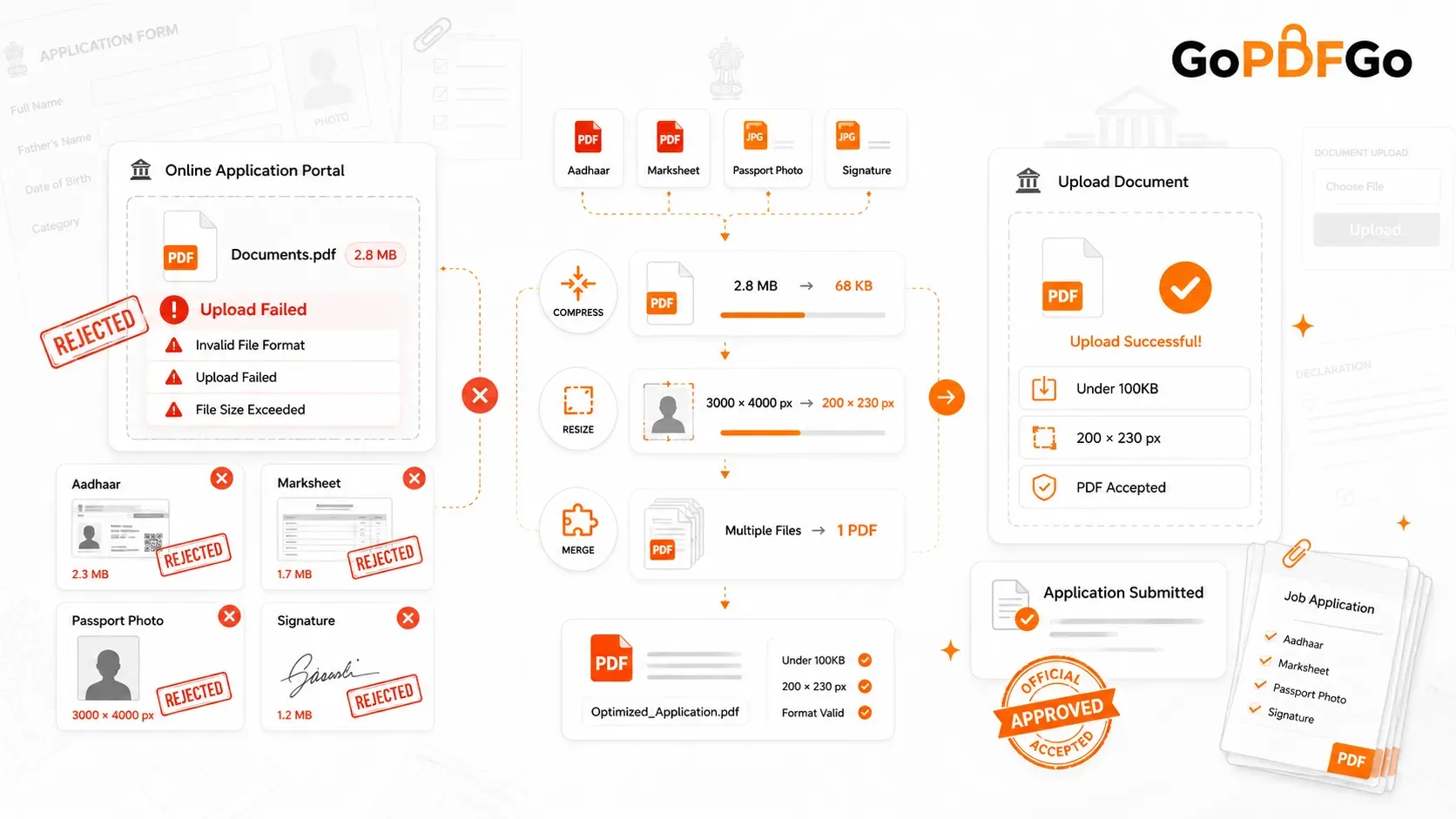
The Fix: You need an intelligent, hybrid compressor that targets this invisible bloat first, rather than just destroying your image quality. Run your rejected document through our secure, local Compress PDF tool. The in-browser engine will strip out the unnecessary metadata, remove unused fonts, and intelligently downscale the background image DPI. This brings your heavy file safely under the strict 50KB or 100KB limit while ensuring the actual text and your roll number remain perfectly readable for the verification officers.
Reason 2: Physical Dimensions vs. File Size (The Ultimate Trap)
This is where 90% of job applicants get completely confused and frustrated. They successfully use a compressor to shrink their passport photo or signature image under the 20KB limit, but the portal still violently rejects it. This happens because the portal is running a script to check Geometric Dimensions (Pixels), not just the file weight.
If the official notification PDF explicitly states: "Upload a passport photo measuring exactly 200 pixels in width and 230 pixels in height," then an image that is 3000x4000 pixels will fail instantly. It doesn't matter if that 3000x4000 image is heavily compressed to weigh only 15KB; the shape is physically too large for the portal's designated display box.
The Fix: You must shrink the physical digital canvas before you worry about the file size. If you are uploading an image (JPG/PNG), use a precise, pixel-perfect Resize Image tool. Input the exact width and height requested by the government notification. Only after the image is perfectly resized to the correct geometric shape should you check its weight. If it is still too heavy, run that resized image through the compressor.
Reason 3: Multi-Page Merging and Format Confusion
Many complex job applications require you to upload your 10th marksheet, 12th passing certificate, and Graduation Degree in a single, combined PDF file. Applicants often try to "hack" this requirement by pasting photos of their certificates into a blank Word document and saving it as a PDF. This creates a messy, non-standard PDF container.
When the government’s ATS (Applicant Tracking System) or OCR (Optical Character Recognition) bots try to scan this hacked document to verify your academic details, the text isn't encoded properly. The bot fails to read it, assumes the document is corrupt or invalid, and triggers a rejection flag on your application profile.
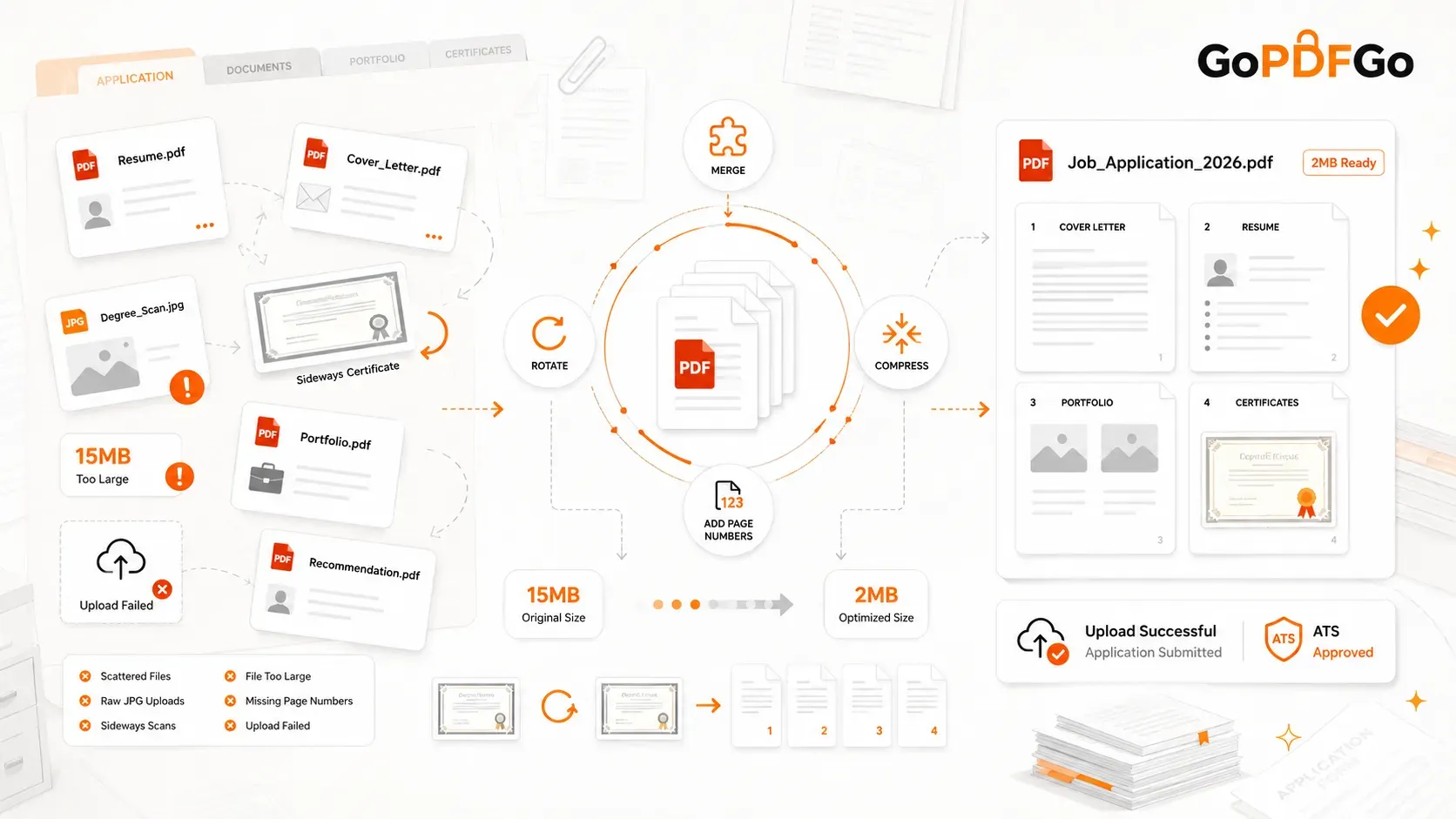
The Fix: You must use a proper, standard-compliant digital binder. First, convert your individual certificate photos into clean, native PDFs using an Image to PDF tool. Once you have standard PDF files, stitch them together sequentially using a dedicated Merge PDF utility. This creates a clean, legally compliant PDF structure that automated bots can easily parse and verify.
The Privacy Warning: Don't Use Random Fixing Sites
When desperate applicants hit these upload walls at 11:30 PM on the night of the deadline, they often panic and upload their highly sensitive Aadhaar cards, PAN cards, and marksheets to random, unverified "PDF Fixer" websites they find on Google.
You are handing over your complete financial and personal identity to an unknown cloud server located outside your country. This exposes you to massive risks of identity theft and financial fraud. GoPDFGo completely eliminates this risk by utilizing Client-Side Processing. Whether you are compressing, resizing, or merging, the code executes locally inside your own browser's RAM. Your documents never travel across the internet, ensuring enterprise-grade privacy for your most sensitive government IDs.
Frequently Asked Questions (FAQ)
Q: Why does the portal ask for a JPG instead of a PDF for my signature?
A: Portals use JPGs for signatures and photos because they need to seamlessly embed those images onto your final, generated "Admit Card" or "Hall Ticket." PDFs are document containers, not raw image files, so they cannot be embedded easily. If your signature is stuck in a PDF, use a PDF to Image converter to extract it.
Q: Will compressing my PDF make my signature unreadable?
A: Not if you use an intelligent compressor. Basic tools blur everything. Advanced hybrid compressors (like ours) balance image compression with vector preservation, meaning your signature stays sharp even when the file size drops dramatically.
Q: What if I uploaded the wrong document, can I replace it?
A: This depends entirely on the specific government portal. Some allow edits before final payment; others lock the application immediately upon clicking upload. This is why getting your formatting perfect on the first try is so critical.
The Ultimate Rule for Official Uploads
Government portals have absolute zero tolerance for technical deviations. Never rely on screenshots, WhatsApp forwarded images, or sloppy software hacks. Use dedicated, precise, and highly secure local tools to format your documents correctly the very first time. Perfect formatting ensures your application sails past the technical screening, allowing the human reviewers to focus entirely on your hard-earned qualifications.