Why Mobile Scanner Apps Add Watermarks (And How to Avoid It Completely)
You are at home, it is late, and someone needs a scan in the next ten minutes: a signed contract for your boss, a handwritten assignment for your professor, or a medical receipt for HR. You don't have a bulky, expensive physical flatbed scanner sitting on your desk, so you do what millions of others do: you open the Google Play Store or Apple App Store and download one of the top-rated "Free PDF Scanner" applications.
You spend ten minutes carefully aligning the document on your table, avoiding shadows, taking a great high-resolution photo, applying a nice black-and-white contrast filter, and hitting the export button. You attach the file to your email, click open to review it one last time, and your heart sinks.
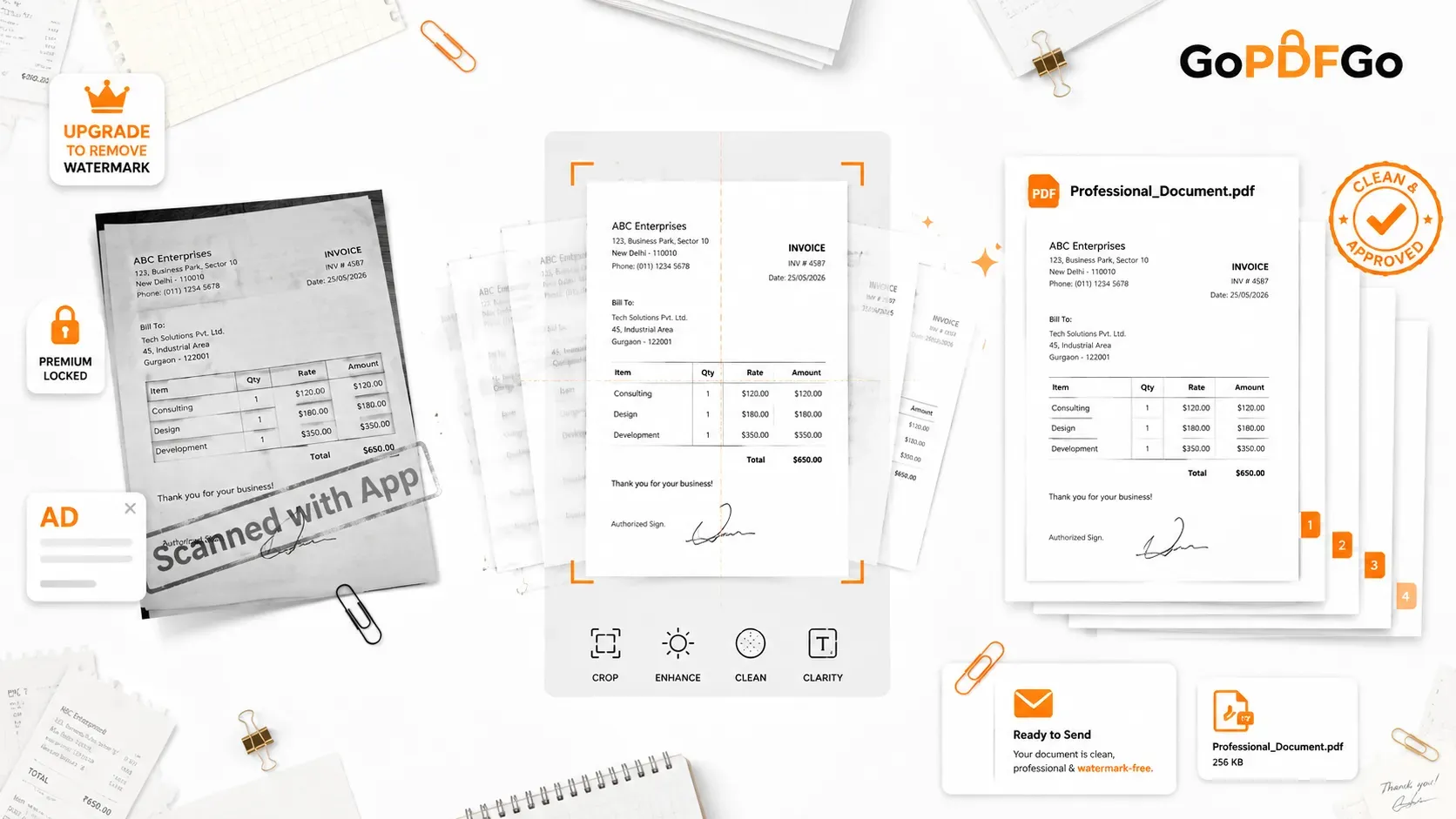
There it is—a massive, bold, incredibly ugly watermark permanently stamped across the bottom right corner of your document: "Scanned with CamScanner." Sometimes, it even covers up important text, page numbers, or your own signature at the bottom of the page.
If you want to remove it, the app suddenly throws a massive paywall in your face, demanding a $30 to $50 annual premium subscription just to unlock this basic feature. Submitting a heavily watermarked document to a high-paying client, an employer, or a strict university looks incredibly unprofessional. It screams "cheap," detracts from the serious nature of your work, and makes you look unprepared for the corporate world.
The Scanner App Business Model (The Freemium Trap)
Why do these apps operate this way? It is a highly calculated business strategy known as the "Freemium Trap." These massive application development companies spend millions of dollars on aggressive marketing and SEO to ensure they rank as the #1 search result when you type "free scanner."
They know human psychology perfectly. In a moment of absolute desperation—five minutes before a college portal closes or a contract deadline hits—you will download the app because the button says "Free." They allow you to do all the hard manual labor of capturing the images, cropping the edges, and applying the filters. Then, when you are fully invested and out of time, they hold your final, clean PDF hostage.
Beyond the financial cost, these heavy applications drain your smartphone battery in the background, consume hundreds of megabytes of valuable storage space, and frequently demand highly suspicious device permissions. Why does a simple PDF scanner app need access to your live GPS location, your personal contacts list, and your microphone? The answer is data mining and targeted advertising.
The Hidden Privacy Risk of Mobile Scanners
The watermark isn't the only thing you should be worried about. When you use popular, ad-supported mobile scanner apps, your highly confidential documents are frequently uploaded to their corporate cloud servers to process features like OCR (Optical Character Recognition) or cloud syncing.
If you are scanning highly sensitive legal forms, corporate Non-Disclosure Agreements (NDAs), tax returns, or banking statements, you are unknowingly exposing your data. A breach on their end means your signature and financial details are suddenly available on the dark web. For professionals handling client data, using unverified mobile scanner apps is a massive liability.
The Superior Alternative: Zero-Install Browser Tools
You absolutely do not need to install a heavy, aggressive, data-mining application on your personal phone just to create a PDF. Modern smartphone cameras (from Apple, Samsung, Google, etc.) already possess incredible lenses and AI processing power. They are more than capable of capturing crisp, high-definition text without any third-party app assistance.
The only missing link in the chain is taking those high-quality raw photos from your gallery and converting them into a standardized, multi-page PDF format. You can do that securely, locally, and 100% free directly in your mobile web browser.
How to Create Premium, Watermark-Free PDFs on Your Phone:
Using GoPDFGo's privacy-first web utilities, you can achieve premium, boardroom-ready results without spending a single dime or creating an account.
- Step 1: Prep the Shot. Place your document on a dark table or bedsheet (to create high visual contrast with the white paper). Use natural window lighting if possible. Turn off your camera's flash to avoid a harsh, unreadable white glare in the center of the glossy paper.
- Step 2: Use Your Native Camera. Open your phone's default camera app. Align the phone perfectly parallel to the paper (use the camera grid lines feature) and snap clear photos of all the pages you need.
- Step 3: Open the Secure Web Tool. Open your mobile browser (Safari, Chrome, or Brave) and navigate to the Image to PDF tool on GoPDFGo. Because it runs locally in your browser, it loads instantly and works just as fast as any native app.
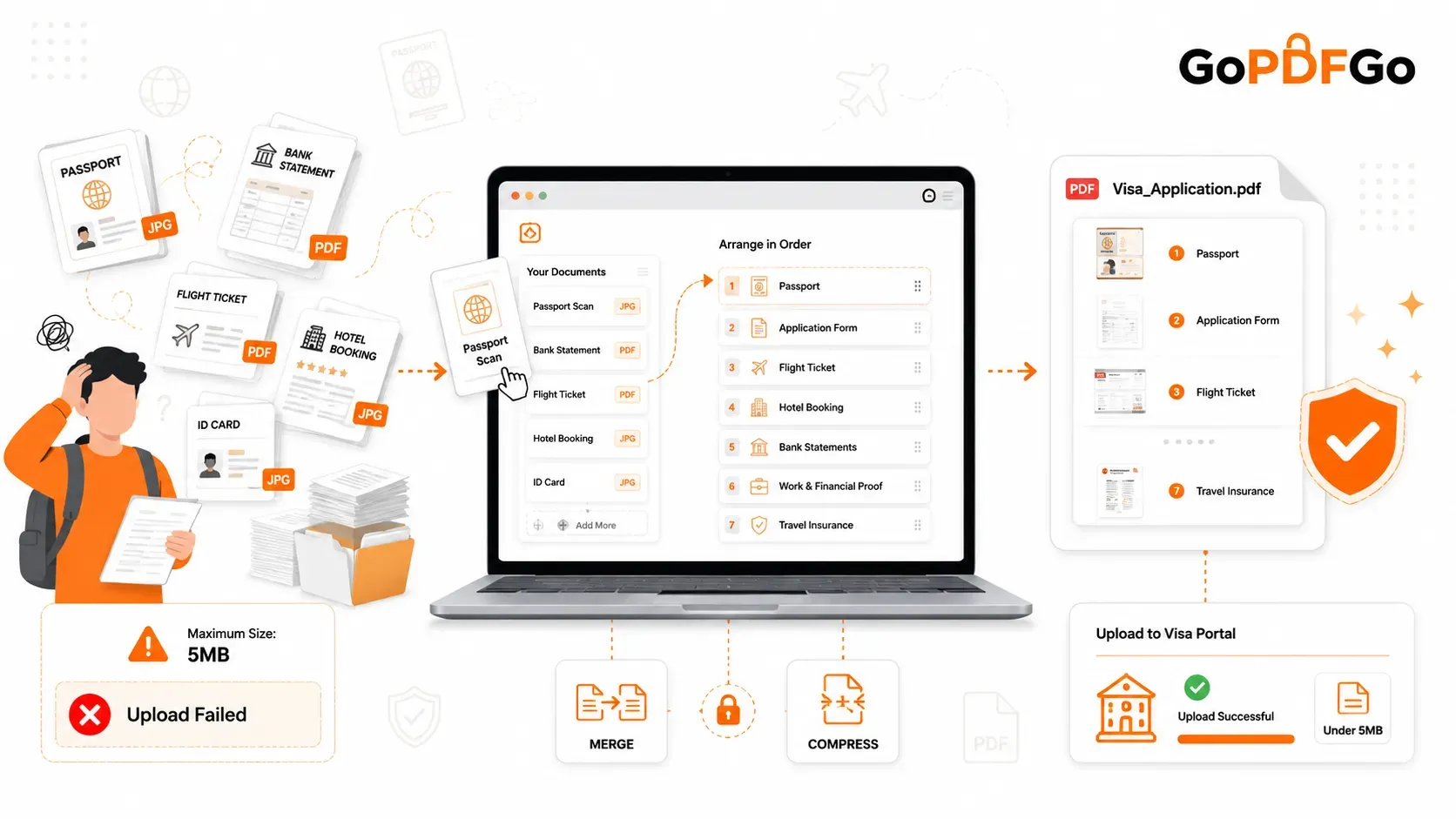
- Step 4: Select and Arrange. Tap to upload the photos from your phone gallery. You can easily drag and drop the visual thumbnails on your screen to arrange the pages in the correct chronological sequence (e.g., Page 1, Page 2, Page 3).
- Step 5: Convert and Download. Click the convert button. The tool will stitch your images together into a beautiful, standardized PDF document with absolutely zero watermarks, logos, or forced branding.
Post-Processing Like a Pro
Once you have your clean PDF, you might need to make a few quick professional adjustments before emailing it. You don't need to download another app for these either:
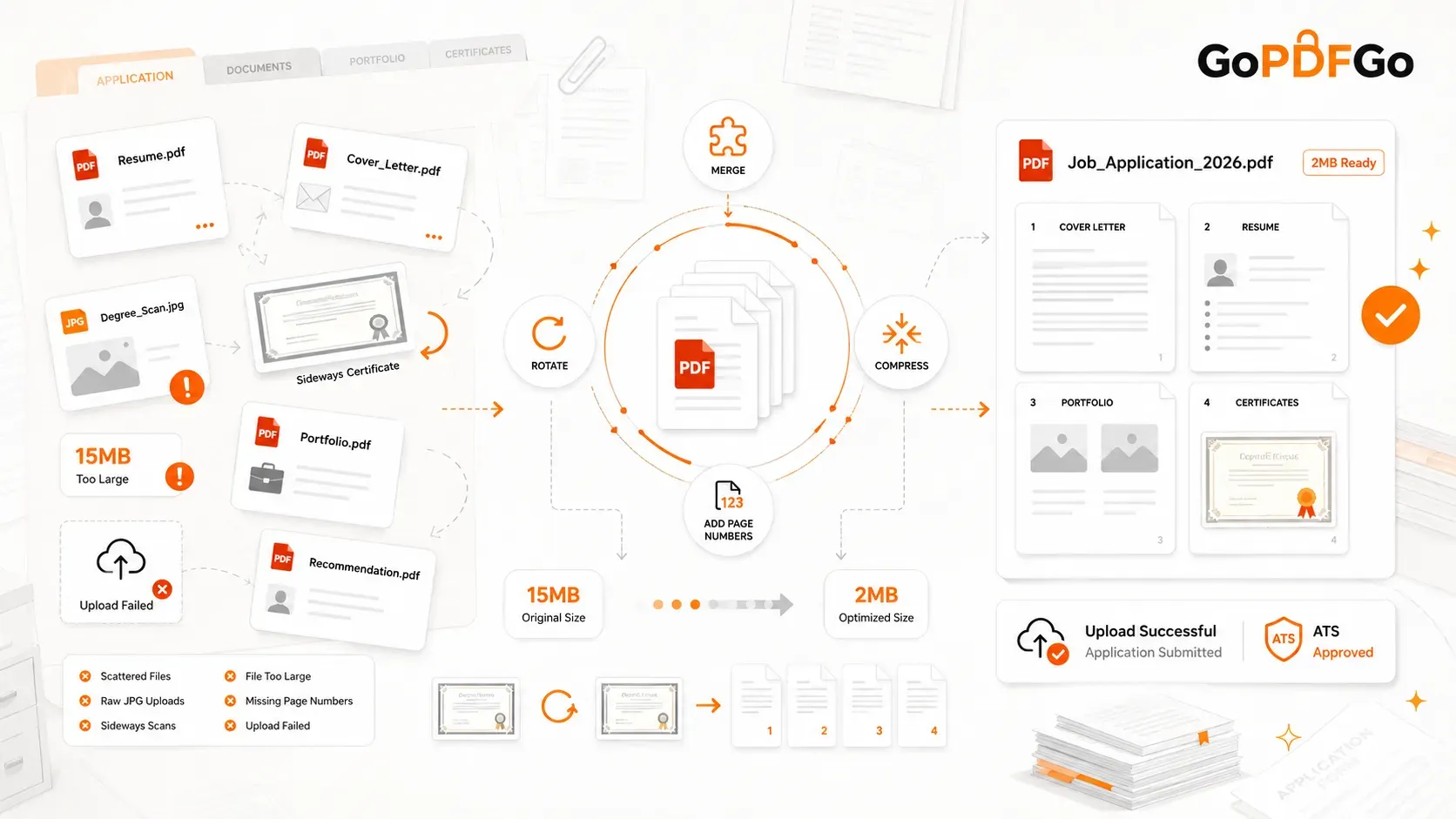
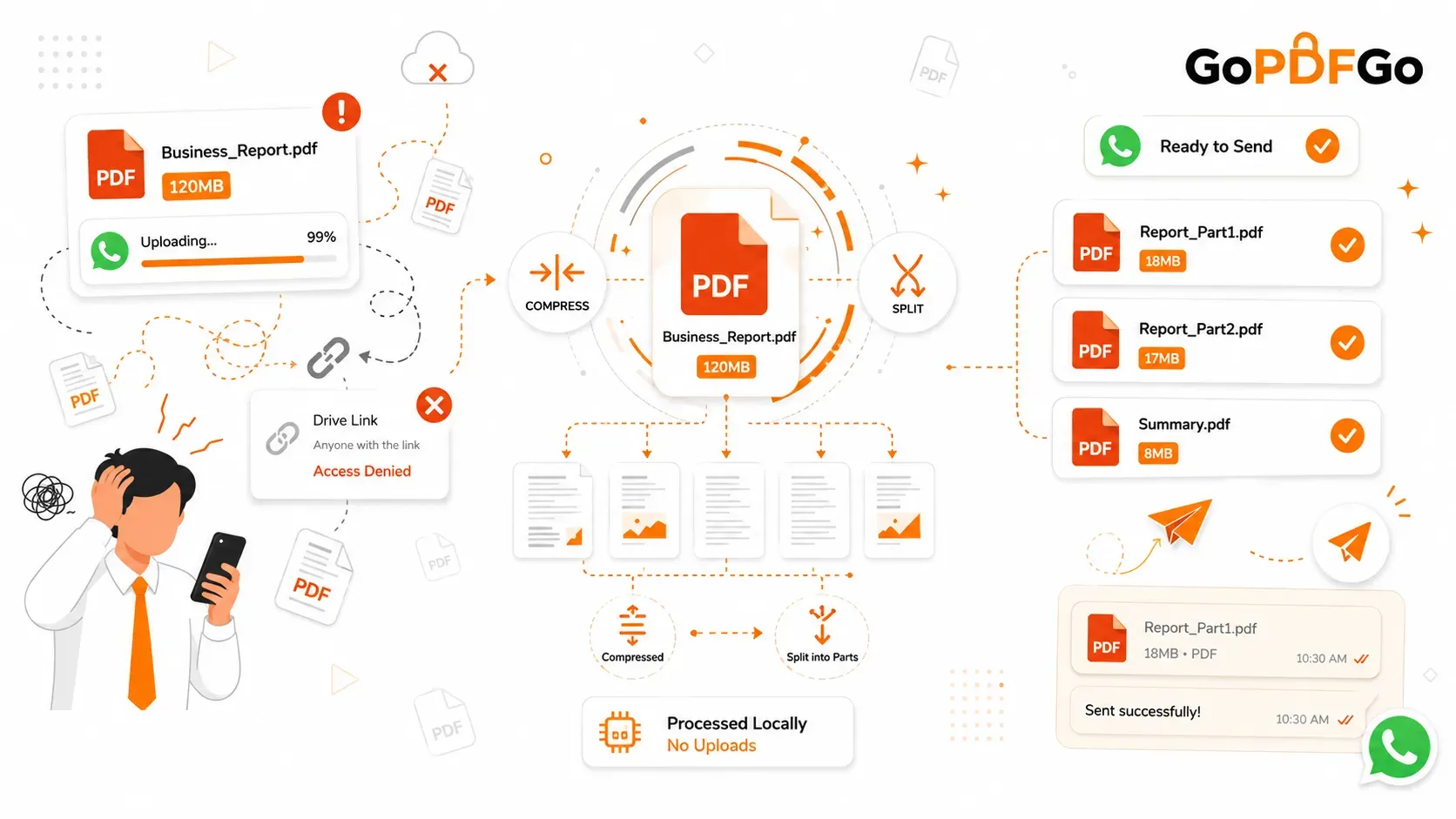
- Too Heavy? If your camera took 10MB photos, your 5-page PDF might be 50MB. Run it quickly through the Compress PDF tool to shrink it down to an email-friendly 2MB.
- Sideways Pages? If you held your phone weirdly and a page is horizontal, use the Rotate PDF utility to lock it into the correct upright portrait orientation.
- Need Page Numbers? For a long assignment, stamp sequential numbers using the Add Page Numbers feature to make grading easier for your professor.
Frequently Asked Questions (FAQ)
Q: Will my converted PDF lose quality compared to a scanner app?
A: No. A scanner app is essentially just taking a photo anyway. By using your native camera and converting it losslessly via our tool, you actually retain more of the original high-resolution detail than you would with an app that aggressively compresses the file.
Q: Does this work on iPads and tablets?
A: Absolutely. Our web tools are fully responsive. You can snap a photo with your iPad camera and convert it directly in the Safari browser using the exact same steps.
Q: Can I remove a watermark from an existing PDF I already scanned?
A: Removing an existing watermark from a flattened PDF is very hard without heavy Photoshop work. The best and fastest solution is to find the original photos in your gallery and create a brand-new, clean PDF using our Image to PDF tool. (And if you actually want to ADD your own text watermark — like CONFIDENTIAL or your name — that is the opposite job, handled by our Watermark PDF tool.)
Take Back Your Documents
Professionalism shouldn't be locked behind a subscription paywall, and your data shouldn't be the price of a free app. Ditch the heavy, ad-ridden scanner apps, start using clean, local web tools, and send immaculate, watermark-free documents every single time.