Convert PDF to JPG Online Free: Turn Pages into Images (No Upload)
You are halfway through an application form. It asks for your signature, and right below the upload box it says, in tiny grey letters, "Only .jpg or .jpeg files allowed, max 50KB." But your signature is sitting inside a PDF the bank emailed you. The portal flat-out refuses the PDF. It wants a picture. And there is no obvious way to get one out.
This is the exact moment people go hunting for a "convert PDF to JPG" tool at 11pm. Or maybe the reason is friendlier. You want to drop one neat page into a WhatsApp group instead of sending a PDF that just sits there as a dull attachment nobody opens. Or you need a screenshot-quality image for a slide. Either way, you need the PDF turned into an actual image file. Let me walk you through it.
Why You'd Want a PDF Page as an Image in the First Place
A PDF is great for documents. It is terrible for the dozens of little spots online that secretly only speak "image." And once you start noticing, you see it everywhere.
Government and exam portals are the worst offenders. The SSC and UPSC upload pages, banking IBPS forms, the Income Tax portal, EPFO claim uploads, college admission sites, Passport Seva slots, sometimes even a DigiLocker download you want to re-share. A lot of these will only take a JPG for your photo or signature. The form you got might be a PDF. The portal wants a JPG. Somebody has to do the converting, and that somebody is you.
Then there is plain sharing. Send a one-page PDF on WhatsApp and the other person sees a file icon they have to tap, then wait for it to load, then open. Send the same page as a JPG and it shows up right there in the chat as a preview. They read it without lifting a finger. Big difference when you are passing around a receipt, a movie ticket, or a society notice to your family group.
And there is the everyday stuff. Pulling one diagram out of a report to paste onto a PowerPoint slide. Grabbing a quick thumbnail of a brochure's cover for a listing. Putting a page into a Word doc where embedding a whole PDF would just look clumsy. In every one of these, what you actually need is a picture of the page, not the page itself.
What This Tool Does (and What It Honestly Doesn't)
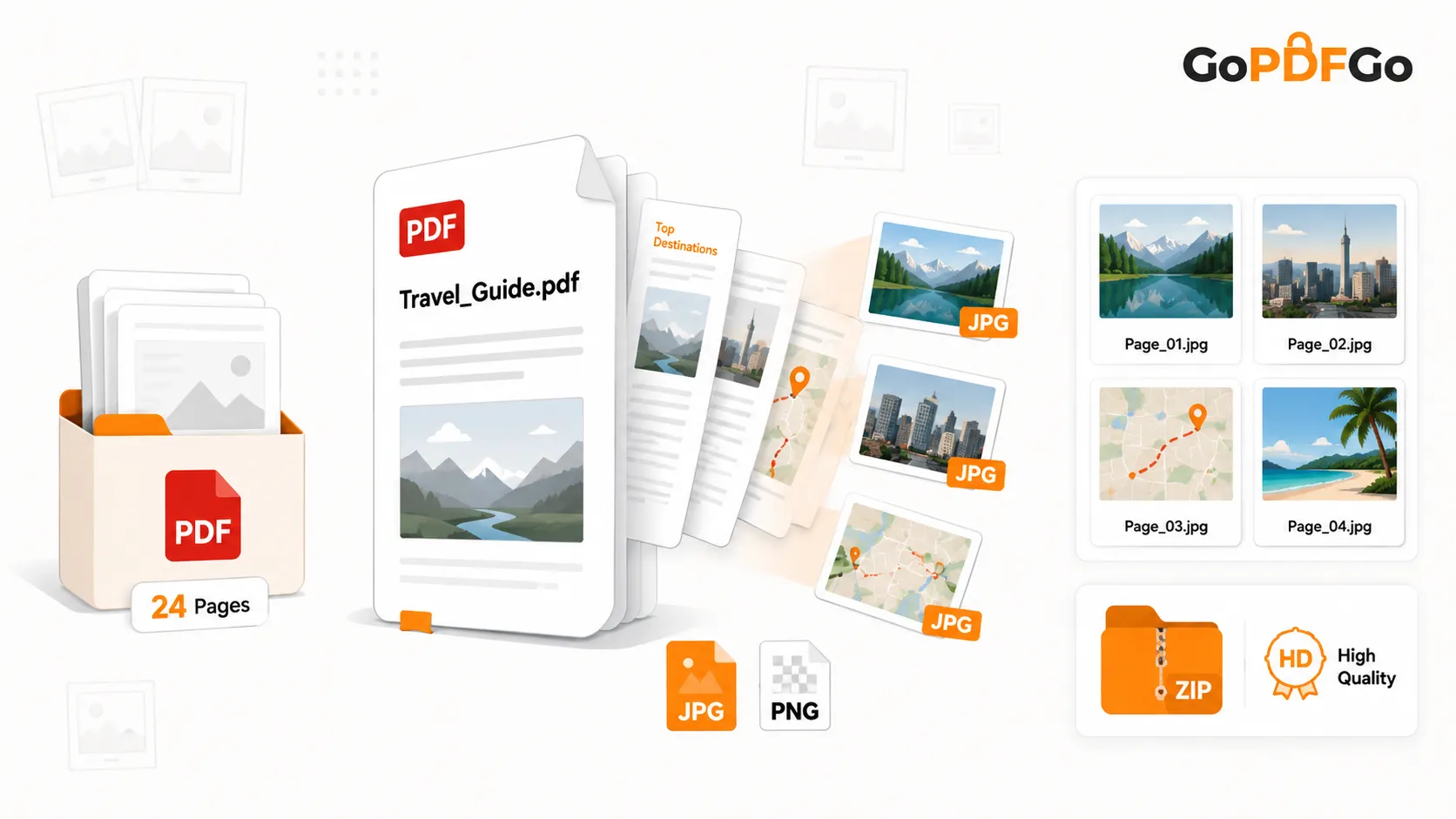
Our PDF to JPG tool takes each page of your PDF and renders it as a crisp, high-resolution image. You pick the format you want, and you get image files back.
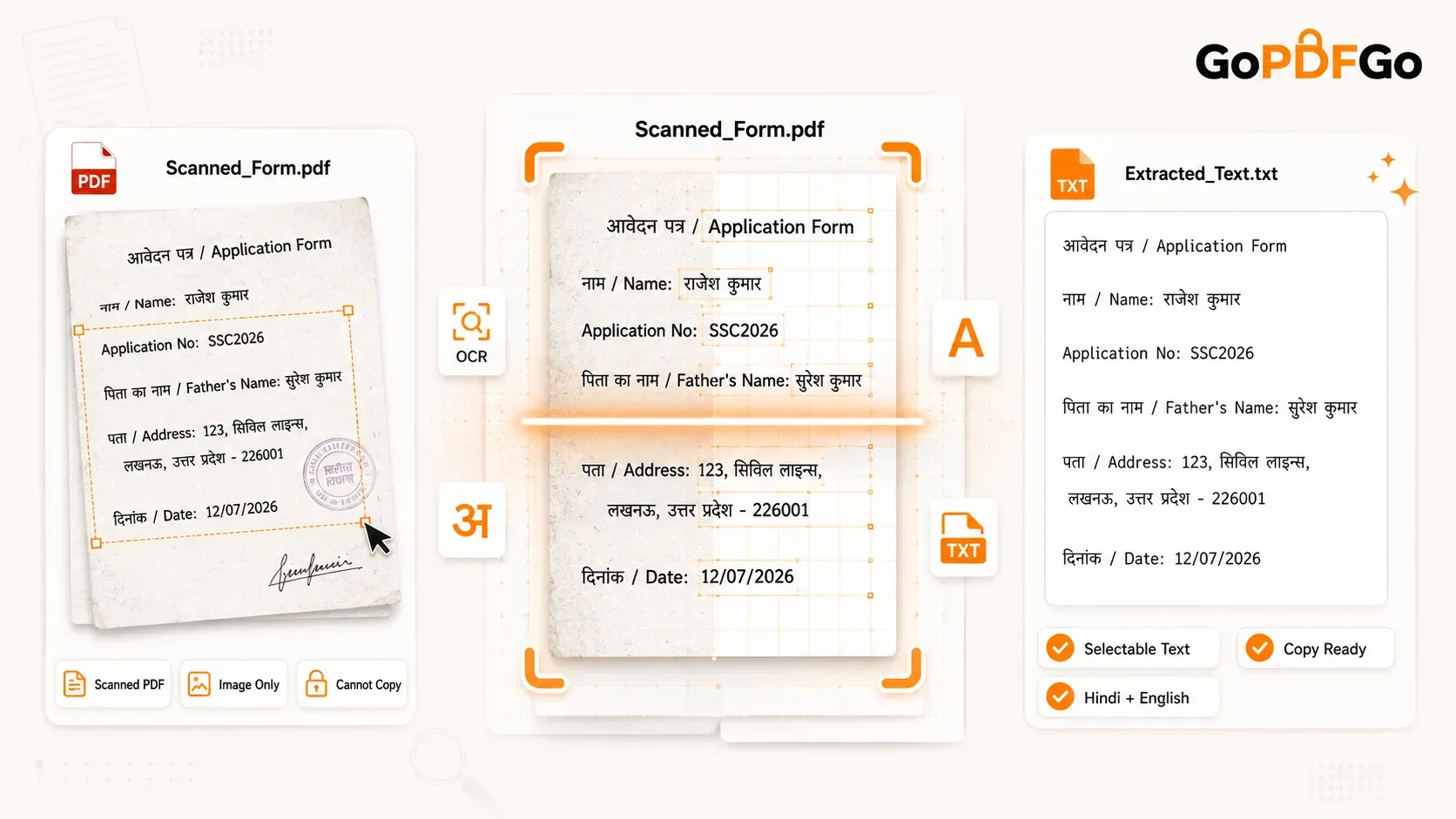
But let me be straight with you about one thing, because this trips people up. This tool rasterizes whole pages into pictures. It takes a photo of the page, in effect. It does not pull out only the embedded photos buried inside the PDF, it does not run OCR, and it does not turn your PDF back into editable, selectable text. So if you were planning to copy-paste the words out of the image afterward, that is a different job entirely. What you get here is a faithful, sharp picture of exactly how the page looks. For nearly every upload-and-share situation, that is precisely what you need.
JPG or PNG? Here's How I'd Decide
The tool lets you choose, so the choice should mean something. Quick rule of thumb:
- Pick JPG when the page has photos, scans, coloured backgrounds, or anything photographic. JPG squeezes the file size down nicely, so your image stays light. It is also the safe default when a portal literally demands ".jpg" or ".jpeg," and most Indian government forms do exactly that.
- Pick PNG when the page is mostly sharp text, line drawings, logos, charts, or anything with clean edges on a white background. PNG keeps those edges razor-sharp without the faint blurry noise that JPG sometimes adds around black text. The catch is a bigger file.
Honestly? When in doubt, and when the form doesn't force your hand, go JPG. It's the format everything accepts, and the quality is more than good enough for a signature, a marksheet, or a chat. Save PNG for when you really care about clean text, or when you want that crisp, screenshot-perfect look. If you want the deeper technical breakdown of the two formats, our JPG vs PNG guide spells out exactly when each one wins.
One Page or Many: What You Actually Get Back
The output depends on your PDF, and the tool just does the sensible thing on its own.
If your PDF is a single page, you get back a single image. One file, ready to upload or share. No fuss.
If your PDF has multiple pages, you get a ZIP file containing one image per page. So a 12-page brochure gives you 12 neatly named images bundled together. You download the ZIP once, unzip it, and pick whichever page you needed. That keeps your Downloads folder from exploding into a dozen loose files, and it keeps the page order intact.
Your File Never Leaves Your Phone or Laptop
Here is the part I care about most, and the part most "free PDF to JPG" sites quietly skip over. The whole conversion happens right on your own device, inside the browser tab. Your phone or computer reads the PDF, renders the pages, and hands the images straight back to you. Nothing is uploaded to anyone's server. There is no copy of your bank statement or your Aadhaar sitting in some stranger's cloud bucket overseas.
Think about what usually goes through one of these tools. Salary slips. Category certificates. ID proofs. A signed agreement you'd rather nobody else ever saw. The last thing you want is that data taking a round trip through a server you've never heard of. Because the work is done locally, conversion is genuinely fast, and it'll keep working even if your internet drops out mid-task. No account, no email, no "free trial," no watermark slapped across your image.
How to Convert Your PDF to JPG in Under a Minute
- Step 1: Open the GoPDFGo PDF to JPG tool on your phone or computer.
- Step 2: Drag your PDF onto the box, or tap to pick it from your files. It's read right there on your device, so nothing gets sent anywhere.
- Step 3: Choose your output format. JPG for the everyday all-rounder, PNG for crisp text and line art.
- Step 4: Let the tool render the pages at high DPI so the result comes out sharp instead of fuzzy.
- Step 5: Download. A single-page PDF gives you one image. A multi-page PDF gives you a ZIP with one image per page. Done.
Real Situations Where This Saves You
The government form image upload. The portal wants your signature or photo as a JPG and you only have a PDF. Convert the page. And if it comes out heavier than that 50KB limit, run the result through our Compress JPG tool to shrink it down to size before you upload.
Sharing on WhatsApp. Turn a one-page notice, receipt, or ticket into a JPG so it shows up as a proper preview in the chat instead of a file nobody bothers to tap.
Slides and docs. Pull a page out as an image and drop it straight into a PowerPoint slide or a Word document. Clean, sharp, sitting exactly where you want it.
A quick thumbnail. Need a preview image of a report's cover, or a brochure for a listing or a blog? Convert the first page and you've got an instant thumbnail.
Going the Other Way (and Other Handy Tools)
Sometimes you need the reverse. You've got a pile of JPGs and a portal that wants a single PDF. For that, flip over to our Image to PDF tool and stitch them together. If your source PDF is huge and slow before you even convert it, run it through Compress PDF first. And if you only need a couple of pages as images out of a 40-page file, use Split PDF to grab just those pages, then convert the small result.
That's really all there is to it. Next time a form rejects your PDF, or a page deserves to be seen in a chat instead of buried in an attachment, you know the move. Head over to the PDF to JPG converter, pick your format, and pull out exactly the image you need. Sharp, private, and free.