How to Add a Watermark to a PDF Online Free (No Upload, No Signup)
You have a document that needs a label. Maybe it is a copy of your Aadhaar or PAN you are sending for a rent agreement or KYC, and you want to make it absolutely clear the copy is meant for that landlord or bank and nobody else. Maybe it is a design proposal or a quotation you are sharing with a client before they have paid, and you want every page to say DRAFT so it cannot be passed off as the final, paid version. Or maybe it is an internal report that should never leave the office without screaming CONFIDENTIAL. In every one of these cases, what you actually need is to add a watermark to a PDF.
The good news is that watermarking a PDF no longer requires expensive desktop software, a paid subscription, or handing your private file to some unknown server. In this guide we will show you exactly how to add a clean text watermark across every page of any PDF, completely free and online, directly inside your browser, with all four placement styles explained so you can pick the right one for the job.
What Is a PDF Watermark, and Why Does It Matter?
A watermark is text printed faintly across your pages, sitting over your content without making it unreadable. It does not change the words of your document. Instead, it adds a layer of context and intent that travels with the file wherever it goes. That small layer does a surprising amount of work:
- Privacy and control: Stamping "Submitted to HDFC Bank only" or "For KYC purpose only" across a copy of your ID makes it far harder for anyone to quietly reuse that copy elsewhere. It signals exactly who the document was meant for, and if it ever surfaces where it should not, the mark points back to who you trusted with it.
- Status and stage: A bold DRAFT or SAMPLE stamp tells a client at a glance that this is not the final deliverable — no more unpaid work slipping out as finished.
- Ownership: Adding your name or website across a portfolio or original notes quietly marks the work as yours, so screenshots and shares still point back to you.
- Confidentiality: Marking contracts, financial reports, or internal memos with a CONFIDENTIAL stamp sets a clear expectation and discourages careless forwarding.
In short, a watermark is the cheapest, fastest way to tell everyone who handles your file what it is and what they are allowed to do with it.
The Privacy Problem With Most Watermark Tools
Here is the irony with most "free" online watermark websites. You go searching for a way to protect a sensitive document, and the very first tool asks you to upload that exact file to its server. When the document is your Aadhaar, a bank statement, a signed contract, or a client's confidential brief, that is a serious risk. Your private file gets copied to an unknown cloud, often hosted outside India, just so a stamp can be added and sent back. You have traded one privacy risk for a bigger one.
The GoPDFGo Watermark PDF tool works differently. It runs 100% inside your browser using pdf-lib, right on your own device. Your PDF is never uploaded anywhere — the watermarking happens on your own phone or laptop, and nothing is transmitted to any server. It is free, needs no signup, and unlike many tools, GoPDFGo adds no watermark of its own to your output. The only text on your pages is the text you chose.
The Four Watermark Positions (And When to Use Each)
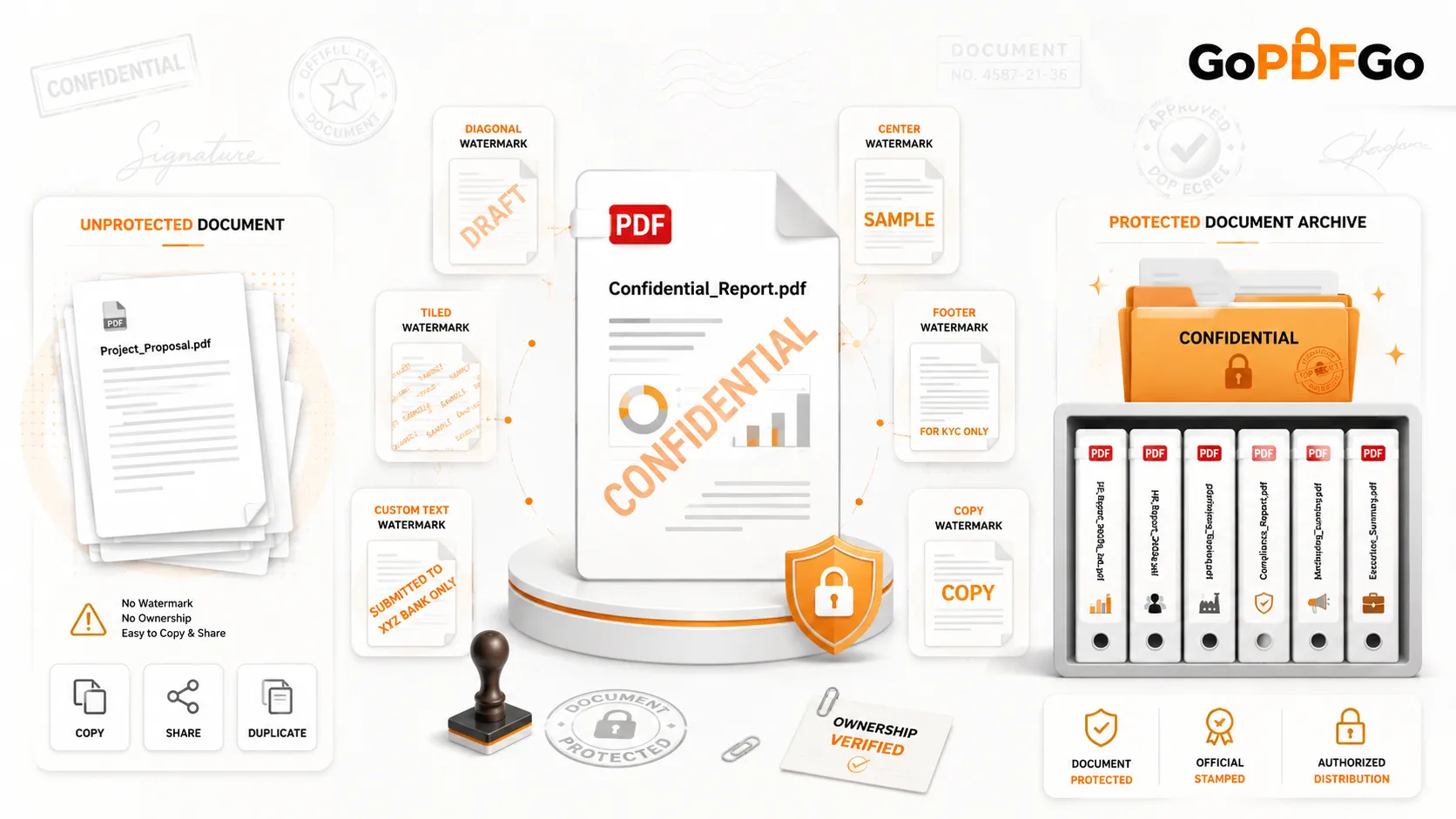
One text watermark can look very different depending on where it sits. GoPDFGo gives you four placement styles, so you can match the look to the purpose:
- Diagonal (45 degrees): The default, and for good reason. A single line running corner to corner is the classic official watermark look — perfect for IDs and contracts like CONFIDENTIAL, DRAFT, or "Submitted to SBI only," because it spans the whole page and is hard to crop out cleanly.
- Center: The text sits horizontally in the middle of the page. Clean and bold, ideal for a strong single word like SAMPLE or COPY on a cover page when you want it noticed immediately.
- Tiled: Your text repeats in a grid across the entire page. This is the most protective option — because the label is everywhere, there is no clean corner to screenshot or crop. Use it for portfolios, sample albums, or any document where you really do not want the mark removed.
- Footer: The text sits quietly along the bottom of every page. This is the subtle choice, great for a small note like your website, a reference number, or "For internal use only" when you want labelling without covering your content.
Alongside position, an opacity slider lets you go light for a faint, ghostly stamp that stays out of the way of your text, or bold for a loud, unmissable mark. And before you download, a live preview of page 1 shows you exactly how your choice looks, so you can fine-tune the text, position, and opacity until it is right.
How to Watermark Your PDF on GoPDFGo
- Step 1: Open the Watermark PDF tool on GoPDFGo from your mobile or desktop browser. There is nothing to install and no account to create.
- Step 2: Select or drag in the PDF you want to stamp, whether it is a copy of your Aadhaar, a proposal, or a contract. It loads into your browser's local memory instantly because it is not being uploaded anywhere.
- Step 3: Type your watermark text using English or Latin characters — for example CONFIDENTIAL, DRAFT, your name, or "Submitted to XYZ Bank only." Keep it short and clear so it reads well across the page.
- Step 4: Choose a position — Diagonal, Center, Tiled, or Footer — then drag the opacity slider from light and subtle to bold and unmissable, using the live page-1 preview as your guide.
- Step 5: Click to apply. The watermark is added to every page of your PDF in seconds, and your clean download is ready, with no GoPDFGo branding attached.
Watermark Do's and Don'ts
To get a professional result every time, keep these simple rules in mind:
- Do keep the text short. A few clear words read better than a long sentence stretched across the page. CONFIDENTIAL lands harder than a full paragraph.
- Do match opacity to purpose. If people still need to read the document, keep it light. If the whole point is deterrence, go bolder and consider the tiled position.
- Do redact before you watermark sensitive IDs. A watermark labels a document, but it does not hide the numbers on it. If you are sharing an Aadhaar copy, first black out the digits with our Aadhaar Masking tool, then add a "For KYC only" watermark on top — redacted and purpose-stamped together is much safer to share.
- Don't expect colours, logos, or images. This tool adds a gray text watermark, which is exactly what most official and professional documents need. It does not place an image or logo, let you pick custom colours or fonts, watermark only selected pages, or remove a watermark that is already in a file.
- Don't forget upload limits. If your watermarked PDF is too heavy for a portal or email, shrink it with our Compress PDF tool without ruining the text. To combine several stamped files into one, our Merge PDF tool will join them in order, every page carrying your watermark.
- Don't fight a locked file. If your bank statement or downloaded document is password protected, you cannot watermark it directly. Run it through our Unlock PDF tool first, then add your stamp.
A watermark is one of those tiny touches that instantly makes a document look intentional, professional, and protected, whether you are guarding your identity, your designs, or your contracts. Now that you know how all four positions work and how to keep your file private while you do it, head over to the Watermark PDF tool, type the line that fits your situation, pick a position, and download a clean, labelled document in seconds. Stay safe, and keep your work yours.