Scanned PDF You Cannot Copy From? How to Read It as Text (Hindi and English)
You have a PDF open on your phone. You can see the words perfectly well — a name, a registration number, an address, a whole paragraph you need to paste into a form. You press and hold to select it, and nothing happens. The selection handle just drags a rectangle across the page as though you were trying to highlight a photograph. Which, as it turns out, is exactly what you are doing.
This is one of the most familiar dead ends in Indian paperwork. Someone scanned your certificate at a cyber cafe. You photographed a form lying on your desk and saved it as a PDF. A department emailed you a notice that was clearly typed, printed, signed, and then run back through a scanner. The file opens, it looks like a document, and it will not give up a single copyable word.
The technology that fixes this is called OCR, and GoPDFGo now has a free OCR PDF tool that runs entirely inside your own browser — including the bilingual Hindi-and-English case that most Indian forms actually use. Here is how to tell what kind of file you are holding, how to read it, and exactly where the limits are, because there are limits and you should know them before you start.
The Five-Second Test That Tells You Which Tool You Need
Before you do anything else, run this test. Open the PDF and try to select one single word with your mouse or your finger.
- If a word highlights, your PDF has a real text layer. The characters are genuinely inside the file. You do not need OCR at all — use PDF to Text, which lifts that layer out instantly and exactly, every character just as it was typed. It is far faster, so always prefer it when it works.
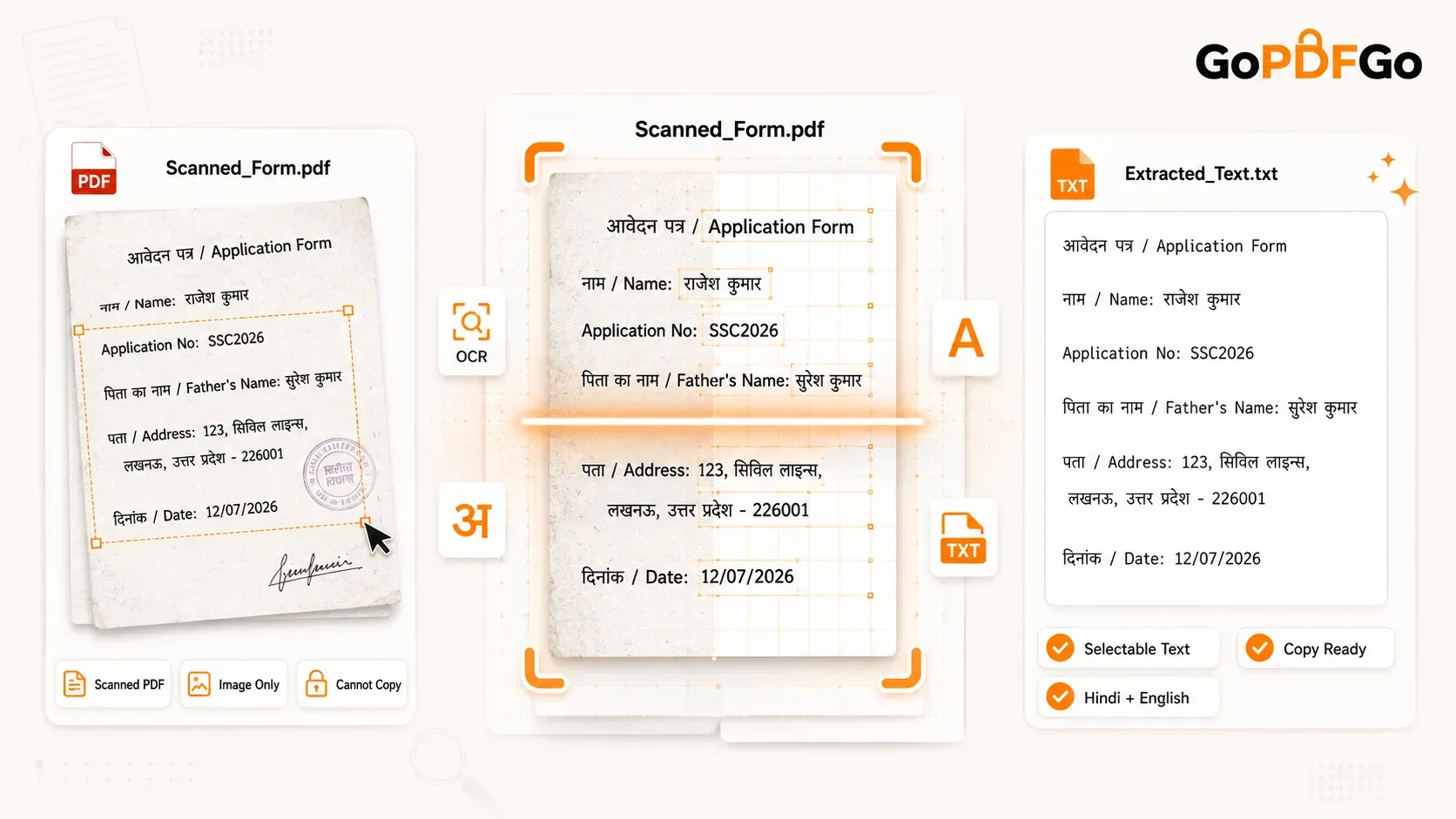
- If nothing highlights, and your cursor simply paints a blue box over the whole page, the page is an image. There is no text inside the file to copy — only a picture of text. That is a scan, and a scan needs OCR PDF.
You will occasionally meet a mixed file, and now you will recognise it: a few typed pages that highlight normally plus a signed page that was scanned back in and does not. The typed pages extract with the text tool, the scanned page needs OCR, and neither tool is broken.
What OCR Actually Is, in Plain Language
To understand why a scan behaves this way, it helps to know what is actually stored inside the two kinds of PDF.
When a PDF is generated from a Word file, a billing system, or a government publishing tool, the words are stored as characters. The letter R is recorded as the letter R, with a font, a size and a position on the page. That invisible set of real characters is the text layer, and it is the only reason you can select, search and copy inside a normal PDF.
A scan is built completely differently. A scanner or a phone camera does not read anything. It measures light and colour and hands over a grid of coloured dots that happens to look like a page. Nowhere in that file does the letter R exist. There is only a dark shape roughly in the form of an R sitting on a lighter background. Your eyes do the recognising, and software cannot copy something that only happened inside your head.
OCR stands for optical character recognition, and it is the software that does that recognising on your behalf. It examines every dark shape on the page, compares it against what it knows letters look like, and writes out its best guess as real characters. Pictures of letters go in, actual text comes out. That is the whole idea.
Notice the word guess. Hold on to it, because we come back to it further down.
The Language Choice That Decides Everything
Here is where Indian documents make life difficult in a way that most OCR tools were never built for. Our paperwork is bilingual, and not politely bilingual on separate pages — bilingual on the same printed line. A form header reads आवेदन पत्र / Application Form. The field label reads नाम / Name. The next one reads जन्म तिथि / Date of Birth. Devanagari and Latin script sit side by side, centimetres apart, all the way down the page.
Most people assume that if you point an English OCR engine at a Hindi line, you get poor-quality Hindi. That is not what happens. You get garbage, because the engine has no Devanagari in its vocabulary at all and is forced to approximate every shape with the closest Latin letter it owns.
We measured this on a rendered bilingual form line before the tool was built. The line read आवेदन पत्र / Application Form, नाम / Name: Rajesh Kumar, Reg No: SSC2026. Here is what came back:
- English-only model: it read आवेदन पत्र as "3Tde ual". Not a worse version of the Hindi — complete nonsense that carries no information at all.
- Hindi-only model: it read the English half as "फएपटाणा रिणाए". Exactly the same failure in the other direction.
- Hindi + English together: the entire line came back correctly, both scripts, in our own testing. It took roughly 17 percent longer than a single-language pass.
Seventeen percent more time for a result that is readable instead of unusable is not a difficult trade. That is why Hindi + English is the default on the tool, and why you should generally leave it alone. Pick a single language only when you are certain the page carries just one script — an English-only office letter, or a purely Devanagari circular. In those cases the single-language pass is a little quicker.
If the output comes back looking like the nonsense above, you almost certainly have the wrong language selected. Do not conclude the tool cannot read your document. Switch the language and run it again.
How to Read a Scanned PDF as Text on GoPDFGo
- Step 1: Open the OCR PDF tool on your phone or laptop. Nothing to install, no account to create, no watermark on anything you get back.
- Step 2: Drag in your scanned PDF or tap to select it. The file is loaded into your browser's own memory, not sent anywhere, so even a heavy scan opens without waiting on an upload.
- Step 3: Choose the language that is actually printed on the page. Hindi + English is the default and is the right answer for almost every Indian form. Choose English or Hindi alone only if the page genuinely uses one script.
- Step 4: Start the OCR and let it work through the document. Each page is rendered to an image and read in turn, and the progress bar shows the real page count so you can watch it move. On the very first run it also downloads the language data, so give it a moment before deciding something is stuck.
- Step 5: Read the text on screen, copy the whole thing with one tap, or download it as a .txt file. Then proofread anything you intend to act on, especially numbers.
What You Get Back, and What You Do Not
This part deserves to be said plainly rather than buried, because a lot of tools are vague about it and people waste time finding out the hard way.
GoPDFGo's OCR gives you plain text. You can copy it or download it as a .txt file. That is the output.
It does not hand you back a searchable PDF. It does not rebuild your scan with an invisible text layer tucked behind the page images so that Ctrl+F works inside the original file. If your requirement is specifically a searchable PDF — because an archive system needs one, or a lawyer asked for one — this tool is not that, and we would rather tell you now than after you have sat through a long scan.
For the overwhelming majority of real jobs, plain text is what you actually wanted anyway. Getting a name and a number off a scanned form so you can type them into an online application. Pulling the questions out of a photographed question paper. Lifting an address off an old utility bill. Copying two lines of a circular into a WhatsApp group instead of forwarding a heavy file nobody opens. In every one of those cases you needed the words, not another document.
Proofread the Numbers. Every Single Time.
Remember that OCR guesses. It is very good at guessing, and it is still guessing.
In our own testing on a clean Devanagari image — good contrast, straight, printed, close to a best case — the tool read everything on the page correctly except for one thing. It dropped the 1 from 12345 and returned 2345.
Look closely at why that matters. It did not produce a mangled string of symbols that you would instantly spot as broken. It produced 2345, which is a perfectly ordinary, perfectly plausible number that simply is not the number on your page. Nothing in the output flags it. If you paste that into a form without checking, the error travels with you.
So treat numbers as the thing you always verify: roll numbers, account numbers, amounts, dates, PIN codes, percentages, GST numbers, reference IDs. Read them back against the original scan with your own eyes. Prose is much more forgiving — a misread word inside a sentence usually looks wrong the moment you read it, and you fix it without thinking. A wrong digit hides in plain sight.
The related habit worth building: similar shapes get confused with each other. A 1 and a lowercase l. A 0 and a capital O. Those are the pairs to look at twice.
Why It Is the Slowest Tool on the Site
We will be direct about this too, because it saves you from thinking your phone has frozen.
OCR is by a wide margin the heaviest job on GoPDFGo. Every single page has to be rendered into an image and then examined shape by shape by a recognition engine running on your own processor. Compare that with PDF to Text, which just reads characters that are already sitting in the file and comes back almost immediately. One is reading; the other is looking at a picture and working out what it says.
Two practical consequences follow:
- A phone is slower than a laptop. Same tool, same file, less processing power. If you have a laptop handy and the document is long, use it. If you only have a phone, it still works — just leave the tab open and in the foreground while it runs, rather than switching apps.
- The first run downloads the language data. English is about 2.8 MB and Hindi is about 1.3 MB. This happens once and is then cached on your device, so every run after the first skips it. If your mobile data is limited, do the first run on Wi-Fi.
None of this is a flaw to apologise for. It is simply the honest cost of reading letters off a picture instead of copying characters out of a file, and it is why the five-second selection test at the top of this article matters so much. If your PDF has a text layer, use the fast tool. Save OCR for the files that genuinely need it.
Give the Engine a Clean Page and It Reads Far Better
OCR accuracy depends enormously on what you feed it. Clear, straight, high-contrast printed text reads best. Faint, skewed and handwritten pages read worst. Nothing you can change inside the tool will improve the result as much as improving the scan itself.
- Fix sideways and upside-down pages first. A page the engine has to read at right angles is a page it reads badly. Rotate PDF turns pages in 90-degree steps and writes the fix into the file — our guide on rotating scanned pages so they stay rotated explains why a viewer's temporary rotation does not count. It will not straighten a small slant, though; for a page that is a few degrees off, rephotograph it squarely rather than expecting the tool to correct it.
- Crop away the desk, the shadow and your thumb. A dark border or a fingertip at the edge of the frame gives the engine shapes to misinterpret that were never text at all. If the scan started life as phone photos, tighten the frame with the Crop tool on each image before you assemble them into a PDF — cropping the mess off a phone scan walks through it. Crop works on images, not on a finished PDF, so this is a step to do first rather than afterwards.
- Shoot flat and in even light. If the scan started as a phone photo, curl at the bottom of the page and a shadow falling across one half are the two things that quietly ruin recognition. Lay the page flat, light it evenly, shoot straight down, and assemble the photos with the Image to PDF tool before you run OCR on the result.
- Do not expect handwriting to work. OCR is built for printed type. A handwritten note, a signature or a filled-in form field written by hand will not come back reliably, and it is better to know that upfront than to keep retrying.
Where People Actually Use This
Once you know the tool exists, the situations start appearing everywhere:
- Scanned forms and certificates. Lift the name, the registration number or the address off a scanned bilingual form instead of typing it out and risking a typo in the one field that matters.
- Documents that only exist on paper. An old degree certificate, a rent agreement, a decade-old bill. Scan it once, run OCR, and keep a text copy you can search and paste from forever.
- Photographed notes and question papers. A friend sends a photo of printed notes. OCR turns it into text you can reformat, translate, or drop into your own study file.
- Anything a text extractor returned empty. If PDF to Text came back with nothing, that is not a failure — it is the diagnosis. The file is a scan, and OCR PDF is the tool that reads it.
- Translating a Hindi document. A scan gives a translator nothing to paste, and nothing to edit afterwards. Recognise the Devanagari first, then translate the output.
Your Scan Never Leaves Your Device
This matters more for OCR than for almost any other tool, and it is worth pausing on. Think about which documents people actually need to read text off: Aadhaar copies, PAN cards, salary slips, medical reports, bank letters, signed agreements, marksheets. The scanned files sitting on your phone are, almost by definition, the most sensitive ones you own.
On GoPDFGo the recognition engine is downloaded into your browser and runs on your own processor. Your PDF is never uploaded. The page images are never uploaded. The text that comes out is never uploaded either. There is no account, no sign-up, and no watermark stamped on your result. If you want the longer argument for why that architecture matters, we wrote about why local PDF processing beats cloud tools — but the short version is that a document that never travels cannot leak in transit or sit forgotten on somebody else's server.
So the next time a PDF shows you words it refuses to let you copy, you already know the drill. Try to select one word. If it highlights, use the fast text tool. If it does not, you are holding a picture of a page, and OCR PDF will read it for you — in Hindi, in English, or in both at once the way your form is actually printed. Give it a clean, straight page, be patient with it, check the numbers, and you will never retype a scanned document again.
Frequently Asked Questions
Q: How do I know whether my PDF needs OCR at all?
A: Try to select a single word in it. If the word highlights, the PDF has a real text layer and you should use PDF to Text, which is instant and exact. If nothing highlights and your cursor just draws a box over the page, the page is an image and you need OCR PDF.
Q: Does it work on Hindi documents and bilingual forms?
A: Yes, and this is the part worth getting right. You can read a page as Hindi, English, or Hindi + English together, which is the default. In our own testing, an English-only pass read आवेदन पत्र as "3Tde ual" and a Hindi-only pass read the English half as "फएपटाणा रिणाए" — both nonsense rather than merely inaccurate. The combined pass read the whole line correctly and took about 17 percent longer.
Q: Will I get a searchable PDF back?
A: No. You get plain text that you can copy or download as a .txt file. The tool does not rebuild your scan into a PDF with an invisible text layer behind the images. If the words are what you need, this does the job; if you specifically need a searchable PDF, this is not that tool.
Q: Is my scanned Aadhaar or salary slip uploaded anywhere?
A: No. The recognition engine is downloaded to your browser and runs on your own device. The file, the page images and the resulting text all stay with you. There is no account and no watermark on the output.
Q: Why is it taking so long compared to the other tools?
A: Because every page has to be rendered as an image and examined shape by shape, which makes this the heaviest job on the site, and a phone is slower at it than a laptop. The first run also downloads the language data — roughly 2.8 MB for English and 1.3 MB for Hindi — which is then cached, so later runs skip that step. Keep the tab open and in the foreground while it works.
Q: How accurate is it, and what should I double-check?
A: Good on clear printed text, and imperfect by nature, because OCR recognises shapes rather than reading. On one clean Devanagari test image it read everything correctly except that it dropped the 1 from "12345" and gave us "2345" — a plausible-looking number that was simply wrong. Always proofread digits: roll numbers, amounts, dates and account numbers. A straighter, sharper, higher-contrast scan improves accuracy more than anything else you can change.