How to Delete Pages From a PDF Online (Without Reprinting the Whole Thing)
You scan a 10-page document at the Xerox shop, walk home happy, open the PDF, and there it is. Page 2 is blank. So is page 6. The scanner picked up the empty back-sides of your sheets and dutifully added them in. Now your neat 10-page file is actually 14 pages, half of them white nothing.
Or the other classic. You download your air ticket, or an SBI account statement, or a form from the Income Tax portal, and the actual useful part is two pages. The rest? Three pages of terms and conditions, a page of "how to read this statement" instructions, and a promotional page about some credit card. You just want to print the booking. You do not want to feed five wasted pages through the printer or upload all of it to some portal.
This is a page problem, not a content problem. And there is a clean way to fix it.
Why "Print to PDF" and re-scanning are bad fixes
Most people reach for one of two workarounds, and both quietly make things worse.
The first is opening the PDF, hitting print, choosing "Microsoft Print to PDF" (or "Save as PDF" on a Mac), and typing in the page range you want, like 1, 3-5, 7-10. It sounds reasonable. The problem is that printing to PDF often rasterizes your document. That means your crisp, selectable text gets flattened into a picture of text. Suddenly you cannot select or copy anything, the file size balloons, and on a zoom-in the letters look slightly fuzzy. For a marksheet or a legal document that someone needs to read clearly, that is a real downgrade.
The second workaround is going back and scanning the whole thing again, this time being careful about the blank back-sides. Anyone who has stood at a scanner knows how much of a pain this is. You are redoing ten pages to get rid of two. And if the original document is no longer with you, you simply cannot.
Neither of these touches the real issue. You do not need to recreate the file. You just need to remove the pages you do not want and keep the rest exactly as they are.
What deleting pages actually does to your file
When you delete pages the right way, the tool does not rebuild your document. It takes the pages you chose to keep and copies them across, byte for byte, into a fresh PDF. The pages that survive are identical to the original. Same resolution, same fonts, same selectable text you started with.
This is the part people miss. A good page-deletion tool is a lossless operation on the pages you keep. Nothing gets recompressed and nothing gets re-rendered. If your text was sharp and selectable before, it stays that way after. You are only changing which pages are present, nothing about the pages themselves.
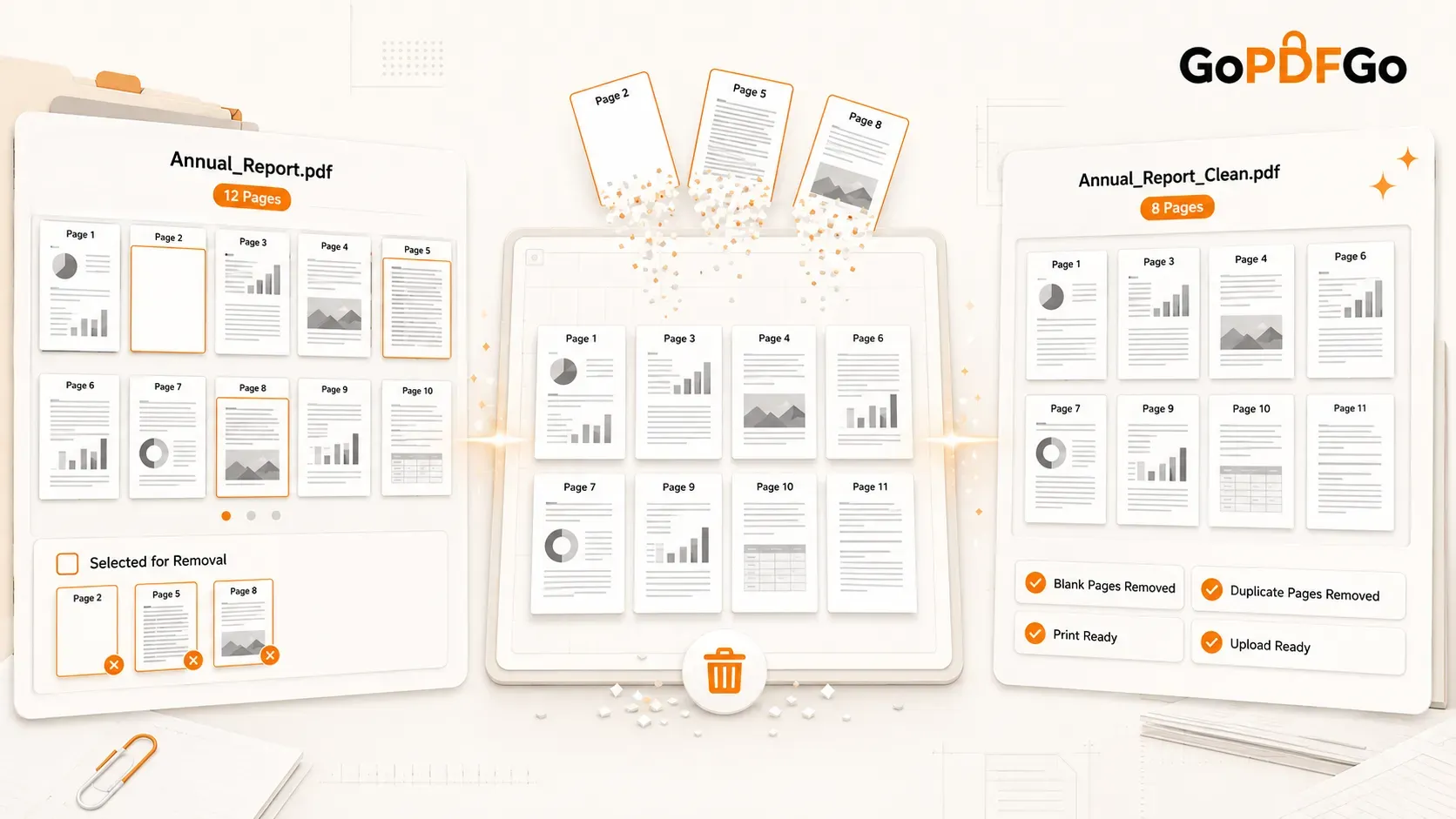
That is exactly how the Delete PDF Pages tool on GoPDFGo works. You see every page as a thumbnail, you pick the ones to remove, and the kept pages are carried over untouched.
Why picking pages visually beats typing page numbers
Typing "delete pages 2, 6, 11" sounds fine until you realise you are guessing. Is the blank page really number 6, or is it 5? You end up scrolling up and down, counting, second-guessing, and sometimes deleting the wrong page entirely.
Seeing thumbnails removes the guesswork. The blank pages are obvious. They are the white rectangles. The terms-and-conditions pages look like dense walls of grey text. You can spot exactly what you want gone without reading a single page number. You tap it, it gets marked, done.
And because there is a live counter showing how many pages you have selected, you always know where you stand. Selected three by mistake? The number tells you. Want to start fresh? There is a Clear button that resets your selection in one tap, so you are never stuck undoing things one by one.
The part that actually matters: your file never leaves your phone
Here is something worth pausing on. A bank statement has your account number and your balance. A scanned set of certificates has your name, your photo, sometimes your Aadhaar details. When you upload that to a random website to "delete a page," you have just handed a stranger's server a copy of your private document. You have no idea where it sits or for how long.
GoPDFGo does the whole thing inside your own browser. Your PDF is read, processed, and saved right there on your device. Nothing travels to a server, and the work even keeps running if you switch off your WiFi mid-way. There is no sign-up, no email collection, and no cost. For sensitive documents like an EPFO claim form or a salary slip, that difference is not a small detail.
How to delete pages from a PDF in four steps
- Step 1: Open the Delete PDF Pages tool and drop in your file, or tap to pick it from your phone or computer. Every page loads as a thumbnail you can scroll through.
- Step 2: Tap each page you want to remove. A blank scan back-side, an instruction page, a terms-and-conditions sheet, whatever it is. The counter at the top keeps a running tally of how many you have selected, and if you change your mind you can tap a page again to unselect it or hit Clear to wipe the whole selection.
- Step 3: Double-check the count against the thumbnails you marked. The pages you did not select are the ones you are keeping.
- Step 4: Download your trimmed PDF. The kept pages come through losslessly, so the text stays sharp and you can still select and search it.
When you reach for this tool in real life
Once you have a quick way to drop pages, you start using it more than you would expect. A few situations where it earns its place:
- Cleaning up blank pages from a scan. Duplex scanners and the auto-feeder at the Xerox shop love adding empty back-sides. Delete them and your 14-page file becomes the clean 10 pages it should have been.
- Trimming instruction pages before a portal upload. Many official PDFs come wrapped in cover pages and "guidelines" pages. When a portal has a strict page limit or you just want a tidy document for verification, strip the filler and upload only what matters.
- Sending only the relevant pages of a long report. Your boss asked for the summary on page 3 and the numbers on pages 8 and 9, not the whole 40-page deck. Keep those, delete the rest, and send a focused three-page PDF on WhatsApp instead of a heavy file nobody will scroll through.
- Removing a page with a mistake before printing. Spotted a duplicate page or a misprint? Pull it out so you are not wasting paper and ink at the print shop.
What this tool is not for
It is worth being clear about the edges so you pick the right tool the first time. Deleting pages does not let you edit the text or content sitting on a page. It removes whole pages, not words. It also does not change the order of your pages. If your pages are in the wrong sequence and you want to shuffle them around, that is a job for the Rearrange PDF tool instead — or Organize PDF if you need to reorder, rotate and delete pages together on one screen.
And if your goal is to break one PDF into several separate files, page deletion is not the right move either. For that, use Split PDF. Going the other direction, when you need to join several PDFs into one, Merge PDF handles it. And if the leftover file is still too heavy for an upload limit, run it through Compress PDF afterwards.
Most of the time, though, the annoyance is simpler than all that. You have a PDF with a few pages you wish were not there, and you want them gone without wrecking the rest. That is a thirty-second job. Open the Delete PDF Pages tool, tap the pages you do not want, and download a clean file with everything else exactly as sharp as it always was. No reupload, no reprint, no rescan.