How to Make a QR Code for Google Reviews (and Actually Get More 5-Star Ratings)
Every shop owner figures this out the slow way. A happy customer means it when they say "lovely food, will come again" or "best haircut in months." But ask them to actually open Google and write a review, and that goodwill vanishes the second they step onto the road. They forget. You forget to ask. And the place two lanes down somehow has 340 reviews while you are stuck on 11.
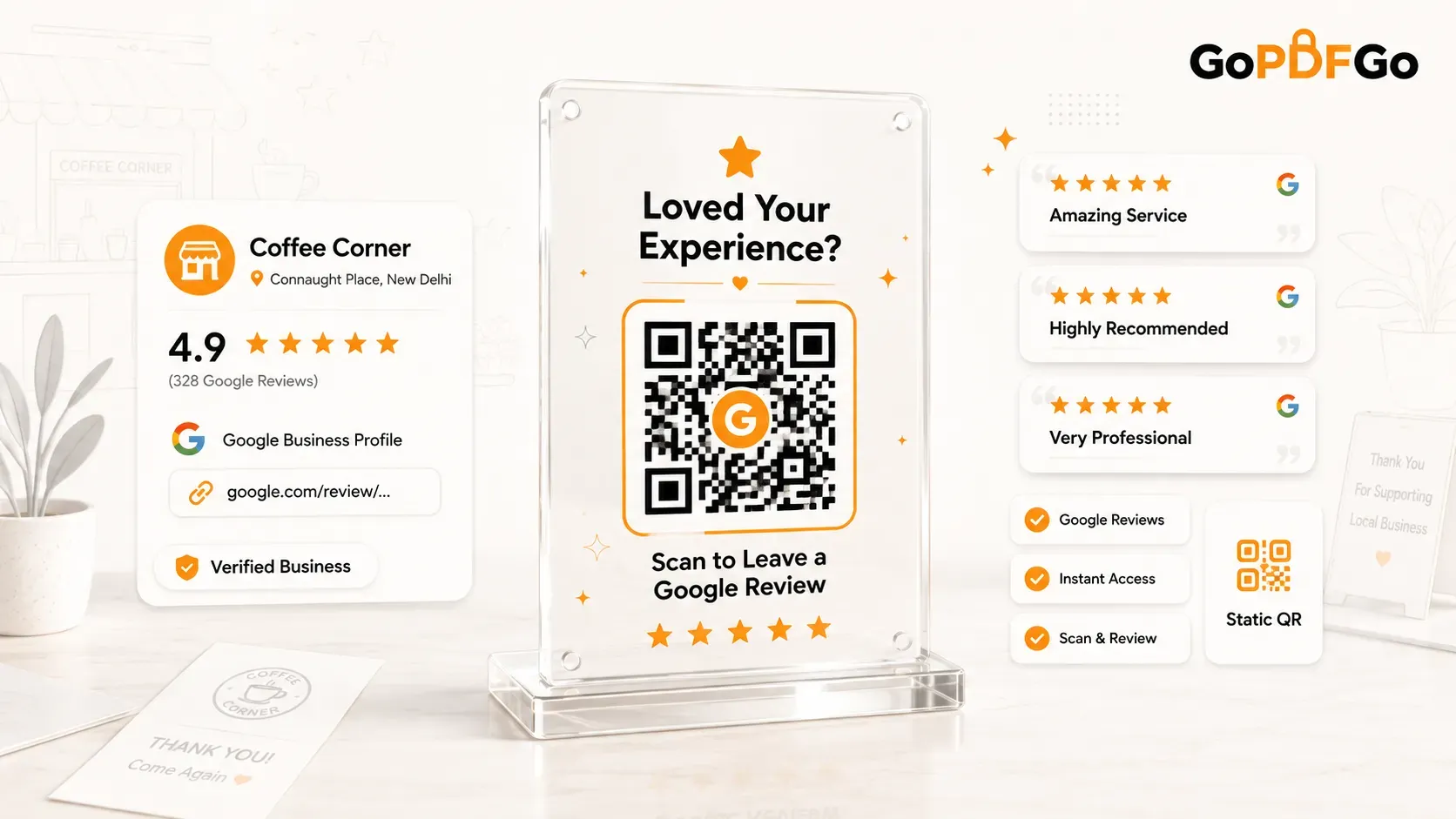
The fix is not begging on WhatsApp. It is a small printed QR code sitting on your counter or your bill tray. The customer scans it with the phone already in their hand, your Google review box opens straight up, they tap five stars, done. No typing your business name, no searching, no friction. This post shows you how to make one for free, honestly, without falling into any monthly-subscription trap.
Why a review QR beats a WhatsApp message
Think about what you are actually asking when you send a "please review us" text. The customer has to read it, tap the link, wait for the page, find your listing, scroll to reviews, then write something. Five steps, all while they are busy with ten other things. Most never get past the first one.
A QR code collapses that whole chain. The customer is standing right there, full of fresh goodwill, paying the bill. You point at a small tent card. They scan. The review window is open in a second. You have caught them at the exact moment they are most likely to say something nice, which is right after the service, not three hours later when they are stuck in traffic and irritated.
This works for almost any walk-in business. A restaurant or dhaba puts it on the table or inside the bill folder. A salon sticks it at the billing counter. A clinic keeps it at the reception desk. A gym puts it near the front desk. Even a small shop can tape it next to the QR codes they already display at the counter. Same gesture the customer already knows, different result.
First, get your real Google review link
This is the part most people get wrong, so go slow here. The QR is only as good as the link inside it, and you want the link that drops customers straight into the "write a review" box, not just your map listing.
You need a verified Google Business Profile for your shop. If your business already shows up on Google Maps with a photo, timings, and a phone number, you probably have one. To get the review link, open your Business Profile (search your own business name while logged into the Google account that manages it, or use the Google Business Profile dashboard). Look for the option that says "Ask for reviews" or "Get more reviews." Google hands you a short link, usually something like g.page/r/... or a search.google.com/... review URL.
Copy that link exactly. That is the one that opens the review and star-rating window directly. Do not just copy your Google Maps URL from the browser bar, because that only opens your listing and the customer still has to hunt for the review button. The whole point is removing taps, so use the proper review link.
Now turn that link into a QR code
This is the easy bit, and it is completely free. You paste your review link into a QR generator and download the image. Use the Text/URL mode, which simply takes whatever link you give it and draws it into the black-and-white squares.
Make your Google review QR code in 2 minutes
- Step 1: Get your review link ready first. From your Google Business Profile, use "Ask for reviews" or "Get more reviews" to copy the short review link (the g.page or search.google URL). Keep it on your clipboard.
- Step 2: Open the QR Code Generator and stay on the Text / URL tab. Paste your review link into the box. Check it once for stray spaces at the start or end, since one extra character will break it.
- Step 3: Hit Generate. The code appears on screen instantly. It is drawn right inside your browser, so the link you pasted is never sent off to anyone's server.
- Step 4: Before anything else, pick up your own phone and scan the code on the screen. It must open the Google review window for your business with the star rating ready. If it lands on the right page, you are set.
- Step 5: Download the PNG. Take it to your local Xerox or print shop, or print at home, and you have a counter card ready to go.
Why this QR never expires
You may have read scary stories about QR codes that "stop working" after a free trial. Those are dynamic codes, where the squares hold a tracking link owned by some company that switches it off when you stop paying. The code you just made is static: your actual Google review link is baked physically into the pattern, with no middleman who can flip a switch. As long as your Business Profile exists, it works. Print it once, use it for years, no monthly fee. If you want the full breakdown before you order 500 stickers, we covered it in static vs dynamic QR codes.
The one trade-off with a static code is that you cannot edit the link later, because it is fixed in the squares. For a review QR that almost never bites you, since the review link is tied to your Business Profile and does not change as your review count climbs. The rare exception is a rebrand or a shift to a new location, which I will come back to in the FAQ.
What to actually write on the card
A bare QR on a white card gets ignored. People need a reason and a nudge. Keep the wording short and warm, the kind of thing you would say out loud. A few lines that work on a tent card or sticker:
- "Loved it? Scan to rate us on Google." Short, friendly, does the job.
- "Happy with your visit? A review takes 10 seconds and means a lot to us." Honest and specific about the effort.
- "Scan, tap the stars, done. Thank you!" Good for a busy counter where nobody reads long text.
Add your shop name and maybe a tiny "Thank you for visiting" at the bottom. Do not write paragraphs. Nobody reads a billboard while settling a bill.
Placement and timing, where most people slip
The best QR dies if it is stuck in a corner nobody looks at. Put it where the customer's eyes already land. The billing counter is the sweet spot, because they are standing still there. On a restaurant table, prop it next to the napkin holder. Slip a small printed card inside the bill folder so it is the last thing they see. A salon can stick one on the mirror at the station.
Timing matters as much as placement. The moment to ask is right after the service, when they are smiling, not while the food is still coming. Train your staff to say one line: "If you enjoyed it, there is a quick QR on the counter to leave us a review." That single sentence, said warmly, multiplies scans more than any fancy card design. People review when a human asks; the card just makes it effortless.
Printing tips so it actually scans
Print it big enough. A QR smaller than about 2x2 cm on a table card is fussy to scan in dim restaurant lighting. Keep clear white space around the squares and do not crop it tight. The PNG you download is small and clean already, so do not run it through any image compressor before printing, because squeezing a dense QR can soften the squares and trip up the scan. Want the review code on the back of your menu or brochure? First save it as a one-page PDF, then combine it into your existing PDF before sending the file to the press. And laminate the counter card, because grubby fingers and chai spills are real. If you are also planning a Wi-Fi sticker for the same counter, the broader walkthrough in free QR codes for your business covers that too.
Frequently Asked Questions (FAQ)
Q: Do I need a paid Google account or any subscription for this?
A: No. A Google Business Profile is free, the review link is free, and the QR generator is free. The only cost is the print, a 10-rupee job at any Xerox shop. Anyone charging you a monthly fee for a "review QR" is selling you a dynamic code you simply do not need.
Q: Can the QR force customers to give 5 stars?
A: No, and do not try to. The QR just opens Google's review box with the stars ready; the customer picks the rating and writes whatever they want. Google's policies are strict about review gating and fake reviews, so make it easy for genuinely happy customers and let the honest ones flow in.
Q: My link looks like a long messy URL. Will the QR still work?
A: Yes. A longer link just makes the QR pattern slightly denser, but a normal-sized print still scans fine. Always test with your own phone after generating, and if you are nervous, print it a touch bigger.
Q: What if I rename my shop or move locations later?
A: Your review link is tied to your Business Profile, not your signboard, so a simple name change usually keeps the same link alive and your printed code keeps working. A full move or rebrand is the one case where Google might issue a genuinely new link; if that happens, paste the new one into the generator and reprint. For everyday running, the same code lasts you years.
Reviews are the closest thing a small shop has to free advertising, and most owners leave them on the table because asking out loud feels awkward. A printed QR removes the awkward part. Make yours in the next two minutes with the QR Code Generator, print it, set it on the counter, and let the happy customers handle the rest.