How to Extract and Copy Text From a PDF (Free, No Upload)
You are studying late, a chapter PDF from your coaching material open on one screen, and you just want two paragraphs from it in your study group's WhatsApp. You drag across the text, press Ctrl+C, paste, and out comes a jumbled mess: words glued together, line breaks in the wrong places, half a sentence missing. Or nothing pastes at all. Most of us have been there with a PDF at least once.
Getting plain text out of a PDF should be simple, but the format does not make it easy. A PDF is built to look identical on every screen and printer, not to hand its words over neatly. Here is why it fights you, and a clean way to pull copyable text out of most PDFs in a few seconds, right in your browser, without uploading the file anywhere.
Why copying text from a PDF goes wrong
A PDF is not a Word file. Inside, text is often placed character by character at fixed positions on the page, more like a printed sheet than a document you can edit. When you select and copy inside a PDF reader, the reader has to guess the reading order. On multi-column layouts, tables, or anything with fancy formatting, it guesses wrong a lot. That is how you end up with two columns mixed together or stray spaces scattered through a sentence.
On a phone it is worse, because selecting a precise block of text in a mobile PDF viewer is fiddly and the handles never land where you want them. What you actually need is a tool that reads the PDF's underlying text directly and gives it back as clean plain text you can copy or save. That is what our PDF to Text tool does.
The one thing to understand: the text layer
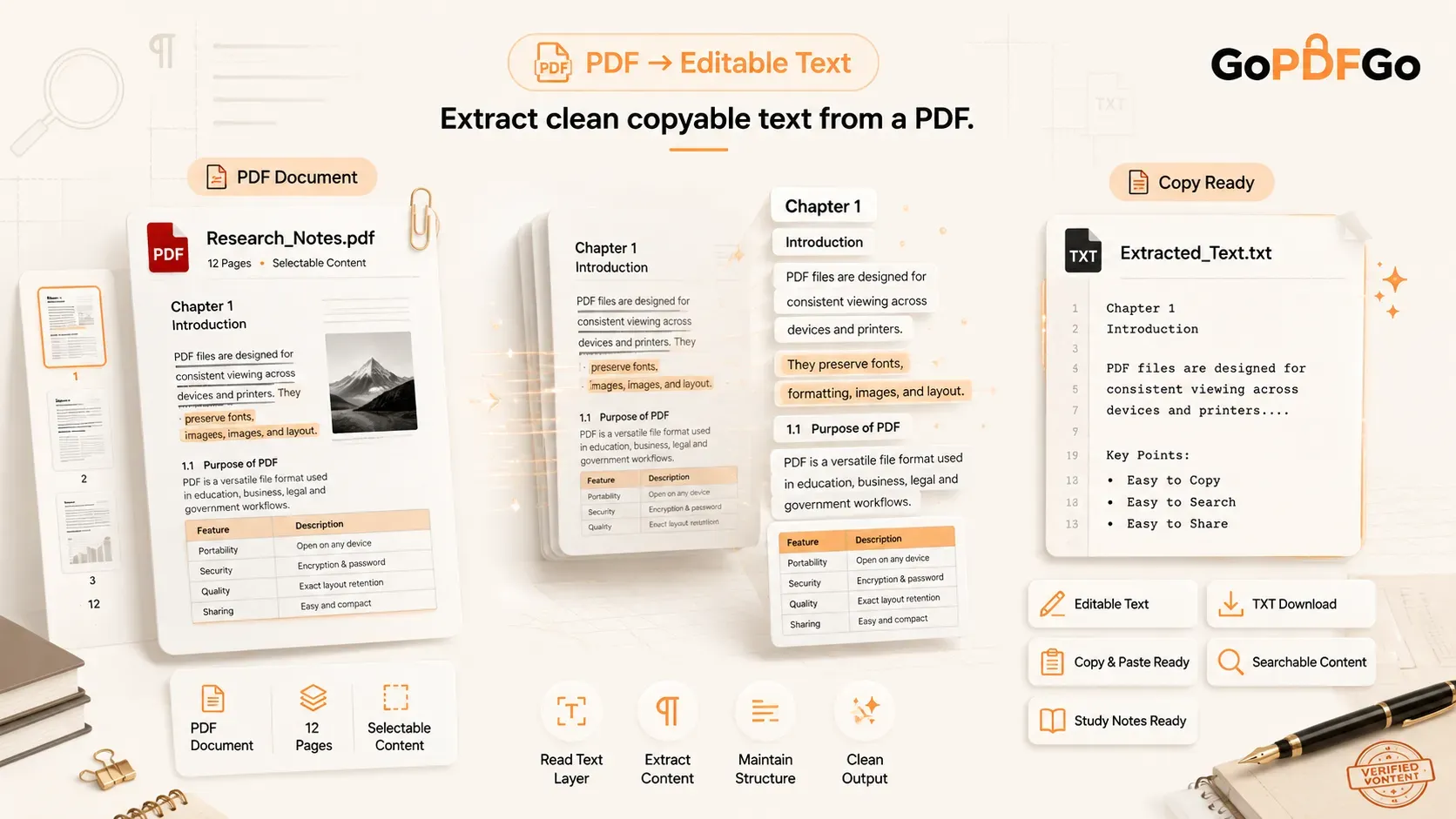
Every PDF created from a real document, a Word export, an e-book, a generated question paper, an invoice from accounting software, carries a hidden text layer. That is the actual selectable text sitting behind what you see on the page. Our tool reads that layer and hands it to you, formatting stripped, ready to use.
There is one honest catch. If your PDF is a scan, where someone photographed or scanned a printed page, that page is just an image. To your eyes it looks like text, but there is no text layer under it. It is a picture of words. Nothing can copy text that does not exist in the file as text. For a pure scan you need OCR (optical character recognition), which reads the letters off the picture. This tool will come back empty on those, so use the OCR PDF tool for them instead.
You can check in two seconds. Open the PDF and try to select a single word with your mouse or finger. If a word highlights, you have a real text layer and extraction will work cleanly. If your cursor just draws a box over the whole page and nothing highlights, it is a scanned image. Good news for one common worry though: even PDFs that block copying through restrictions usually still have a readable text layer, and our reader pulls the text from those restricted-but-text-based files just fine.
Where you will actually copy text from a PDF
Once you know it works on any text-based PDF, the everyday uses pile up fast:
- Exam prep and coaching: Pull a definition, a formula explanation, or a worked answer from an e-book or your lecture notes and paste it straight into your notes app or the group chat. No retyping.
- Previous year question papers: This is the big one for students. Copy questions out of a PYQ PDF to build your own practice set, or to paste a tricky question into a search and find a worked solution. Far quicker than typing each question by hand.
- Agreements and letters: Need one specific clause out of a rent agreement or an offer letter to send to a family member? Copy just that clause instead of screenshotting the whole page.
- Translation: Copy a chunk of English or Hindi text and paste it into Google Translate. You cannot translate a picture of words, but you can translate extracted text.
- Quick sharing: Drop a key line from a notice or circular into WhatsApp instead of forwarding a 4 MB file nobody opens.
How to extract text from your PDF on GoPDFGo
The whole thing runs inside your browser. Your PDF never leaves your device and nothing is uploaded to any server, which matters when the file is an agreement, a salary slip, or anything with your personal details in it. Here is the flow.
Get clean, copyable text in under a minute
- Step 1: Open the PDF to Text tool on GoPDFGo, on your laptop or your phone, it works on both.
- Step 2: Click the upload area or drag your PDF onto it. The file is read locally, so even a big document loads without waiting on an internet upload.
- Step 3: The tool reads the PDF's text layer and shows the full extracted text on screen, page by page, as plain readable text.
- Step 4: Select just the part you need and copy it, or grab everything at once and download it as a .txt file that opens in any text editor. Paste into your notes, a chat, a translator, or an email.
- Step 5: If the output comes back empty, do the highlight test above. An empty result almost always means a scanned page with no text layer, not a problem with the tool.
If your PDF turns out to be a scan
Say you ran the highlight test and confirmed it is a scanned image, so nothing extracts. You are not fully stuck, you just need a different path. For a short clause, retyping the few lines you need is often faster than people expect. For a longer file, run it through OCR PDF, which reads the words off each page image and hands you back plain text in English, Hindi, or both. And if the scan is what you are working with anyway, you can still keep it tidy with our other tools, like cropping the dark edges off a scan with Crop, or fixing pages that came out sideways using Rotate PDF before you share it.
One more thing worth separating out: if your real goal was to grab a single page out of a giant report rather than its text, that is a different job. For pulling a page out as its own file, the Split PDF tool is the right fit, not this one. This tool is purely about getting the words out so you can copy, paste, or save them as text.
A few tips for the cleanest text
- Check before you panic. The highlight test (try to select one word in the PDF) tells you in two seconds whether extraction will work at all.
- Tables come out flat. Plain text extraction strips formatting, so a table arrives as rows of words without the grid. That is expected, you get the words, not the layout.
- Mixed PDFs happen. A file can have some real-text pages and some scanned pages. The text pages extract, the scanned ones stay blank, and now you know why.
- Private files stay private. Since everything runs on your device, you can put an agreement or a pay slip through it without wondering where the file ended up.
So the next time a PDF refuses to give up a clean paragraph, you do not have to retype it word by word or take ten screenshots. Open the text extractor, let it read the layer, and lift exactly the lines you need. For genuine text-based PDFs, which is almost everything you deal with day to day, it just reads them and gives you the text.
Frequently Asked Questions
Q: Does my PDF get uploaded to a server?
A: No. The whole process runs inside your browser on your own device. The file never leaves your phone or computer, which is why it is safe for agreements, salary slips, and anything personal.
Q: Why is the extracted text empty even though I can clearly see the words?
A: Your PDF is almost certainly a scanned image, a picture of a page with no real text layer underneath. The words are visible but they are not actual text in the file, so there is nothing to copy. That case needs OCR, so run the file through OCR PDF instead, which reads the words off the page images.
Q: Does it work on my phone?
A: Yes. The tool runs in the browser on both Android and iPhone the same way it does on a laptop. Open the PDF, let it read, then copy the part you need or download the .txt. Handy when you only have your phone and a question paper.
Q: Why does my copied text have weird spacing or jumbled words?
A: That usually comes from copying directly inside a PDF reader, especially on two-column pages or tables, where the reader guesses the reading order wrong. Reading the text layer through this tool gives you cleaner output, though tables still arrive as flat rows of words rather than a grid.
Q: Can I copy just one paragraph instead of the whole document?
A: Yes. The extracted text appears on screen as plain text, so you can select and copy just the clause, definition, or paragraph you need, or grab everything at once and download it as a .txt file.