vCard QR Code Generator: Make a Digital Business Card That Saves Your Contact in One Scan
Picture the end of a meeting at a coffee shop in Koramangala, or a site visit for a 2BHK in Wakad. You hand over your visiting card. The other person looks at it, says "great, I'll save your number," and slips it into a shirt pocket. You both know what happens next. That card goes home, lands in a drawer with forty others, and your number never makes it into their phone. Three weeks later they are squinting at it trying to remember which broker you were.
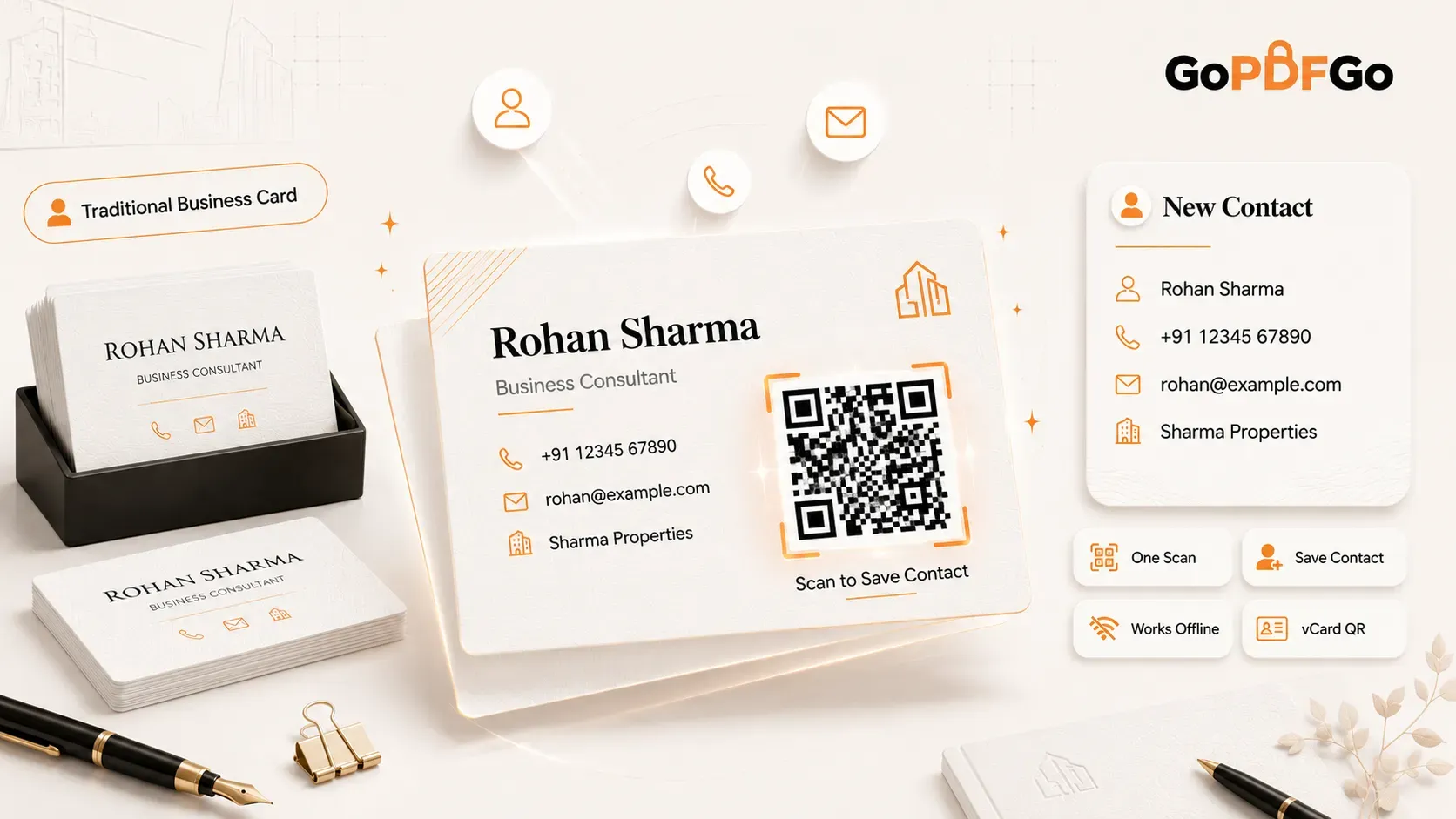
The card isn't the problem. The gap between paper and phone is. Nobody enjoys typing a ten-digit number plus an email with a dot and an underscore off a 7-point font, so they don't. A vCard QR code removes that step. One scan with the phone camera, a little card pops up saying "Add to Contacts," they tap once, and your name, number, email and company are saved. No typing, no lost card. It actually works, and it is cheaper than the card you already print.
What a vCard QR code actually is (and what it isn't)
Most QR codes you have scanned on a poster or a menu open a website. You point your camera, a link shows up, you tap it, a browser loads. A vCard QR code does none of that. It doesn't open a webpage. The black-and-white pattern has your contact details written straight inside it, in a small standard format called vCard. When the phone reads the code, it recognises a contact and offers to save it into the phonebook.
That difference is the whole point. There is no website to maintain, no link that can break, nothing for the other person to "visit." It works offline too. Stuck in the basement of an exhibition hall with one bar of signal? The scan still works, because everything sits in the code itself, not on a server somewhere.
Here is the trade-off, and it is a real one. A vCard QR code is static and permanent. The details are baked into the pattern. If you switch your number next year, every printed code keeps handing out the old one forever, and you cannot edit a code that is already on paper. You generate a fresh one and reprint. So put details you are confident about, and lead with the number you intend to keep. If you change companies or numbers every few months, this is a genuine limitation, not a footnote.
The vCard text block: simpler than it sounds
"vCard format" sounds like something a developer wrote. It is just a few lines of plain text with labels in front. You are not coding. You are filling a form by hand. Here is a working block you can copy and edit. Select the whole thing, top line to bottom line:
BEGIN:VCARD
        VERSION:3.0
        N:Sharma;Rohan;;;
        FN:Rohan Sharma
        TEL;TYPE=CELL:+919812345678
        EMAIL:rohan@example.com
        ORG:Sharma Properties
        END:VCARD
That is the entire thing. Read it top to bottom and it explains itself, but a quick tour of the lines you will actually change:
- N is the structured name, written Surname;First name;;; — surname comes first here, with those semicolons. So N:Sharma;Rohan;;; means surname Sharma, first name Rohan. The extra semicolons hold a middle name and titles you are leaving blank, so keep them.
- FN is the full name written the normal way, Rohan Sharma. This is the line that shows up as the contact name on most phones, so don't drop it.
- TEL is your phone. Add the country code: for India that is +91 and then the ten digits, no spaces. The ;TYPE=CELL tag just tells the phone it is a mobile.
- EMAIL is your email. ORG is your company or shop name — for a freelancer that is just your studio or brand name.
Keep it short. Every extra line you add (full address, website, a second number) makes the QR pattern denser and harder to scan, which bites when it is printed small in the corner of a card. Name, number, email, company covers what most people need at a meeting.
Build it, generate it, print it
The tool is the QR Generator, and the detail that matters is which tab you pick. Use the Text / URL tab, not the Wi-Fi one. You paste your finished vCard block into the text box exactly as written. The generator doesn't need to "understand" vCard — it encodes whatever text you hand it, and the phone on the other end knows what to do with it.
How to make your vCard QR code on GoPDFGo
- Step 1: Open Notes, WhatsApp's "message yourself," or any text box, and write out your vCard block using the example above. Swap in your own name, number, email and company. Check the phone number digit by digit — this is the one thing you cannot fix after printing.
- Step 2: Copy the whole block, from BEGIN:VCARD down to END:VCARD. Leave either line out and the phone won't recognise it as a contact, so grab both.
- Step 3: Open the QR Generator and stay on the Text / URL tab. Paste your vCard block straight into the text field.
- Step 4: Tap Generate QR Code. The code appears on screen. Your contact details are encoded into the image right there in your browser — they are not sent to our servers.
- Step 5: Before you download, test it. Open your phone camera and scan the code off your laptop screen. If an "Add Contact" card pops up with your details correct, you are set. If nothing happens, check that both the BEGIN and END lines made it in.
- Step 6: Hit Download PNG and send the file to your designer, or drop it into your card layout yourself. A 10-rupee print run at the Xerox shop near the office, and your card now saves itself into people's phones.
Who this actually helps in India
A real-estate agent doing four site visits a day cannot count on people typing the number off a card later that evening. Print the vCard QR on the card and the brochure, and every serious lead has you saved before they walk out of the flat. A freelance designer or developer at a meetup hands over the card, the other person scans once, and the name lands in their phone spelled right — no "was it Rohan or Rohit" guessing a week later. Sales reps walking into a distributor's office, a salon owner who wants regulars to save the booking number, a CA or an insurance advisor whose whole business runs on people calling back — same story. The card stops being a thing people mean to act on and forget.
It sits well next to the rest of the card too. If you also want a code that opens your portfolio or a Google review page, that is a separate static URL QR code — keep the two clearly apart so nobody scans the wrong one. And if you are laying out the card yourself from photos or screenshots, run them through Image to PDF first so the press gets one clean file, then compress the PDF if it comes out heavy for emailing.
FAQ
Q: Will this work on both Android and iPhone?
A: Yes. Modern iPhones through the camera app and most Android phones read vCard QR codes natively and offer to save the contact. Very old phones or a stripped-down camera app might not, in which case a free QR scanner app handles it — but that is rare now.
Q: Can I edit the QR later if my number changes?
A: No. A vCard QR is static — the details are physically encoded in the pattern. If your number or email changes, you generate a new code and reprint. Codes already printed will keep giving the old details. Put your most stable number on it.
Q: Is my phone number safe? Does the tool store it?
A: The QR Generator encodes your vCard text into the image inside your browser, so your contact details are not sent to us to build the code. Keep in mind that once it is printed, anyone who scans it gets those details — that is the point of the thing — so only put what you are happy to share on a visiting card.
Q: My code only showed text, it didn't save the contact. What went wrong?
A: Almost always a missing or misspelled BEGIN:VCARD or END:VCARD line, or a typo in VERSION:3.0. The phone treats it as a contact only when those exact lines wrap your details. Copy the example again carefully and regenerate.
Write your eight lines of text, paste them into the QR Generator on the Text / URL tab, scan it once to be sure, and print. Your next card won't sit forgotten in a drawer — it will be in the phonebook, which is where you wanted it all along.