How to Add "Page 1 of N" Numbers to a PDF and Skip the Cover Page
A tender submission is rarely one document. It is a cover letter you wrote in Word, a technical proposal your colleague exported from Google Docs, a price schedule that came out of Excel, a couple of scanned certificates, and a signed declaration somebody photographed on their phone. You merge all of that into a single PDF, open it, and realise it has no page numbers at all. Or worse, it has three different sets: the proposal says "3", the price schedule also says "3", and the scans say nothing.
Adding numbers is the easy part. The part people get wrong is the handful of settings around it: whether to print a plain "7" or "Page 7 of 42", whether the cover should carry a number, what number the first page should actually be, and where on the page the whole thing should sit. Those four decisions are what this post is about. If you are numbering a college project or a court filing, there are dedicated guides for those already, and I will point you to them rather than repeat them here.
Plain 1, 2, 3 or "Page 1 of N"?
The Page Numbers tool offers both formats, and the choice is not cosmetic.
Plain numbers are what a reader expects in anything that gets read from front to back. A report, a manual, a book. The number is a location marker and nothing more. It is also the quieter option, which matters when the footer already has a running title or a confidentiality line.
Page 1 of N answers a different question: is this document complete? That is exactly what a reviewer wants to know when your tender lands on their desk alongside forty others. If page 38 of 42 is missing from the printout, "Page 39 of 42" following "Page 37 of 42" makes the gap obvious in a second. With plain numbers, nobody notices until someone goes looking for the price schedule and cannot find it.
The same logic applies at the print shop. When you hand over a PDF to be printed and spiral-bound, the person at the counter is going to collate it by hand or by machine, and "of 42" tells them what a complete set looks like. It also tells the receiving clerk at the procurement office that what they signed for is what you sent. Legal drafts, audit packs, insurance claims, anything that goes through a checking step, all benefit from the total being printed on every page.
My rule of thumb: if the document will be counted, checked or collated by someone other than the reader, use Page 1 of N. If it will only ever be read, plain numbers are fine.
Skip the Cover So It Stays Clean
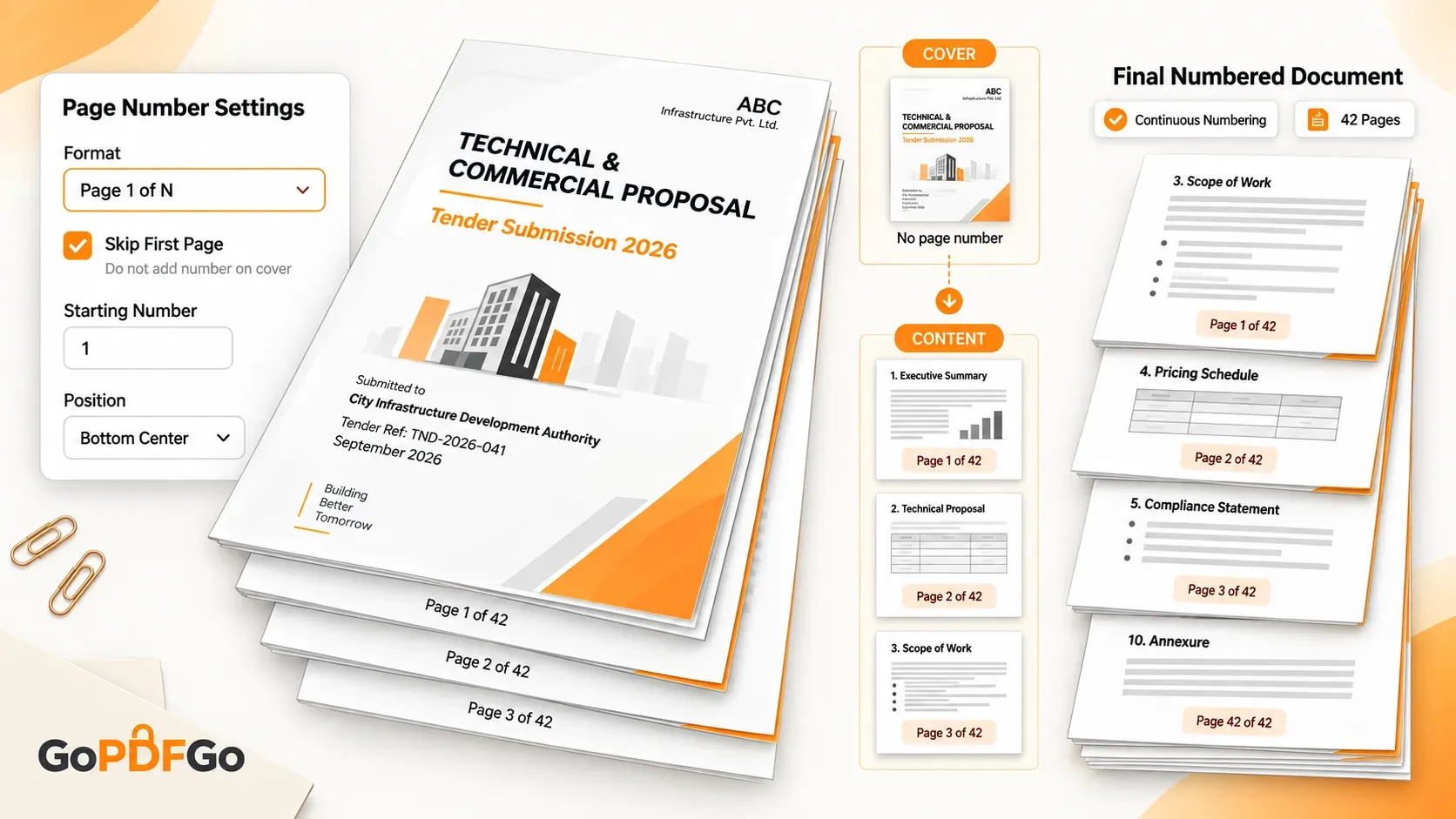
Cover pages are designed. They have your company name, the tender reference, maybe a logo and a date. A small "1" or "Page 1 of 42" sitting under all of that looks like an afterthought, and in some tender formats the cover is explicitly excluded from the page count.
That is what the Skip first page option is for. Tick it and the tool leaves the very first page untouched and starts numbering from the second. Two things worth knowing about how this behaves:
- It skips exactly one page, the first one. If your front matter is longer than that, say a cover plus a blank plus a table of contents, the option alone will not leave all three clean. The practical fix is to number the body first, then put the front matter in front of it using the Merge PDF tool, so the numbered section and the unnumbered section are joined after the stamping is done.
- After ticking it, look at the starting number too. You usually want the first page of real content to read as 1, so set the starting number to 1 and confirm the first numbered page says so once you download the result.
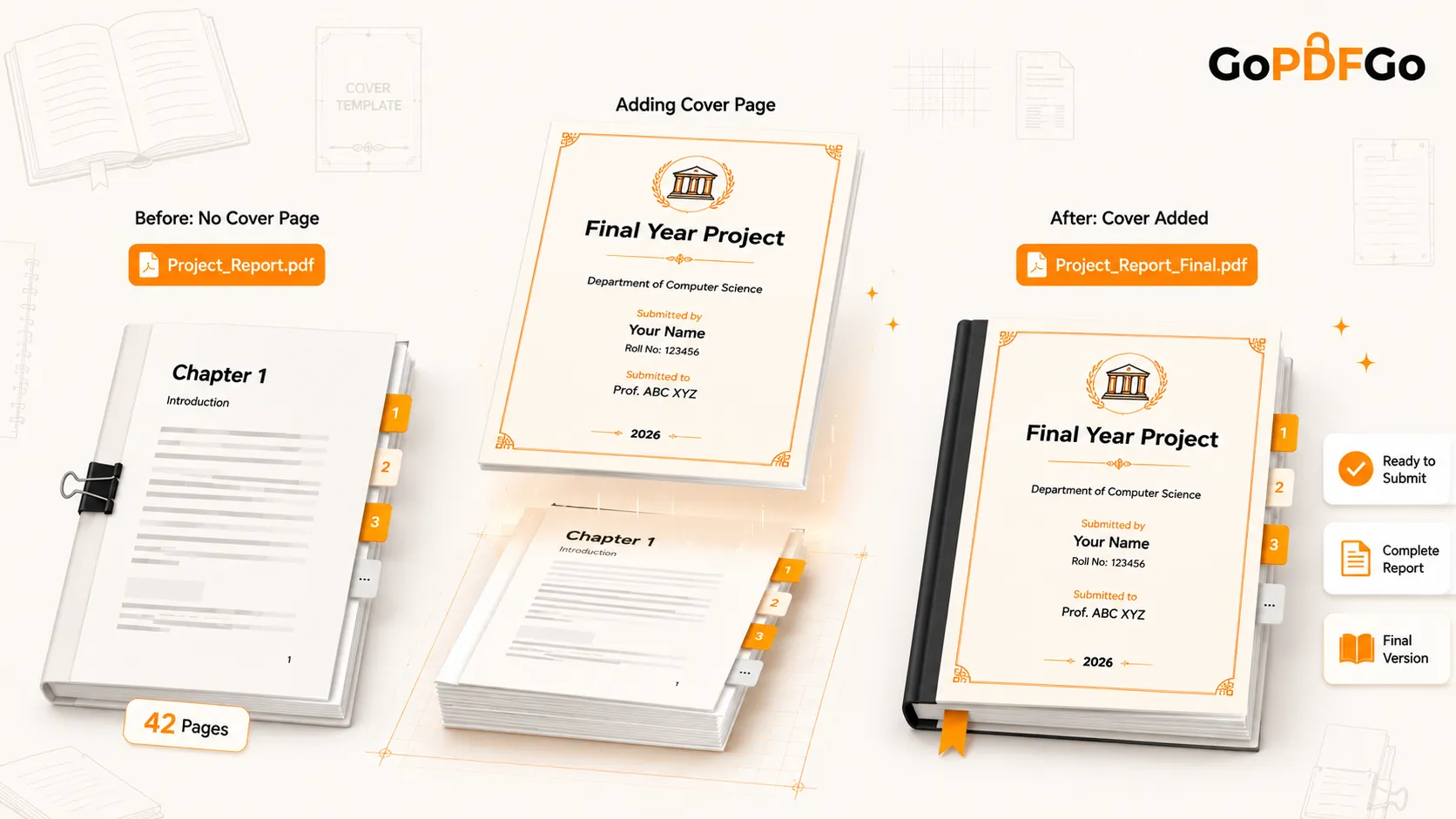
If your PDF does not have a cover yet and you are adding one, do that before numbering, not after. The guide on adding a cover page to a PDF walks through it.
The Starting Number: For Documents That Continue From Another
The starting number is the setting most people ignore, and it is the one that saves you when a document is split across files.
Tender portals often cap each upload at a fixed size, so a 120-page submission goes up as three PDFs. If each one is numbered from 1, the evaluator ends up with three "page 1"s and no way to cite a page unambiguously. Instead, number the first file 1 to 40, then set the starting number to 41 for the second file and 81 for the third. Now the whole submission reads as one continuous document even though it lives in three uploads.
The same trick works when you are adding an annexure to a document that was already numbered by someone else. A 30-page agreement arrives numbered 1 to 30; your annexure of test reports should begin at 31, not restart at 1. Set the starting number, apply, and it slots in behind the original without any confusion.
One honest caveat: the tool numbers only the file you give it, and N is simply the last number it stamps - the starting number plus the numbered page count, minus one. Start a 40-page second file at 41 and it reads "Page 41 of 80" through "Page 80 of 80"; start the third at 81 and it ends at "of 120". Chain the starts correctly and the sequence looks right, but the tool never knows the true total of the whole set on its own. If you need a correct "of 120" across every page, merge everything into one PDF first, number it once, and then split it back into upload-sized pieces with the Split PDF tool. The numbers are baked into the pages, so they survive the split intact.
Four Positions, and Why Bottom Centre Is the Safe Default
You get Bottom Center, Bottom Left, Bottom Right and Top Right. Bottom Center is the default for a reason: it is the international convention, it is where the eye goes looking for a page number, and it is the position least likely to collide with anything. Headers carry titles and logos. Bottom corners carry footers, file references, sometimes a signature block. The bottom middle is usually the emptiest strip of whitespace on any page.
The other positions are for when the bottom centre is already taken:
- Bottom Right when the document will be bound or stapled on the left and read by flipping. The number sits at the outer edge where your thumb lands.
- Bottom Left when a Word export already prints something like "Confidential" or a document ID at bottom right on every page.
- Top Right for scans that have almost no bottom margin, which is common when a certificate was photographed rather than scanned. The top corner is often the only clean space left.
Whatever you choose, the number is drawn in the page margin - the bottom margin for the three bottom positions, the top margin for Top Right - never over the content area. But margins on a scan are whatever the camera captured, so if a page has been cropped tightly, glance at that page in the output and switch to a different corner if the number sits too close to the text.
It Works on Scanned Pages Too
This is the part that surprises people. A scanned certificate inside your tender is a picture, not text. You cannot select a word on it, so it feels like nothing can be added to it either. But the page number is not inserted into the text layer; it is drawn on top of the page, the way a rubber stamp goes on paper. So the scanned certificate, the photographed declaration and the Word export all get the same number in the same spot, and in the same font, which is what makes a merged document look like one document instead of five stapled together.
The same drawing approach is why the numbers come out the right way up on pages that were rotated to fix a sideways scan. The tool respects the page's rotation, so a landscape price schedule in the middle of a portrait proposal still gets a readable number in the correct corner.
One thing it does not do is remove numbers that are already there. If your Excel export printed "Page 1 of 3" on every sheet, the new number will sit alongside the old one. Reprint the sheet to PDF without a footer, or choose a position on the opposite side of the page so the two do not overlap.
How to Add "Page 1 of N" Numbers and Keep the Cover Clean
- Step 1: Get the page order right first. If the tender is still in separate files, join them with Merge PDF and fix any out-of-place or sideways pages with Organize PDF. Numbers follow whatever order the pages are in when you stamp them.
- Step 2: Open the Page Numbers tool and drop in the merged PDF. It counts the pages for you.
- Step 3: Pick the position. Bottom Center unless something already lives there.
- Step 4: Choose the format: "Page 1 of N" for anything that will be checked or printed, plain "1, 2, 3" for anything that will just be read.
- Step 5: Tick Skip first page so the cover stays unnumbered, and set the starting number to 1 (or to 41, 81, wherever this file continues from).
- Step 6: Click Add Page Numbers and download. The file comes back as GoPDFGo_ followed by your original name. Open it and check three pages: the cover (should be clean), the first content page (should read 1) and the last page (should show the right total).
Mistakes I See Constantly
Numbering before the order is final. The numbers are permanent once applied. If you then discover the price schedule should come before the technical proposal and move it, the numbers move with it and now run 1, 2, 3, 19, 20, 4, 5. Always finish reordering, deleting and rotating first, and keep the un-numbered original in case you have to redo it.
Forgetting the file is locked. A supplier's audited accounts or a bank solvency certificate sometimes arrives as a restricted PDF: it opens without asking for a password but refuses edits. The tool will decline it and point you to Unlock PDF. Unlocking gives you an image-based copy that looks identical, and page numbers draw on it just fine. If that document was already inside a merge, note that Merge PDF skips encrypted files and tells you which ones, so check the page count before you number.
Trusting the "of N" without checking the last page. N is the last number stamped, so a stray blank page at the end from a double-sided scan gets counted and numbered too. Your last real page then reads one short of N, and a reviewer may go hunting for a final page that is just white. Delete blanks first.
Using the same settings for a resume. A two-page CV does not need "Page 1 of 2", and some applicant tracking systems parse footer text badly. For anything that will be read by software before a human, plain numbers or none at all is the safer call.
Related Guides
If your reason for numbering is a dissertation or a final-year project that has to be printed and bound, read how to add page numbers to a college project PDF before printing, which goes into university formatting expectations. If it is a pleading, an affidavit or an e-filing bundle, adding page numbers to legal documents and court filings covers the sequential pagination courts demand and why hand-numbering is risky. Both use the same tool; the settings just differ.
Frequently Asked Questions
Q: Can I change the font, size or colour of the number?
A: No. The tool uses one clean, neutral style so the number reads the same on a Word export and on a scanned image. What you control is the position, the format, the starting number and whether the first page is skipped.
Q: Can I number only some pages, say pages 5 to 20?
A: Not directly. The tool stamps every page of the file except, optionally, the first. To number a section only, extract that section into its own PDF, number it, and merge it back in place of the original pages.
Q: Does adding page numbers make the file bigger or blur the scans?
A: The change in size is negligible, usually a few kilobytes, because only a small text object is added to each page. The existing page images are not re-encoded, so a scan looks exactly as sharp after numbering as before.
Q: I have to number 15 separate PDFs. Can I batch them?
A: The tool takes one PDF at a time. If they belong to a single submission, merge them and number once, which also gets you a correct "of N" across the set. If they genuinely are separate documents, run them one after another; each takes only a moment.
Q: Will the numbers show up when I print, or only on screen?
A: They print. The number is part of the page content, not a viewer annotation or a form field, so every PDF reader and every printer renders it. That is also why it cannot be toggled off later.
Q: Can I do this on my phone?
A: Yes. The tool runs in the phone's browser exactly as it does on a laptop, with the same four positions and options. The file stays on the phone throughout, which matters when the PDF contains audited accounts or a director's signed declaration.
The Short Version
Pick "Page 1 of N" when someone will count or collate the pages, plain numbers when they will only read them. Tick Skip first page so the cover stays as designed, and set the starting number to 1, or to wherever this file continues from. Leave the position at Bottom Center unless that strip is already occupied. Scanned pages take the number just as well as typed ones, because it is drawn on the page rather than typed into it. Get the page order final, then add page numbers to your PDF in your browser, and check the cover, the first content page and the last page before you upload the tender.