Correct Image Sizes for LinkedIn, YouTube and WhatsApp DP (2026 Cheat Sheet)
You finished your degree, a senior told you to "make a proper LinkedIn for placements," and you uploaded a nice photo. On your phone it looked sharp. On the actual profile it came out soft, with the top of your head chopped off and your collar cut at a weird angle. You're not imagining it. You used the wrong size, and LinkedIn squeezed your photo into a box it was never shaped for.
This happens to everyone the first time. A fresher building a profile for campus placements, a kirana shop owner starting a YouTube channel for product reviews, a salon putting up a WhatsApp Business DP. Same story every time: wrong dimensions in, blurry or badly cropped photo out. The fix isn't a better camera. It's knowing the recommended pixel size for each platform, cropping to that shape first, then resizing to the exact pixels. Here's the cheat sheet, then the method.
The 2026 cheat sheet (bookmark this)
These are the recommended upload sizes. Platforms accept bigger images and shrink them down, but uploading at the right size gives you the cleanest result and the smallest file. Keep this handy.
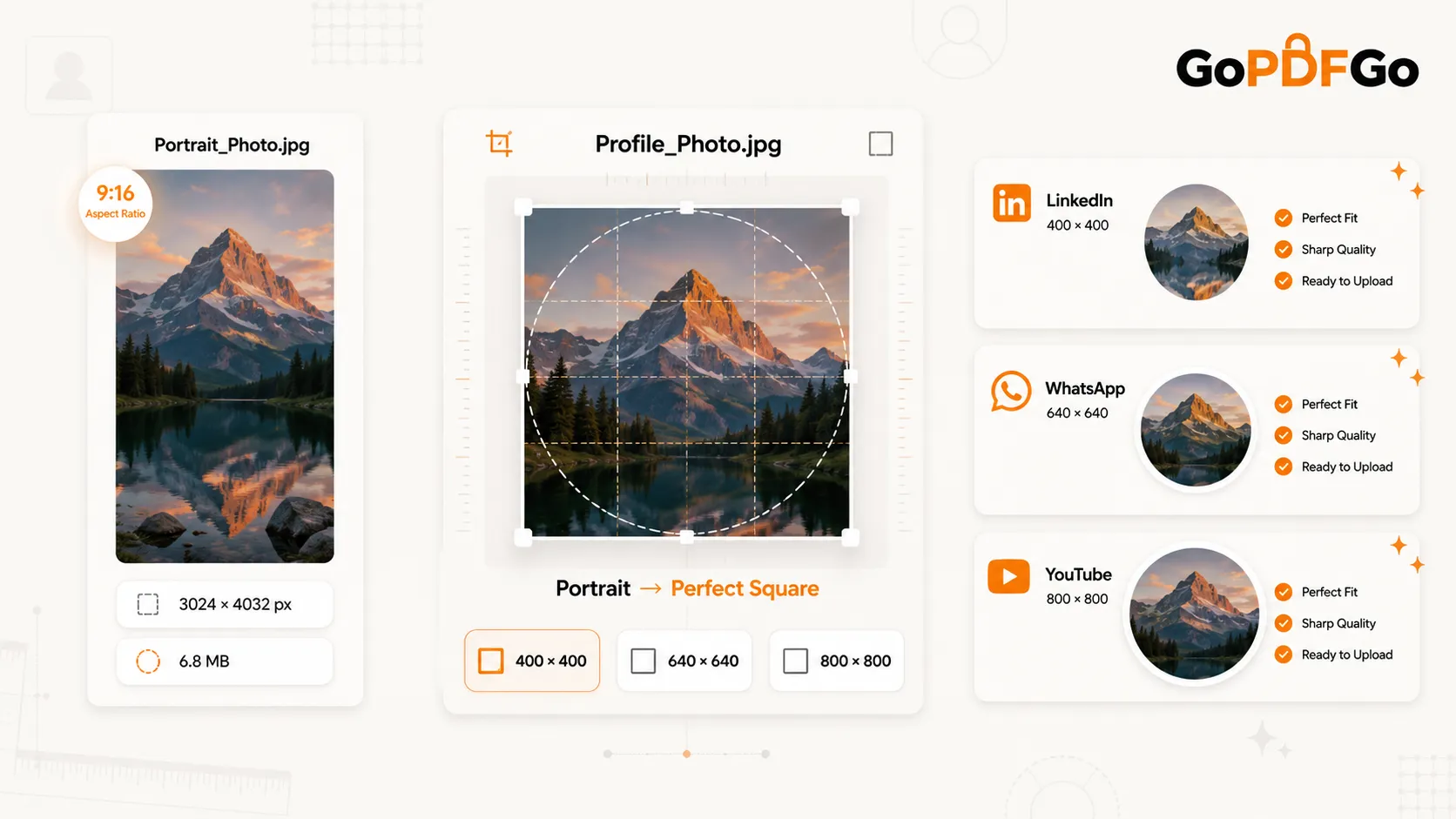
- LinkedIn profile photo: 400x400 pixels, square. This is the linkedin profile photo size people search for and get wrong constantly. LinkedIn displays it inside a circle, so keep your face centred with some breathing room.
- LinkedIn banner (cover): 1584x396 pixels, a wide strip. Your profile photo sits on the bottom-left of this banner, so don't put important text or your logo down in that corner.
- YouTube profile picture (channel icon): 800x800 pixels, square, shown as a circle. YouTube recommends 800x800 and renders it quite small, so a simple, high-contrast image reads better than a busy one.
- YouTube channel art (banner): 2560x1440 pixels. The catch: only a centre safe area of roughly 1235x338 pixels is guaranteed to show on every device. Anything outside that can get cropped on phones or TVs. Keep your channel name and logo inside the safe area.
- WhatsApp DP (profile photo): 640x640 pixels, square, shown as a circle. This covers personal WhatsApp and WhatsApp Business. WhatsApp compresses hard, so start sharp.
- Instagram profile photo: 320x320 pixels, square, shown as a circle. It's small, so crop tight to your face and skip the fine detail.
Notice the pattern. Almost every profile photo is a square that the app then masks into a circle. Only the banners are wide rectangles. That one fact prevents most cropping disasters, and it's worth keeping in your head for the rest of this.
Why your photo goes blurry or gets chopped
Two different problems get blamed on the same thing. Let's separate them.
Blurry usually means your image was too small and the platform stretched it up to fill the box. Upload a 150x150 thumbnail into a slot that wants 400x400 and the app enlarges it, turning every pixel mushy. The fix is to start from a decent-resolution photo and resize down to the target, never up. Resizing up never adds detail that wasn't there.
Badly cropped means your image was the wrong shape. You uploaded a tall portrait photo, say 1080x1920 straight off your phone, into a square slot. The platform can't fit a tall photo in a square hole, so it grabs the middle and discards the top and bottom. Your forehead and chin go missing. The fix is to crop to the right shape before you upload, so you decide what stays in frame instead of leaving it to an algorithm.
So the order is always the same: crop to the right shape, then resize to the exact pixels. Do it backwards and you've just shrunk a badly shaped mess.
Crop to shape first, then resize to pixels
The circle mask is the bit that catches first-timers. The app shows your square photo as a circle, which means the four corners are hidden. If your face is pushed to one side or your logo touches an edge, the round crop eats it. Compose for the circle, not the square: face roughly centred, a little margin all around. This is the one thing passport-photo guides never have to worry about, because government forms want a flat rectangle, not a circle.
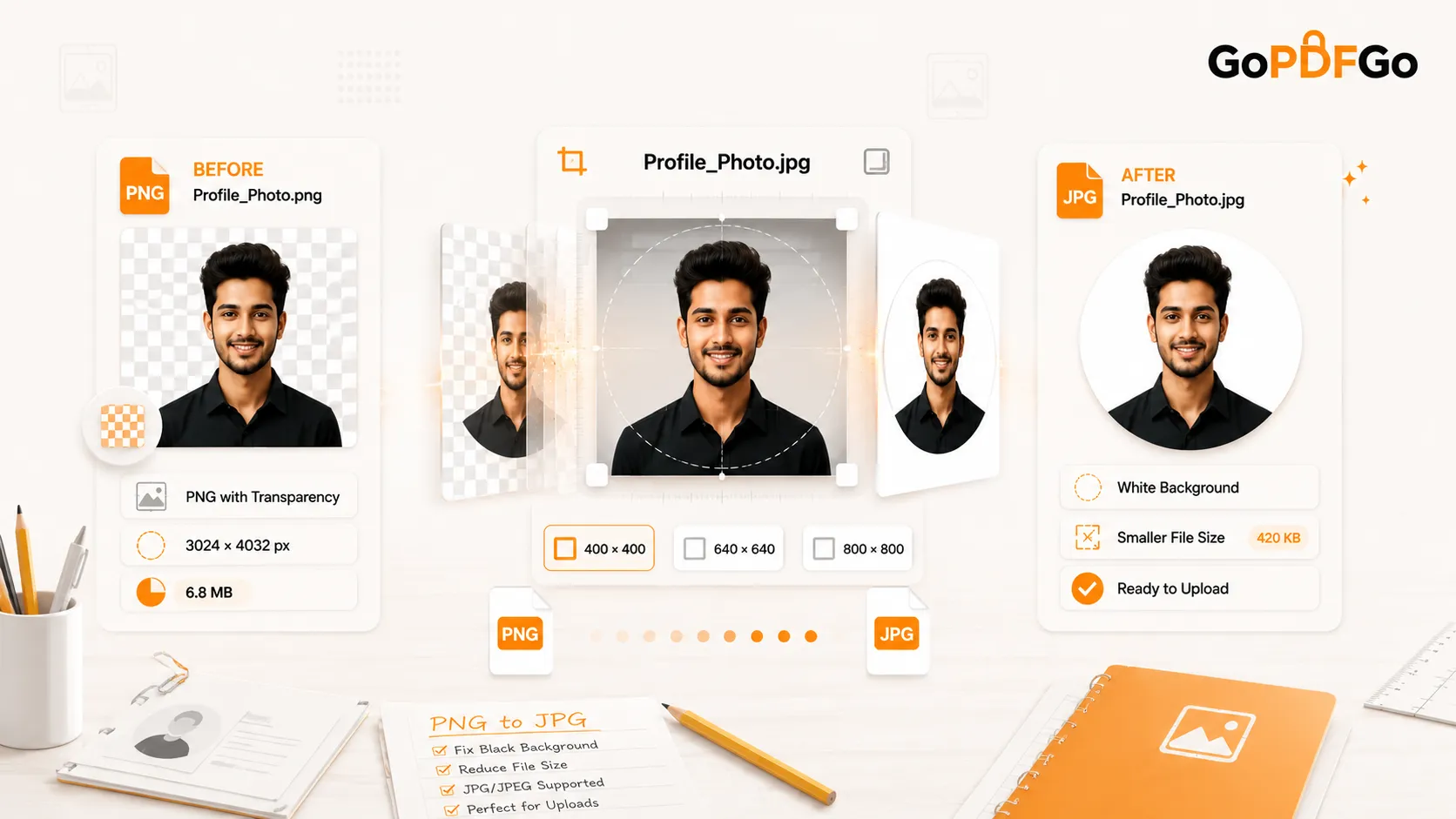
The Crop Image tool has aspect-ratio presets for this. For a profile photo, lock it to 1:1 and the crop box won't let you pull it out of square, however shaky your dragging is. Drag the box so your face sits inside the eventual circle, then crop. For a YouTube channel banner, the 2560x1440 frame is 16:9, so pick the 16:9 preset and keep your channel name and logo near the centre, inside that safe area. The LinkedIn banner is an odd 1584x396 ratio with no matching preset, so use Free and drag a long, thin box across the top. After cropping, send the result to Resize Image and type in the precise width and height.
How to get a sharp LinkedIn / YouTube / WhatsApp photo
- Step 1: Pick your best, well-lit, reasonably high-resolution photo. Bigger to start is fine, you'll shrink it. A tiny screenshot will never come out sharp.
- Step 2: Open the Crop Image tool. For any profile photo, choose the 1:1 (square) preset. For YouTube channel art, pick 16:9. For a LinkedIn banner, choose Free and drag a wide, short box.
- Step 3: Drag the crop box so your face (or logo) is centred with a little space around it. Remember the circle mask: anything in the corners gets hidden. Apply the crop.
- Step 4: Open the Resize Image tool and load the cropped image. Enter the exact pixels from the cheat sheet: 400x400 for LinkedIn, 800x800 for YouTube, 640x640 for WhatsApp, and so on.
- Step 5: Download. If the file feels heavy for upload, run it through Compress JPG to cut the weight without touching the dimensions. Then upload it.
Platform by platform, the real-life version
The fresher's first LinkedIn. Crop a head-and-shoulders shot to 1:1, resize to 400x400. Plain background, face filling most of the frame, looking at the camera. For the banner at 1584x396, a clean colour or your campus skyline works, but keep text away from the bottom-left where your photo overlaps. Recruiters scroll fast. A crisp, correctly sized photo quietly signals you've got your act together.
The small shop's YouTube channel. Channel icon at 800x800, usually your logo or a clear product shot. Channel art at 2560x1440, but treat the 1235x338 centre as the only space you can trust. Put the shop name and tagline there. Anything in the outer area might vanish on a customer's phone. Open it on your own phone before you call it done.
The WhatsApp Business DP. 640x640, cropped to 1:1. WhatsApp compresses aggressively, so a small or dark photo turns to mush. Start with a bright, sharp logo or storefront shot, crop tight for the circle, resize to 640, and it survives the squeeze. The same 640x640 works for your personal DP too.
One honest note. These tools crop and resize. They don't un-blur a photo that was low quality to begin with, and they can't rescue a dark, grainy shot. Start with a decent original and the rest is easy.
FAQ
Q: What is the correct LinkedIn profile photo size in 2026?
A: 400x400 pixels, square. LinkedIn shows it inside a circle, so centre your face with a bit of margin. You can upload larger and it'll downscale, but 400x400 is the clean target.
Q: My YouTube banner text keeps getting cut off. Why?
A: Because it's outside the safe area. The full channel art is 2560x1440, but only the centre 1235x338 is guaranteed to show on every device. Keep your channel name and logo inside that strip.
Q: Should I crop or resize first?
A: Crop first to fix the shape, then resize to set the exact pixels. Resizing a wrong-shaped photo just shrinks the problem and can squash your face. Crop to 1:1, then resize to 400x400 (or whatever the platform wants).
Q: Why does my WhatsApp DP look worse than the original?
A: WhatsApp compresses profile photos heavily. Start with a sharp 640x640 image. If it still looks soft, the original was probably too small or low quality, and resizing up can't add detail back.
Save the cheat sheet, crop to shape, then resize to the exact pixels. Whether it's a placement-ready LinkedIn, a shop's first YouTube channel, or a Business DP, the Crop and Resize tools run entirely in your browser, so your photos never leave your device. Get the size right once and you won't upload a blurry DP again.