iPhone HEIC Photos Won't Open? How to Convert HEIC to JPG (and When to Use PNG or WebP)
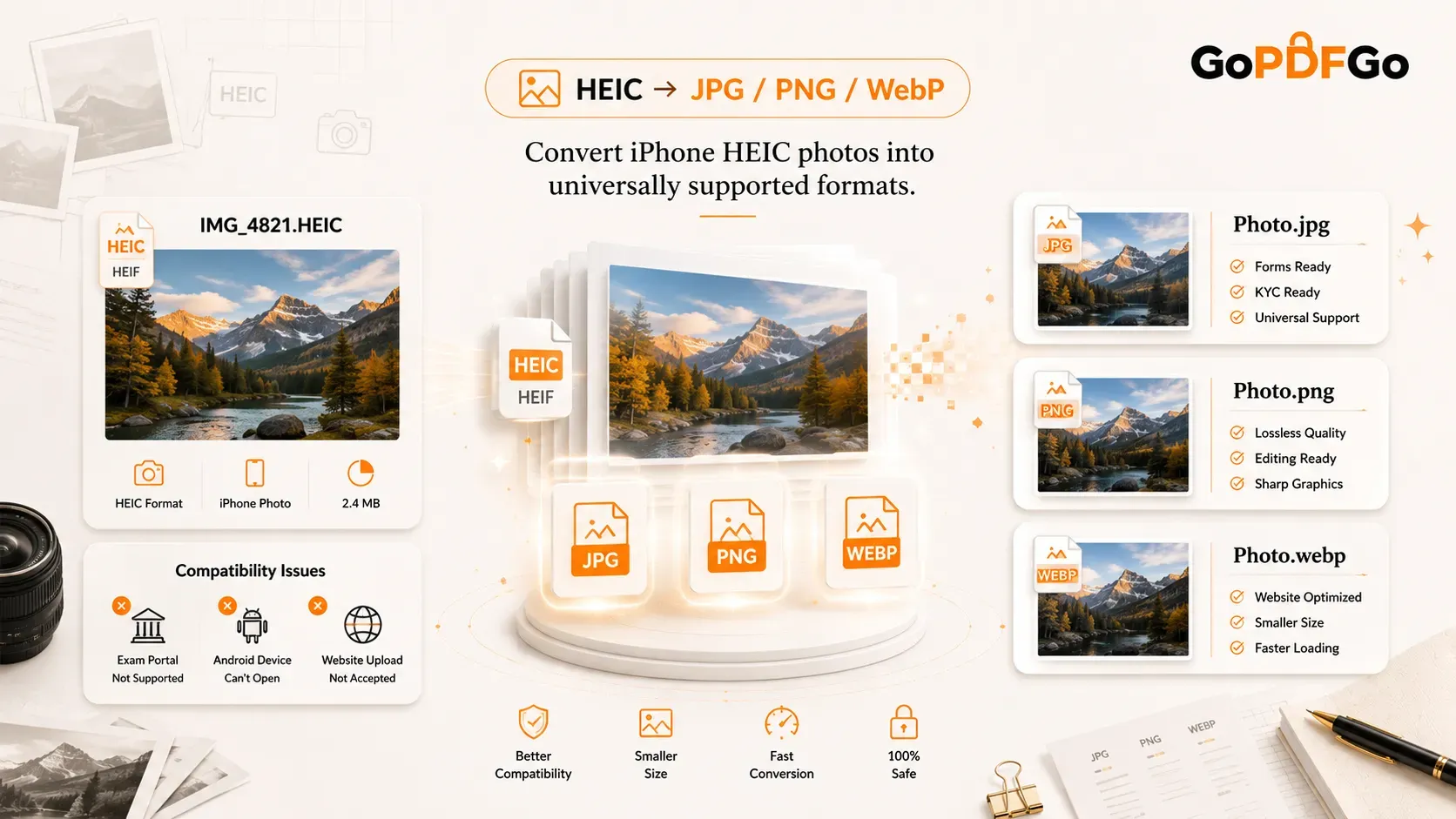
You take a photo on your iPhone and email it to your office, or upload it to an exam portal, and the file is suddenly called something like IMG_4821.HEIC that refuses to open. Your Android friend taps it and gets a grey box. The government website says "invalid file format." The photo looks fine on your phone, but nowhere else will read it.
This is one of the most common headaches for iPhone users. The fix takes about ten seconds and needs no app or paid software. Here is what HEIC actually is, why it happens, and exactly which format to convert it to.
What Is HEIC, and Why Does Your iPhone Use It?
HEIC stands for High Efficiency Image Coding. It is Apple's image format, built on the same HEVC video compression that newer iPhones use, and stored in a container called HEIF. Since iOS 11 (2017), on the iPhone 7 and later, Apple made HEIC the default camera format instead of the old JPG.
The reason is genuinely useful: a HEIC photo looks just as sharp as a JPG but takes up roughly half the storage. So your phone holds twice as many photos for the same space. That part works well.
The catch is that almost nothing outside Apple's world fully supports it. Android phones, older Windows laptops, most websites, and a long list of Indian government and exam portals do not recognise a .HEIC file. iOS understands the format and shows it to you perfectly. The moment that file leaves an Apple device, other systems do not know what to do with it. You are not doing anything wrong, and the photo is not corrupted. It is just in a format the rest of the world has not caught up with.
Where HEIC Actually Causes Trouble
Here are the real situations where people get stuck:
- Exam and job portals: SSC, UPSC, IBPS, state PSCs, university admission sites and KYC pages usually accept only JPG, JPEG or PNG. Drop a HEIC there and you get a rejection or a blank upload.
- Sharing with Android friends: Sending a photo on WhatsApp usually works because WhatsApp compresses images sent as photos into a standard format. But send the same file as a document (to keep it full quality), and the original .HEIC goes through unchanged, and your Android friend cannot open it.
- Putting photos on a website: Browsers and WordPress do not display HEIC. A product photo or a blog image saved as HEIC simply will not show up for visitors.
- Old Windows machines: A college lab PC or an office desktop on an older Windows build will refuse to preview the file without a special add-on.
In every one of these cases the fix is the same: convert the HEIC into a format that is actually accepted. The only real question is which format.
Quick Way to Tell If a File Is HEIC
Look at the file name. If it ends in .HEIC or .HEIF, that is the one. On your iPhone you usually will not see the extension, but the moment you AirDrop, email or copy the original to a computer, the .HEIC tag shows up. If a file "won't open" on a non-Apple device and it came from an iPhone, it is almost certainly HEIC.
JPG, PNG or WebP? Which One to Convert This File Into
You have three sensible targets. Pick based on what you are about to do with the photo, not on theory.
Pick JPG for forms, uploads and sharing. This is the safe default for most people. JPG opens on every device and is accepted by every exam, job and KYC portal. Uploading a photo to an SSC or IBPS form, a college admission page, or sending it to someone whose phone you do not know? Convert to JPG with the HEIC to JPG tool.
Pick PNG when you need lossless quality for editing. PNG keeps every pixel exactly as it was, with no compression softening. If you are going to edit the photo, or you need a screenshot to stay razor-sharp, use HEIC to PNG. Files are bigger, so skip it for casual sharing.
Pick WebP when the photo is going on a website. WebP gives the smallest file at good quality, which keeps web pages loading fast. For an online store, a portfolio or a WordPress blog, HEIC to WebP is the right call. A few very old browsers do not support it, but in 2026 that is a tiny minority.
If you want the deeper trade-offs behind these formats, our JPG vs PNG guide breaks it down properly. For a HEIC file you just need to upload somewhere, JPG is almost always the answer.
How to Convert Your HEIC Photos on GoPDFGo
The whole thing runs inside your browser. Your photos are never uploaded to any server, which matters when the image is your Aadhaar selfie, a signature, or a personal photo. Everything stays on your own device.
- Step 1: Get the HEIC file onto the device you are working on. AirDrop it, email it to yourself, or connect your iPhone and copy it over.
- Step 2: Decide the target format. For an exam or job portal, open the HEIC to JPG tool. For editing, use HEIC to PNG. For a website, use HEIC to WebP.
- Step 3: Drag and drop your photo onto the upload area, or tap to select it. You can add several photos at once, not just one.
- Step 4: The conversion runs on your device. For multiple photos you get them packed into a single ZIP, so you are not downloading them one by one.
- Step 5: Download your converted images. As a real example, if an IBPS or university form was rejecting your iPhone selfie as an invalid format, the JPG you just made will sail through the same upload box.
When HEIC Conversion Can Fail
Most HEIC files convert cleanly, but a few stubborn ones can trip up any browser-based converter. Live Photos sometimes bundle motion data that does not translate into a flat image, and a few HEICs shot in very high colour depth can fail to decode. If one particular photo refuses to convert, it is usually one of these special types, not a fault at your end.
The workaround: open the photo on your iPhone, take a screenshot of it, and convert that screenshot instead. A screenshot is a plain image and always converts.
Stop the Problem at the Source
If you keep hitting HEIC trouble, tell your iPhone to shoot in JPG from now on. Go to Settings, then Camera, then Formats, and choose Most Compatible instead of "High Efficiency." From then on your camera saves JPG by default and you skip the conversion step. You lose a little storage efficiency, but if you upload to portals often, that is a fair trade.
You will still have years of old HEIC photos in your library, so knowing how to convert them stays useful.
A Note on Privacy
Many free "HEIC to JPG" sites work by uploading your photo to their server, converting it there, and sending it back. For a holiday snap, no problem. For a photo of your PAN card, your signature, or a KYC selfie, that is your personal data sitting on someone else's computer. GoPDFGo does the conversion entirely in your browser, so nothing leaves your device. It is the same reason a lot of people prefer a local compress PDF tool over cloud-based ones when the file is sensitive.
The Short Version
HEIC is not a broken format, just an Apple-first one. The instant you need that photo to work outside the Apple world, convert it: JPG for forms and sharing, PNG for editing and quality, WebP for websites. Do it once and it stops being a problem.
Frequently Asked Questions
Q: Why does my iPhone photo open on my phone but not on my friend's Android?
A: Your iPhone saves photos in HEIC, which Apple devices read but most Android phones do not fully support. Convert it to JPG using the HEIC to JPG tool and it will open on any device.
Q: Is it safe to convert photos of my documents like Aadhaar or PAN?
A: Yes. On GoPDFGo the conversion happens inside your browser and the photo is never uploaded anywhere. Your sensitive documents stay on your own device the whole time.
Q: Will converting to JPG hurt the quality?
A: JPG uses slight compression, but it is invisible for normal photos and uploads. If you need genuinely lossless quality for editing, convert to PNG instead.
Q: Can I convert many HEIC photos at once?
A: Yes. Drop several photos together and the tool converts them in a batch, then gives you everything in a single ZIP file to download.
Q: My HEIC file will not convert at all. What is wrong?
A: It is likely a Live Photo or a high-colour-depth HEIC that is hard to decode. The easy fix is to open the photo on your iPhone, take a screenshot, and convert the screenshot, since screenshots are always standard images.