Organize PDF Pages: Fix a Messy Scan on One Screen (Reorder, Rotate, Delete)
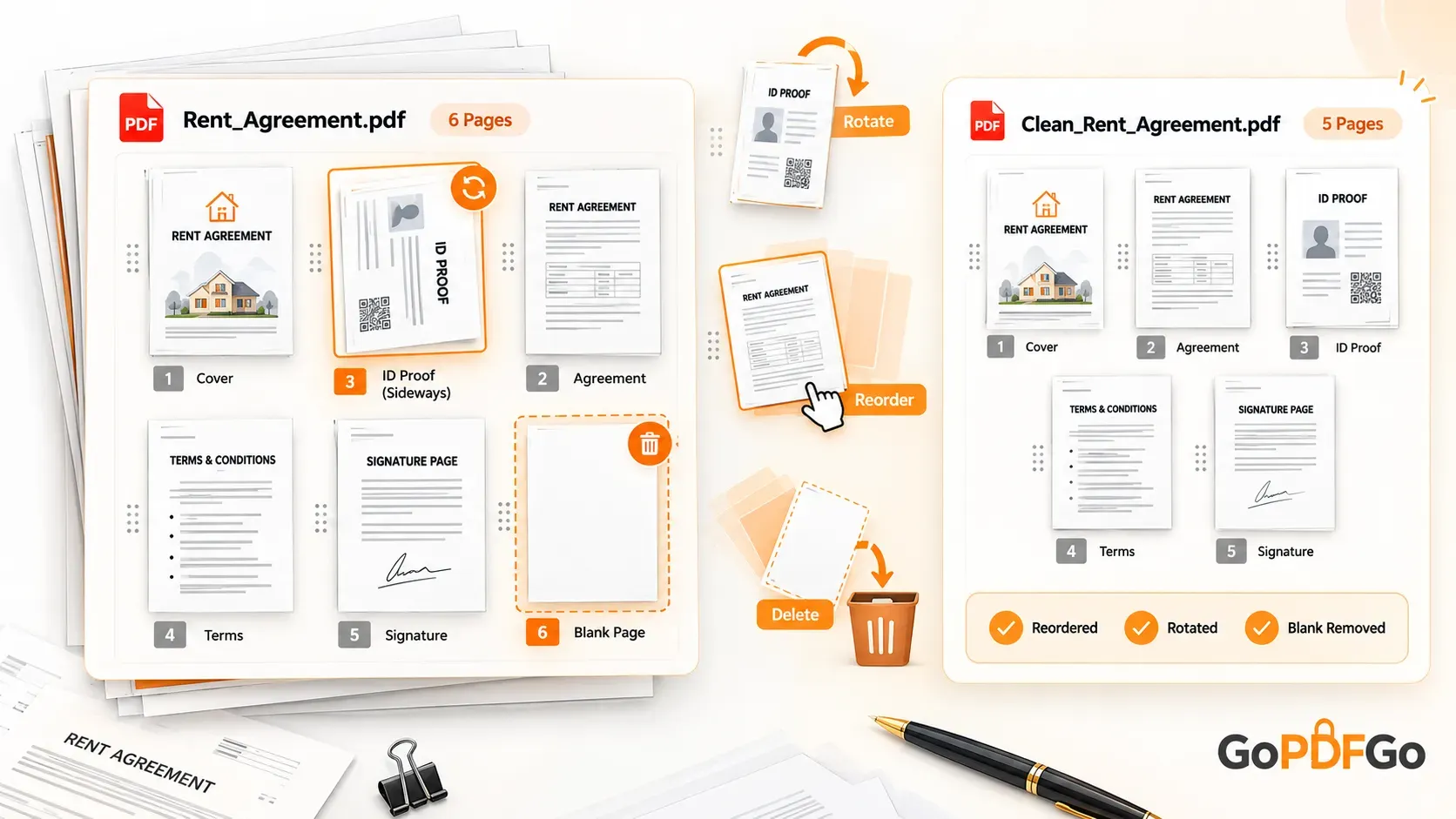
You scanned a six-page rent agreement on your phone for the landlord, and somewhere in the rush the tenant's Aadhaar copy got pulled into the same file. Now the document is a small mess. The pages are out of sequence because you photographed them in the wrong order. The Aadhaar page sits sideways because the phone was held the wrong way that one time. And page 6 is completely blank, the back of a sheet the scanner picked up by accident. Three problems, one PDF.
The usual fix is to bounce between three tools: a reorder tool, then a rotate tool, then a delete-pages tool, downloading and re-uploading each time. By the third round you have four near-identical files in your Downloads folder and no idea which is the latest. A two-minute job somehow ate twenty.
You can do the whole thing on a single screen instead. See every page as a thumbnail, fix the order, spin the sideways page, drop the blank one, and export once at the end. That is what an organize PDF pages tool does.
Why a messy PDF usually has three problems at once
A jumbled file is rarely just one issue. When a document gets messy, it is almost always because it was scanned in a hurry or stitched together from a couple of sources, and that produces a predictable mix:
- Wrong order. You photographed page 3 before page 2, or the scanner's feeder pulled sheets out of sequence.
- A sideways page. One sheet went into the camera rotated, so it sits at 90 degrees while everything else is upright. On a government portal, the officer checking that page cannot read it without tilting their head.
- A blank or duplicate page. The back of a printed sheet, a stray cover page, or a second copy of an ID that got swept into a merge.
Fix these one at a time across different tools and you end up uploading the same private document again and again. For a rent agreement with someone's Aadhaar in it, or a bank statement, that is exactly what you want to avoid. Better to see all the pages together and fix everything where it sits.
One screen, all your pages as thumbnails
The Organize PDF tool lays the whole document out as a grid of page thumbnails, like seeing every photo in your gallery at once. Because you can see everything, the problems jump out. The sideways Aadhaar page is obvious. The blank page is clearly blank. And you can tell at a glance that the page sitting at position 5 really belongs at position 2.
From that one view you do three things without leaving the screen. Drag a thumbnail to a new spot to reorder it. Hit rotate on the sideways page to spin it upright. Delete the blank page, and restore it if you change your mind. When the grid looks right, you export once, and that single PDF carries every change.
Here is the part that makes doing it all together actually work: when you rotate a page, the rotation stays stuck to that specific page, not to a slot. So you can rotate the Aadhaar sheet, then drag it three positions earlier, and it stays upright wherever it lands. You are not rotating "page 4" as a fixed position. You are rotating that actual sheet, and it carries its orientation with it. Without that, pages would un-rotate every time you shuffled them.
How to clean up a messy PDF in one go
Everything below happens inside your browser. The file is never sent to a server, so a scan with an Aadhaar or PAN card in it stays on your own device. If the ID copy is meant to be shared, you can run it through Aadhaar Masking first to grey out the number before you ever assemble the document.
- Step 1: Open the Organize PDF tool and drop in your file. Give it a moment to render a thumbnail for every page.
- Step 2: Fix the order. Click and hold any out-of-place thumbnail, drag it where it belongs, and let go. The page numbers update as you move things.
- Step 3: Fix the sideways page. Find the rotated thumbnail and tap rotate until it stands upright.
- Step 4: Remove the junk last, once the order looks right. A stray blank or duplicate page is much easier to spot when the rest of the document is already in proper sequence. Delete it, and restore it if you removed the wrong one. Nothing is final until you export.
- Step 5: When the grid looks clean, click export. Your corrected PDF downloads with the reorder, rotation, and deletion all applied together.
When a single-purpose tool still makes more sense
Doing everything at once is not always the right call. If your document has exactly one problem, a focused tool is quicker and there is less to think about.
- If the order is perfect and you only need to shuffle pages around, the dedicated Rearrange PDF tool is a tighter fit.
- If every page is upright except for a batch that all need the same turn, Rotate PDF handles just that.
- If you only need to drop a couple of pages and nothing else, Delete PDF Pages does the one job.
The organize tool earns its place when you have a combination of issues. One sideways page, plus a wrong order, plus a blank sheet, all in the same file. That is when running three separate tools wastes real time, and seeing everything on one canvas saves it.
Why staying in the browser matters here
Every time you upload a document to a cloud-based PDF site, a copy of that file sits on someone else's server for a while. For a wedding invite, fine. For a scanned PAN card, a bank statement, or a signed rent agreement, that is a real exposure, and you take it three times over if you bounce between three upload-based tools. The Organize PDF tool runs entirely on your machine, so the document never leaves your device, and the export is quick because there is no upload and no queue. If you want the longer version of why local processing is safer, we covered local PDF processing versus cloud tools separately.
Once the file is clean, you might have one thing left to do. Big phone scans are heavy, often several MB per page, so if your tidied document is too large to attach to an email or upload to a portal, run it through Compress PDF before you send it. And if you built this file from several scans to begin with, Merge PDF is where that combining happens, with the organize tool stepping in afterward to clean up the mess that merging tends to leave.
Frequently Asked Questions
Q: If I rotate a page and then move it, does the rotation get lost?
A: No. The rotation is attached to that specific page, not to a position. Drag the page anywhere in the document and it stays correctly oriented.
Q: Can I undo a delete?
A: Yes. Deleted pages can be restored. Nothing is permanent until you click export, so you can remove a page, look at the result, and bring it back if you changed your mind.
Q: Is my file uploaded anywhere?
A: No. The whole process runs inside your browser on your own device. The PDF never travels to a server, which is what makes it safe for sensitive scans like ID proofs and bank statements.
Q: Will reordering keep the text in my PDF selectable and searchable?
A: Yes. Reordering and rotating only change the sequence and orientation of pages. They do not re-render or flatten the content, so any selectable or searchable text in the original pages stays selectable and searchable afterward.
Q: Does it work for a very large scan with a few hundred pages?
A: It does, though a big file takes a few seconds to render a thumbnail for every page before the grid is ready. Once the thumbnails load, dragging, rotating, and deleting stay responsive, and you still export in a single step.