How to Sign a PDF Online Without Printing or Scanning
The landlord sends the rent agreement on WhatsApp at 9 PM. He wants it signed and back tonight. You have a phone, the PDF is sitting in your downloads, and there is no printer anywhere in the flat. The old routine of print, sign with a pen, scan, then send back is not happening at this hour.
This is one of the most common everyday situations in India right now, and you do not need a printer at all. You can sign a PDF online directly, save it, and send it back in two minutes. Here is exactly how, and I will also be clear about what kind of signature this actually is so you do not run into trouble later.
The Print-Sign-Scan Habit Needs to Go
Most of us were taught one way to "sign" a document: print it, put pen to paper, then scan it back. Every step in that chain can go wrong. The printer is out of ink. The scanner app slaps a watermark across your page. The scan comes out crooked and grey. You end up with a file that is heavier and uglier than the original, and you have wasted a sheet of paper for nothing.
When the document is already a PDF on your screen, printing it just to sign and re-digitise it makes no sense. You are turning a clean digital file into paper and then back into a worse digital file. Keep it digital the whole way through and drop your signature onto the page directly.
What You Can Actually Do in the Browser
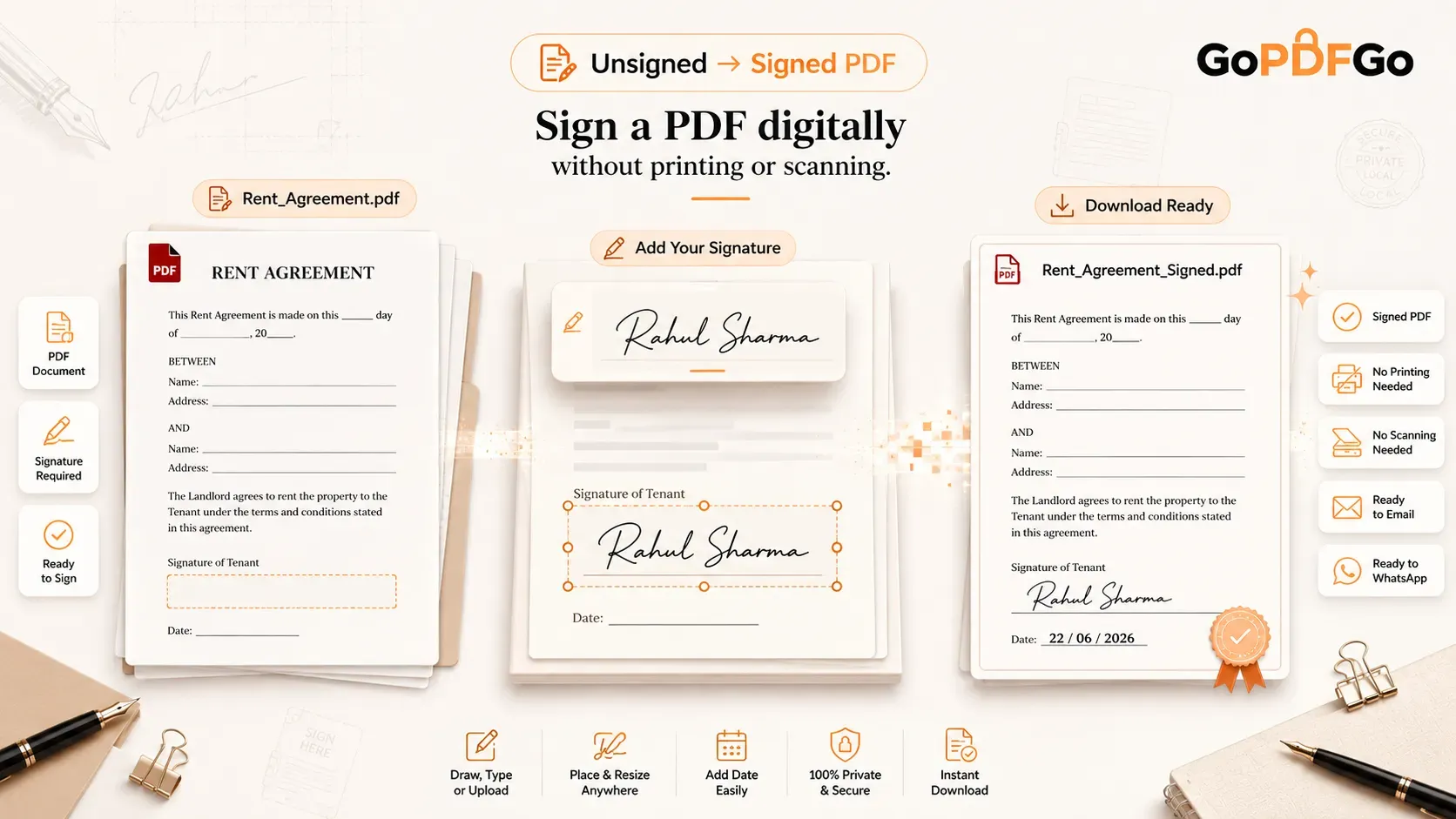
A signing tool that runs in your browser gives you three ways to put your mark on the page, and you can pick whichever feels natural:
- Draw it: Use your finger on a phone or your mouse on a laptop to draw your signature, the same way you sign on a courier's delivery device. On a touchscreen this comes out surprisingly close to your real handwriting.
- Type it: Type your name and the tool renders it in a handwriting-style font. This is quick and clean, handy when you just need a neat name on an approval or a letter.
- Upload an image: If you already have a photo of your signature on white paper, upload that PNG or JPG. The signature sits on the page like a sticker you can move around.
Once your signature is ready, you drag it to the right spot on any page, resize it so it fits the signature line properly, and download the finished PDF. No queue, no email-it-to-us step.
The Honest Part: This Is an Ink Signature, Not a DSC
What you are adding is a visual signature, also called an ink or wet-ink-style signature. It is a picture of your handwriting placed on the document. For the vast majority of everyday paperwork, that is completely fine and widely accepted.
What it is not is a legally certified Digital Signature Certificate (DSC). A real DSC uses PKI cryptography and is issued by a licensed Certifying Authority in India (the kind of thing you buy for filing GST, MCA company returns, income tax audits, or e-tendering). That signature carries your verified identity in encrypted form and ties it to the document. A drawn or typed signature does not do that.
So the line is simple. For a rent agreement between you and your landlord, a job application form, a college admission consent form, an authorisation letter, or an internal office approval, a visual signature is perfectly suitable and saves you a printer trip. But if a government portal, a bank, or a court specifically demands a "digitally signed" file with a valid DSC, you will need an actual Class 3 DSC from an authorised provider. (Class 2 certificates were discontinued by CCA India in 2021, so Class 3 is what gets issued now.) As long as you do not confuse the two, you are on safe ground.
How to Sign Your PDF in Under Two Minutes
- Step 1: Open the GoPDFGo Sign PDF tool on your phone or laptop and load the PDF you need to sign.
- Step 2: Choose how you want to sign. Draw it with your finger or mouse, type your name to get a handwriting font, or upload a saved image of your signature.
- Step 3: Your signature now appears as a movable box. Drag it onto the correct signature line on the page, and pull the corners to resize it so it does not look oversized.
- Step 4: If the document has signature spots on more than one page, repeat the placement wherever needed. You can add the date next to it the same way.
- Step 5: Click Download. The signed PDF saves straight to your device, ready to send back on WhatsApp or email.
Why Doing This in the Browser Matters for Privacy
Think about what is usually inside the documents you sign. A rent agreement has your full name, your address, your father's name, sometimes your Aadhaar number. A bank form or an authorisation letter can carry even more. The last thing you want is to hand that file to a random website that uploads it to a server you know nothing about.
GoPDFGo does the entire job inside your browser. Your PDF never leaves your phone or computer, nothing is uploaded, and nothing sits on a cloud server waiting to be leaked. This is the same reason careful people prefer to keep PDF processing local instead of using cloud tools, especially for anything with personal details on it. If your agreement happens to show an Aadhaar number you would rather hide before sharing, run it through the Aadhaar masking tool first.
A Few Practical Tips
- Sign on your phone for a real-looking signature. Drawing with a finger on a touchscreen looks far more natural than dragging a mouse on a laptop. If the document is on your computer, the typed handwriting-font option still gives you a clean result.
- Save a clean signature image once. Sign on plain white paper with a dark pen, photograph it in good light, and keep that image on your phone. Then you can upload the same neat signature onto any form in future instead of redrawing it every time.
- Resize it sensibly. A giant signature sprawling across half the page looks careless. Match it roughly to the size of the printed name or the signature line.
- Need to combine pages first? If your agreement and its annexures are separate files, merge them into one PDF before signing so everything stays in a single tidy document.
The whole print-sign-scan routine was always a workaround for the days when documents lived on paper. Your rent agreement, your admission form, your office approval, they are already digital. Sign them as digital files, send them back the same night, and keep that one sheet of paper for something that actually needs it.
Frequently Asked Questions
Q: Is a signature I draw on GoPDFGo legally valid?
A: For everyday paperwork like rent contracts, job and admission forms, consent forms and authorisation letters, it is generally accepted. Where it falls short is anything that specifically requires a Digital Signature Certificate (DSC) with PKI, such as GST or MCA filings on a government portal. For those, only a valid Class 3 DSC from a licensed Certifying Authority will do.
Q: Does my PDF get uploaded to a server?
A: No. The signing happens entirely inside your browser on your own device. The file never leaves your phone or computer, which is exactly what you want for documents that carry your personal details.
Q: Can I sign a PDF on my Android or iPhone?
A: Yes. The tool works in your mobile browser, and drawing your signature with a finger on a touchscreen actually looks more natural than using a mouse. Just open the PDF, sign, place it and download.
Q: I don't have a printer or scanner. Is that a problem?
A: Not at all, that is the whole point. You skip printing and scanning completely. The PDF stays digital from start to finish, and you download a signed copy ready to share.
Q: Can I add the date or initials along with my signature?
A: Yes. You can place a typed or drawn date next to your signature, and add initials on each page if the document needs them, using the same drag-and-place method.