Remove Instruction Pages From a Government Form PDF Before You Upload It
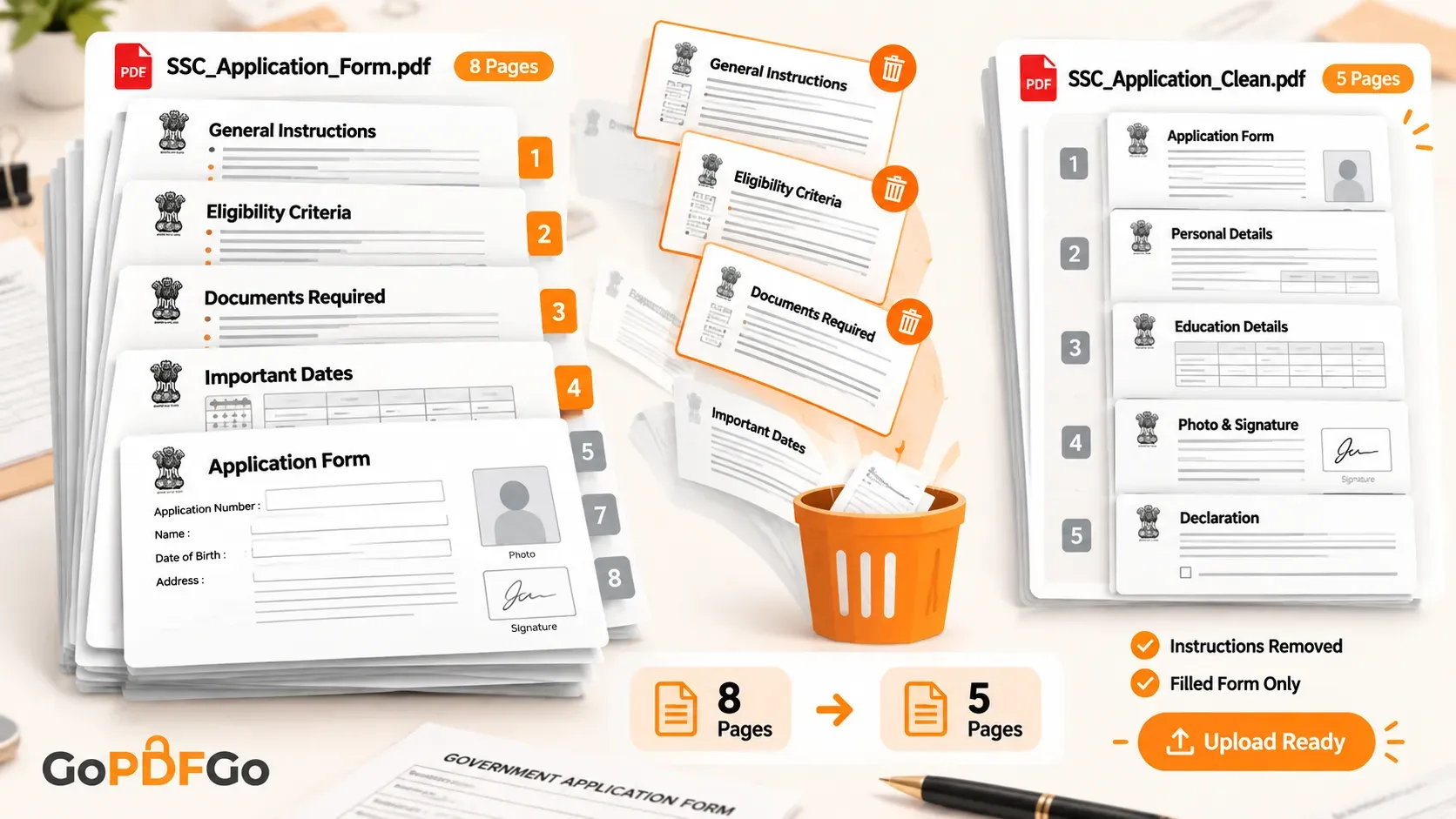
You download the application PDF for an SSC post, or a state PSC vacancy, or an NSP scholarship. You open it expecting boxes to fill. Instead, page 1 is a notice with the closing date and a helpline number. Page 2 is eligibility conditions. Page 3 is "Documents to be enclosed". The actual form, the one with your name, photo and signature, does not start until page 4 or 5.
That part is normal. The annoyance comes later, at the upload step, when the portal asks for the filled form back and you realise the file you have still drags all those instruction pages along at the front.
Why you need to remove instruction pages from a government form PDF
Most people fill the form, save it, and try to upload the whole thing. Two specific problems show up.
First, the portal often spells out a page rule. NSP scholarship renewals, many university admission forms, and several PSC application packs say something close to "upload the duly filled application only" or "pages 4 onwards". The instruction pages were never meant to come back. Send all 11 pages and a verifier has to dig through guideline text to find your form. That is the kind of thing that gets an application marked incomplete.
Second, those front pages are dead weight against the size cap. Portals like SSC, NSP and most state recruitment boards cap each upload tight, often 200KB, 500KB, or "max 2MB". If the form was issued as a scanned PDF, every instruction page is a full image. Four or five of them can quietly add a megabyte or more. Drop those pages and you frequently land under the limit before you touch any compression at all.
So the goal is plain: keep your filled form pages, throw out the notice and guideline pages sitting in front of them.
How to tell where the instructions end and the form begins
The tricky bit with these forms is the boundary. Does the form start on page 4 or page 5? Did the eligibility notice run to two pages or three? On a government PDF the numbering printed on the page often does not match the PDF's actual page order, because the cover notice is unnumbered or the annexures restart counting. So typing a page range from memory is risky.
Looking at the pages is far safer. An instruction page is dense running text with bullet points and a heading like "General Instructions" or "Important Dates". Your form page looks nothing like it. It has a photo box, a signature line, ruled fields, your typed or handwritten entries. You can spot the switch at a glance, no page-number arithmetic involved.
This is where a tool that shows every page as a picture helps. The Delete PDF Pages tool lays out your whole form as thumbnails. You scroll, find the first real form page, and mark everything before it. A counter at the top tracks how many pages you have selected, and a Clear button resets your selection if you tap one too many. You are deleting by sight, not by guessing numbers.
Removing the front instruction pages from your form
- Step 1: Open the Delete PDF Pages tool and add your form, by dropping the file in or tapping to pick it from your phone or laptop. Every page appears as a thumbnail.
- Step 2: Scroll to the first page of your actual filled form, the one with the photo box and fields. Tap each page that comes before it, the cover notice, the eligibility page, the "documents required" page, to mark them for removal.
- Step 3: Glance back over the thumbnails. The pages you did not mark are the ones being kept, so confirm every filled page of your form is still untouched.
- Step 4: Download the trimmed file. Only your form pages remain, and the instruction pages are gone.
The page numbers on the form can lie to you
One trap worth calling out. Many official forms are assembled from separate documents, so the printed footer might say "Page 1 of 3" on what is actually the seventh sheet of the PDF. If you trust a "Print pages 4-8" instruction blindly, you can chop the wrong sheets. With thumbnails you sidestep this entirely, because you are reacting to what each page actually contains, not to a number someone typed in a footer that may have reset halfway through.
The same goes for forms where the instructions are interleaved oddly, like a declaration page tucked between two notice pages. You handle each page on its own merit instead of assuming a clean block of "first four pages = instructions".
Your filled form has Aadhaar and bank details, so where it runs matters
A completed government form is not a casual file. It usually carries your date of birth, address, category, roll number, sometimes your Aadhaar number, bank account for fee or scholarship transfer, plus a scanned photo and signature. Uploading that to some random "delete pages" website means a copy of your full application lands on a server you know nothing about.
The Delete PDF Pages tool runs inside your own browser. Your form is opened, the front pages are stripped, and the result is saved straight to your device. The file is never sent anywhere. It keeps working even if your connection drops in the middle, and there is no sign-up, no email, no charge. For a job or scholarship application carrying your KYC details, that is the difference that actually matters.
If it is still over the size limit after trimming
Removing the instruction pages clears out most of the bulk, since those scanned guideline pages were the heaviest part. If your filled form pages are still chunky and the portal is strict, run the trimmed file through Compress PDF after. Do it in that order, delete first then compress, so you are not spending effort shrinking pages you were about to remove anyway.
When this is not the right move
This is specifically for the notice and guideline pages bunched at the front of a form before you upload it. A couple of nearby situations need different handling.
If your form pages are simply out of order, say the declaration ended up before the main form, do not delete anything. Use the Organize PDF tool to drag them back into the right sequence. And if you need to attach separate scans of your certificates or mark sheets to the filled form as one combined file, that is a job for Merge PDF, not deletion.
For the common case though, it is genuinely quick. The form opens with pages of instructions you do not need to send back, and you want them off without disturbing the form pages. Open Delete PDF Pages, mark the front pages by looking at them, and download a clean file with only your filled application inside.
FAQ
Q: The form says "upload pages 4 to 8 only" but my PDF numbering is different. Which do I trust?
A: Trust what the pages look like, not the printed footers. Government PDFs often have unnumbered cover notices or annexures that restart the count, so the footer can disagree with the PDF order. In the thumbnail view, keep the pages that show your filled form fields and remove the instruction pages, whatever number they carry.
Q: Will removing the instruction pages reduce the quality of my filled form pages?
A: No. The pages you keep are carried over as they are, with no re-rendering. Your scanned signature and photo stay at the same resolution. You are only changing which pages are in the file, not how the remaining ones look.
Q: My form has my Aadhaar number and bank details. Is this safe?
A: Yes, because nothing leaves your device. The whole process runs inside your browser, so your form is never uploaded to any server. That is exactly why you should avoid the random upload-based sites for a document like this.
Q: After trimming, the file is still above the portal's size limit. What do I do?
A: Run the trimmed file through Compress PDF. Removing the instruction pages handles most of the weight, and compressing the leftover form pages usually gets you under caps like 200KB or 500KB.
Q: Do I need an app or an account?
A: Neither. It runs in your web browser on phone or laptop, with no install, no sign-up and no cost. You open the tool, add your file, mark the pages, and download.