How to Split a Question Paper PDF Subject-Wise into Separate Files
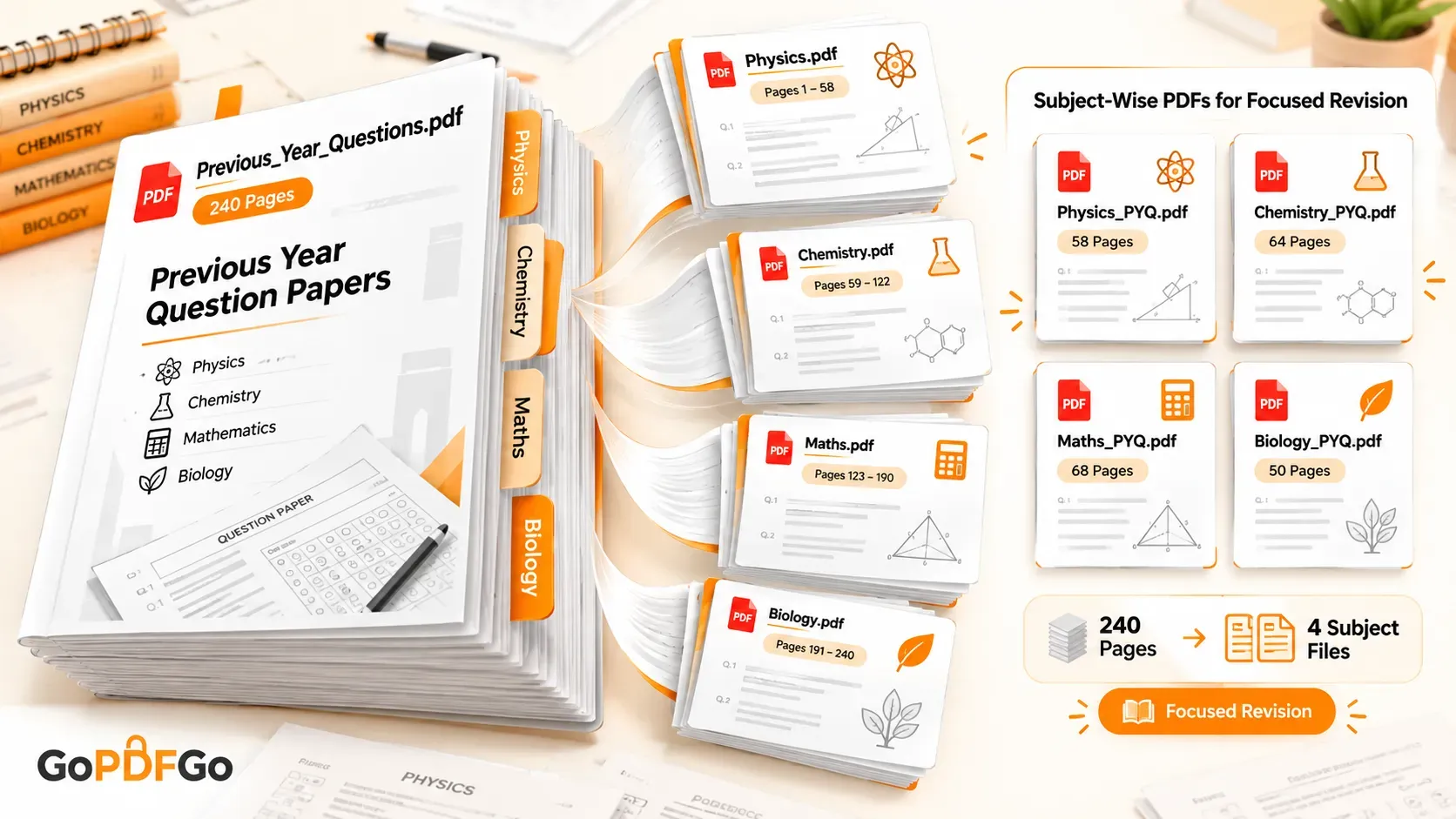
You download a 240-page PDF of previous-year questions, or a senior shares a fat question bank on the class group. The problem hits the first time you sit down to revise. You only want to do Chemistry tonight, but Physics, Maths and Biology are all stuffed into the same file, so you keep scrolling past sixty pages of other subjects just to reach the section you need. Then a friend pings you for "only Chemistry," and you end up forwarding an 80MB monster that takes ten minutes to load on their phone.
The fix takes about five minutes, once. You break that one combined PDF into separate subject-wise files, and after that every revision session starts with the right file already in front of you. Here is how to do it without your question bank ever leaving your device.
Why one combined PDF slows down your revision
A single mega-PDF looks handy on the day you download it. The pain turns up later, usually when you are already short on time.
- Scrolling kills your focus. Every time you open the file for Maths, you scroll past dozens of pages of other subjects. Repeated across a study session, that drag adds up and pulls your attention away from actually solving questions.
- Sharing is a hassle. Nobody wants to download an 80MB file just to get one subject. A 6MB Chemistry-only PDF lands almost instantly, so your friend actually opens it instead of leaving it on the group.
- Printing costs you. If you want a printout for last-minute revision, a combined file means you either print all 240 pages or fiddle with page-range settings at the shop every single time.
- Backups get confusing. When everything is one blob, you cannot tell at a glance whether you have the complete Biology set. Files named per subject make your Drive or phone folder readable in one look.
Splitting by subject is not the same as pulling one page
People mix these up. If you only want a single page out of a large file, say one specific question or one answer-key sheet, that is a one-page job and our extract a single page guide covers it. Subject-wise splitting is different. You are carving the document into several chunks by page range so each subject becomes its own complete file. One PDF goes in, four or five clean PDFs come out.
First, find where each subject starts and ends
Before you split anything, get the page numbers. Open the combined PDF and note where each subject begins and ends. Most question banks have a contents page or clear section breaks, so this is quick.
Write it down somewhere, on paper or in your notes app:
- Physics: pages 1 to 58
- Chemistry: pages 59 to 122
- Maths: pages 123 to 190
- Biology: pages 191 to 240
Watch out for one thing students often get wrong. The page number printed at the bottom of the sheet is usually not the same as the actual PDF page number, because of cover pages and blank sheets. Trust the page counter in your PDF viewer, not the printed number. Count from the real first page of the file.
How to split the question paper subject-wise on GoPDFGo
This is exactly what our Split PDF tool is for, and the whole thing runs inside your browser. Your question bank is never uploaded to any server, which matters if it is paid material a coaching institute shared with your batch.
One thing to know about how the tool works, so the result is not a surprise. You hand it your page ranges — one per subject, separated by commas — and it gives each range back as its own separate, ready-made PDF, all bundled together in a single ZIP. So four subjects means four clean subject-wise PDFs in one download. There is no unzipping-and-merging step any more; the tool groups each range into its own file for you.
Splitting your combined PDF, step by step
- Step 1: Open the Split PDF tool and drop in your big combined question-paper file. Nothing leaves your device.
- Step 2: Enter one range per subject, separated by commas — for example 1-58, 59-122, 123-190, 191-240 for Physics, Chemistry, Maths and Biology. Each range becomes its own PDF.
- Step 3: Click Split and download the ZIP. Inside you already get one clean PDF per subject — no unzipping and no merging. Rename each one clearly, like Physics_PYQ_2016-2025.pdf.
- Step 4: That is it — every subject is already its own PDF. Drop them into a clearly named folder on your phone or Drive so the right file is one tap away at revision time.
Name the files properly
This sounds trivial, but it saves real frustration. A file called Split_1.pdf tells you nothing at 11pm before an exam. Give each one a name that says the subject and the span of years or chapters, like Maths_PYQ_2015-2025.pdf or Biology_Genetics_QBank.pdf. When you dig through WhatsApp or Drive a month later, the right file shows up in one tap. And because a subject-wise file is small and self-contained, when someone on the group asks for "only Physics," you forward one neat PDF instead of the whole bank, and it downloads in seconds even on patchy hostel 4G.
A bit of cleanup makes each file nicer to revise from
Once your subjects are separate, a little tidying goes a long way.
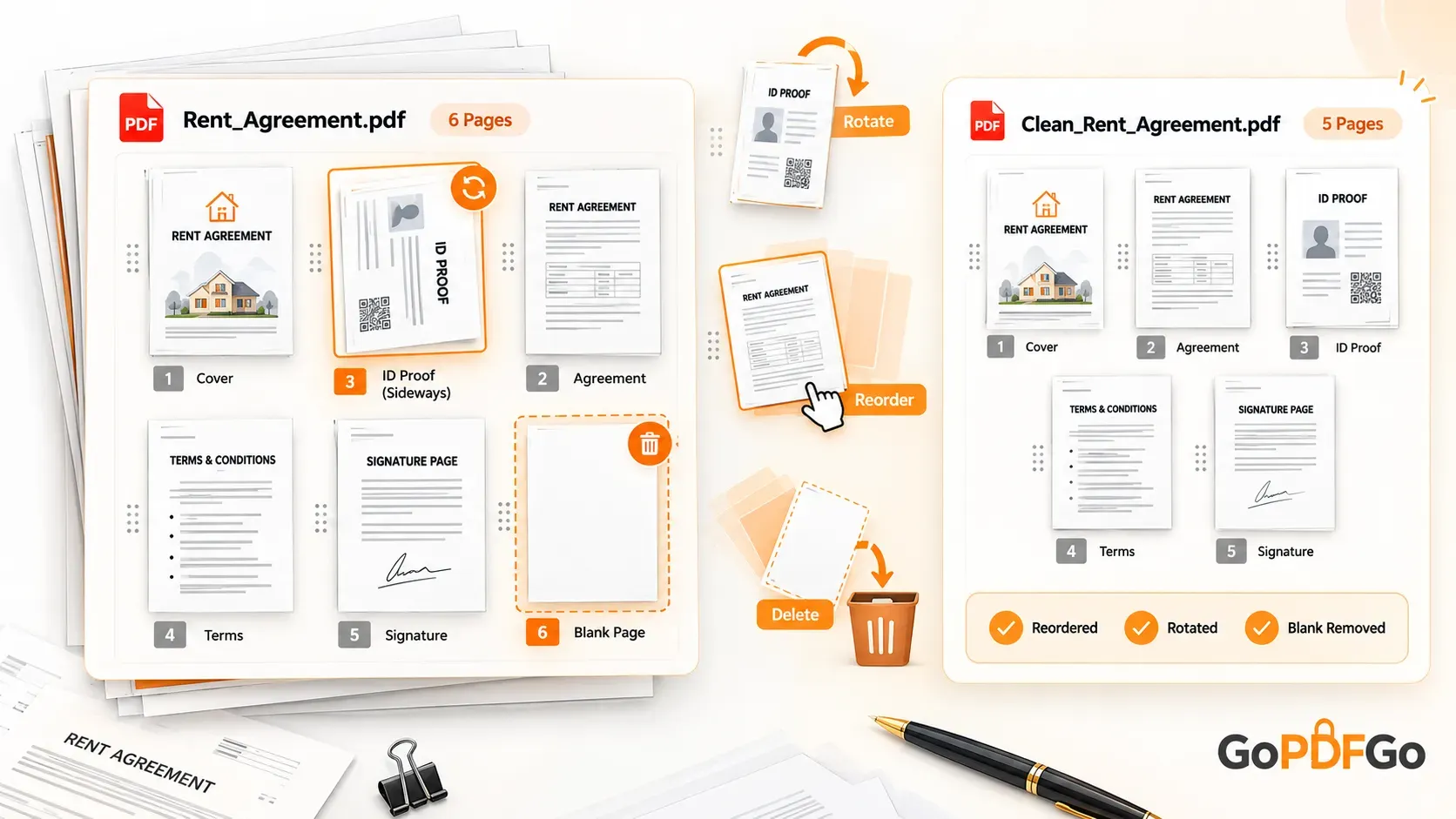
- Drop the junk pages. Combined PDFs often have a cover, an index, and blank separators between subjects. If a stray blank sheet or an irrelevant instruction page landed in your Chemistry file, cut it with Delete PDF Pages so the file holds only questions.
- Fix sideways scans. Some banks are scanned, and a diagram-heavy page can come in rotated. Instead of tilting your head every time, straighten it for good with Rotate PDF before you save the subject file.
- Shrink heavy scans. If a subject file is still large because it is a high-resolution scan, run it through Compress PDF so it sends quickly on the class group and nobody complains about data.
There is one honest limit. If your subjects are interleaved rather than in clean blocks, say a mixed mock test where Q1 is Physics, Q2 is Chemistry and so on, splitting by page range will not separate them, because the tool works on continuous ranges. For that kind of jumble you are better off keeping the file whole and using your viewer's bookmarks. But for the standard subject-after-subject question bank, which is how almost all of them are arranged, this is exactly the right approach.
Spend the five minutes on it now, before your prep gets intense. A folder of clean, named, subject-wise PDFs is a small thing that makes every study session after it run smoother.
FAQ
Q: Will splitting reduce the quality of the question paper?
A: No. The pages are copied exactly as they are into the new file. The text, diagrams and scan quality stay identical to the original. Only the page count changes.
Q: Is my question bank uploaded to a server when I split it?
A: No. The Split PDF tool runs entirely in your browser, on your device. Your file never leaves your phone or computer, which matters if it is paid coaching material.
Q: Why does the tool give me separate pages instead of one subject file?
A: Split PDF pulls out each page in your range as its own single-page PDF, bundled in a ZIP. To get one combined file per subject, run those pages through Merge PDF afterwards. That second step takes only a few seconds.
Q: Can I split a password-protected question paper PDF?
A: Not directly. Remove the password first with Unlock PDF, entering the password you already know, then split the unlocked copy. A locked file cannot be split as it is.
Q: How do I know the exact page numbers for each subject?
A: Open the PDF and use your viewer's page counter, not the number printed on the sheet. Note where each subject begins and ends, since cover and blank pages can shift the real page numbers.