Rotate an Upside-Down Scanned Cheque or Passbook PDF Before the Bank Rejects It
The cheque looked fine on your phone. The bank saw it sideways.
The quick fix you need is this: rotate the scanned cheque or passbook PDF upright and save it so the new angle stays in the file, then upload that. Here is how the problem usually starts. You needed to add a bank account for a refund, or finish KYC for a new demat account, or submit a cancelled cheque for an EPF claim. You placed the cheque on the table, scanned it with whatever app was on your phone, and it saved as a PDF. You uploaded it and moved on.
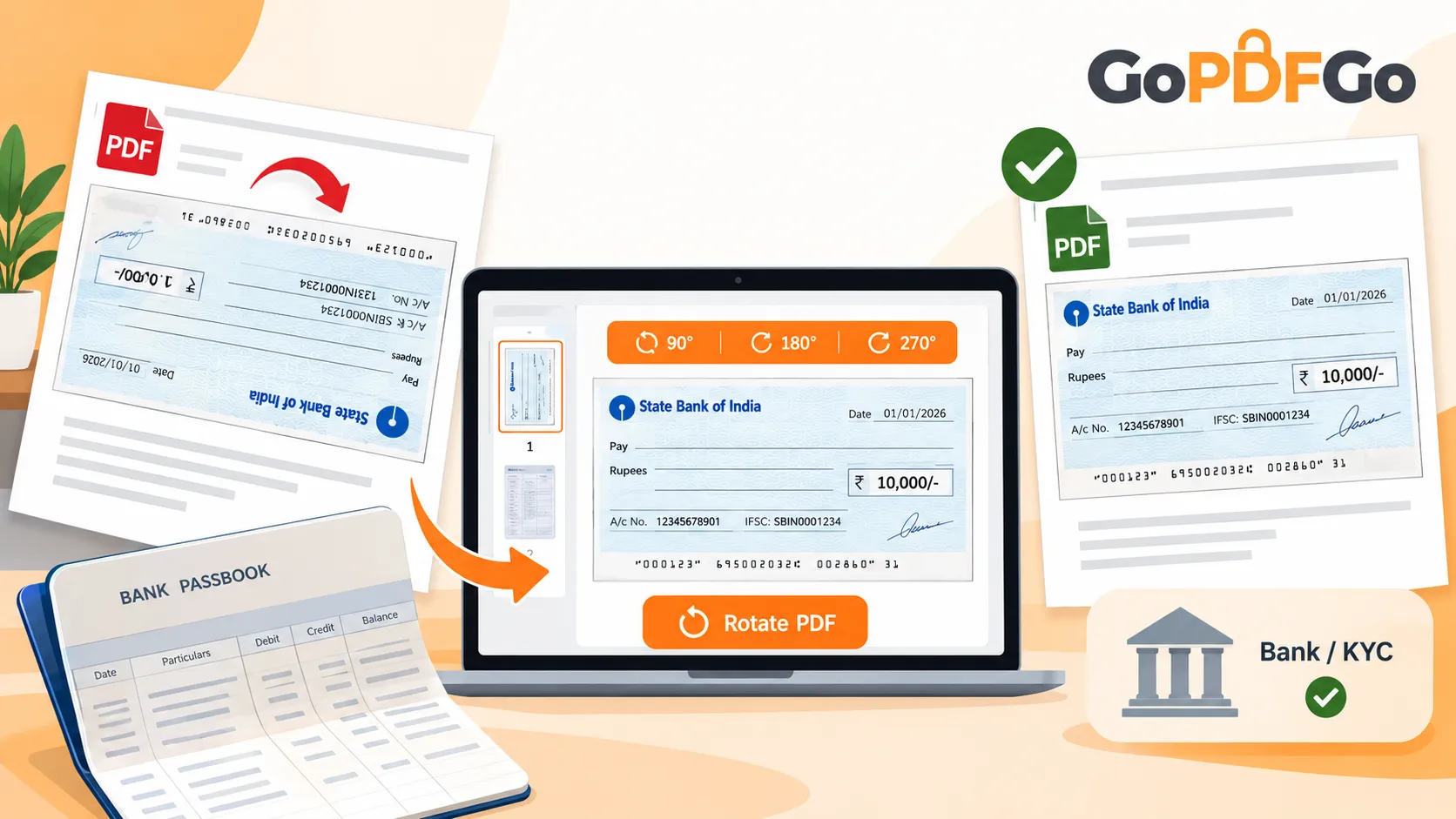
Two days later there is an email or an SMS saying the document was rejected, please re-upload a clear image. You open the file and the cheque is lying on its side, or fully upside down. The account number is there. The IFSC is there. Everything is readable if you tilt your head. But the verification person, or the automated check behind the portal, saw a rotated page and bounced it.
The same thing happens with passbooks. You open the passbook flat, scan the page with your name, branch and account number, and because of how you held the phone, the page lands rotated 90 degrees. On your screen the scanner app spins the preview to match your phone, so it looks correct while you tap save. The PDF that actually gets written keeps the raw captured angle. The page you saw and the page they received were not the same.
Rotate the scanned cheque or passbook upright before the bank sees it
Two separate things cause this, and it helps to know which one got you.
The first is the preview mismatch above: the app rotates what you see, not what it saves. You swipe through, everything looks upright, you save, and the file is sideways. You only find out when someone opens it on a desktop.
The second is plain misorientation at capture. You held the phone in portrait while the cheque was landscape, or the passbook sat rotated on the table. The page goes in at 90 or 270 degrees and stays there.
The fix for both is the same. Open the PDF, turn the page so the account number reads the normal way, and write that new angle into the file so it travels with it. That writing-in step is the one people skip. If you only spin the view inside a PDF reader and re-share, some readers keep that change as a setting on your screen rather than inside the document, so the next person opens it sideways again.
Why a rotated cheque actually gets rejected
The bank is not being fussy for the sake of it. A few concrete reasons orientation matters:
- Many KYC and account-verification desks clear hundreds of documents a day. A sideways cheque is slower to read at a glance, so it gets bounced rather than squinted at.
- Several portals run automated readers that try to pull the account number, IFSC code or the MICR line at the bottom of the cheque. That OCR is trained on upright text. Feed it a page turned 90 or 180 degrees and it reads nothing usable, so the document fails the check silently, before any human even looks.
- For an EPF or insurance claim, the cancelled cheque is the proof of which account the money goes to. If the reviewer cannot instantly confirm the name and the number, they mark it incomplete and the claim waits another cycle.
Two minutes spent turning it upright is the difference between approved this week and re-upload next week.
Turn the page upright and keep the angle in the file
This is a PDF, not a photo, so it needs a PDF tool. If your cheque is sitting as a JPG instead, that is a different fix (covered further down). For an actual PDF, you want something that rotates the page and stores the new orientation inside the document for good. GoPDFGo's Rotate PDF does that, and it runs entirely inside your browser, so your cheque or passbook never gets uploaded to anyone's server. For a cancelled cheque with your account number on it, that local-only handling is worth caring about.
Step 1: Open the Rotate PDF tool and pick your scanned cheque or passbook PDF. Nothing leaves your device; the whole thing runs on your machine.
Step 2: Look at each page. Use the rotate control to turn it 90, 180 or 270 degrees until the account number, name and IFSC read upright the normal way.
Step 3: If only one page is wrong, common with a multi-page passbook, rotate just that page and leave the others as they are.
Step 4: Save or download. The new angle is now written into the PDF, so whoever opens it next sees it upright, on any device or reader.
Step 5: Open the downloaded file once more, ideally on a computer or in a different app than the one that made it, and confirm it genuinely opens upright before you submit it to the bank or KYC portal.
A few practical tips for cheques and passbooks
Rotate before anything else. If you also need to shrink the file to fit an upload limit, fix the orientation first, then compress. Do it the other way and you sometimes compress, spot that it is sideways, and redo the whole thing. When the portal has a size cap, run the upright file through Compress PDF afterwards.
One subject per page. For a cancelled cheque, the cheque should fill the page and read upright. For a passbook, the page with your name, account number, branch and IFSC is the one they want. If your scan picked up blank or duplicate pages, trim them with Delete PDF Pages so the reviewer sees only what matters.
Hide what they do not need. Some KYC submissions ask only for proof of the account, not your full transaction history or other ID numbers on the page. If an Aadhaar number is visible in the same scan, you can cover it with Aadhaar Masking before you share.
If it is a photo, not a PDF. Got the cheque as a sideways JPG straight from the camera? Turn the image first with Rotate Image, then convert it using Image to PDF if the portal wants a PDF. Rotate PDF is only for files that are already PDFs.
What rotating cannot fix
Rotation fixes orientation and nothing else. If your cheque is blurry, the corners are cut off, or the lighting washed out the account number, turning it upright will not make it readable; re-scan it in good light with the whole cheque inside the frame. Rotation also will not undo a mirror flip, where the text reads backwards as if seen in a mirror, that is a separate issue. And if the bank specifically asked for a JPG or PNG, send that format rather than a PDF just because it rotated nicely.
For most rejections, though, orientation really is the whole story. Turn it upright, save the angle into the file, re-upload, and it usually clears on the next try.
FAQ
Q: I rotated the page in my PDF reader and it looked fine, but the bank still saw it sideways. Why?
A: Some readers spin only the view on your screen and do not store that change inside the file. When you share or re-upload, the document still carries its old angle. You need a tool that writes the rotation into the PDF itself so it travels with the file.
Q: My passbook PDF has five pages and only one is upside down. Do I have to rotate all of them?
A: No. Rotate just the page that is wrong and leave the correctly-oriented pages alone. The tool lets you set the angle for each page on its own.
Q: Is it safe to put my cancelled cheque through an online rotate tool?
A: With GoPDFGo the file never leaves your device; the rotation runs inside your browser. That is why it suits sensitive documents like cheques and passbooks. Tools that upload your file to a server are a different matter, and for bank documents it is better to avoid those.
Q: After rotating, the bank still rejected it. What now?
A: Check whether the real problem was clarity rather than orientation. A blurry or cropped cheque fails even when it is upright. Re-scan in good light with the full cheque inside the frame, then rotate again if needed.
Q: The cheque is sideways in a photo, not a PDF. Same tool?
A: No. Use the image rotate tool for a JPG or PNG, then convert it to PDF if the portal wants one. Rotate PDF only handles files that are already in PDF format.