How to Share WiFi Without Passwords: Create a Free WiFi QR Code
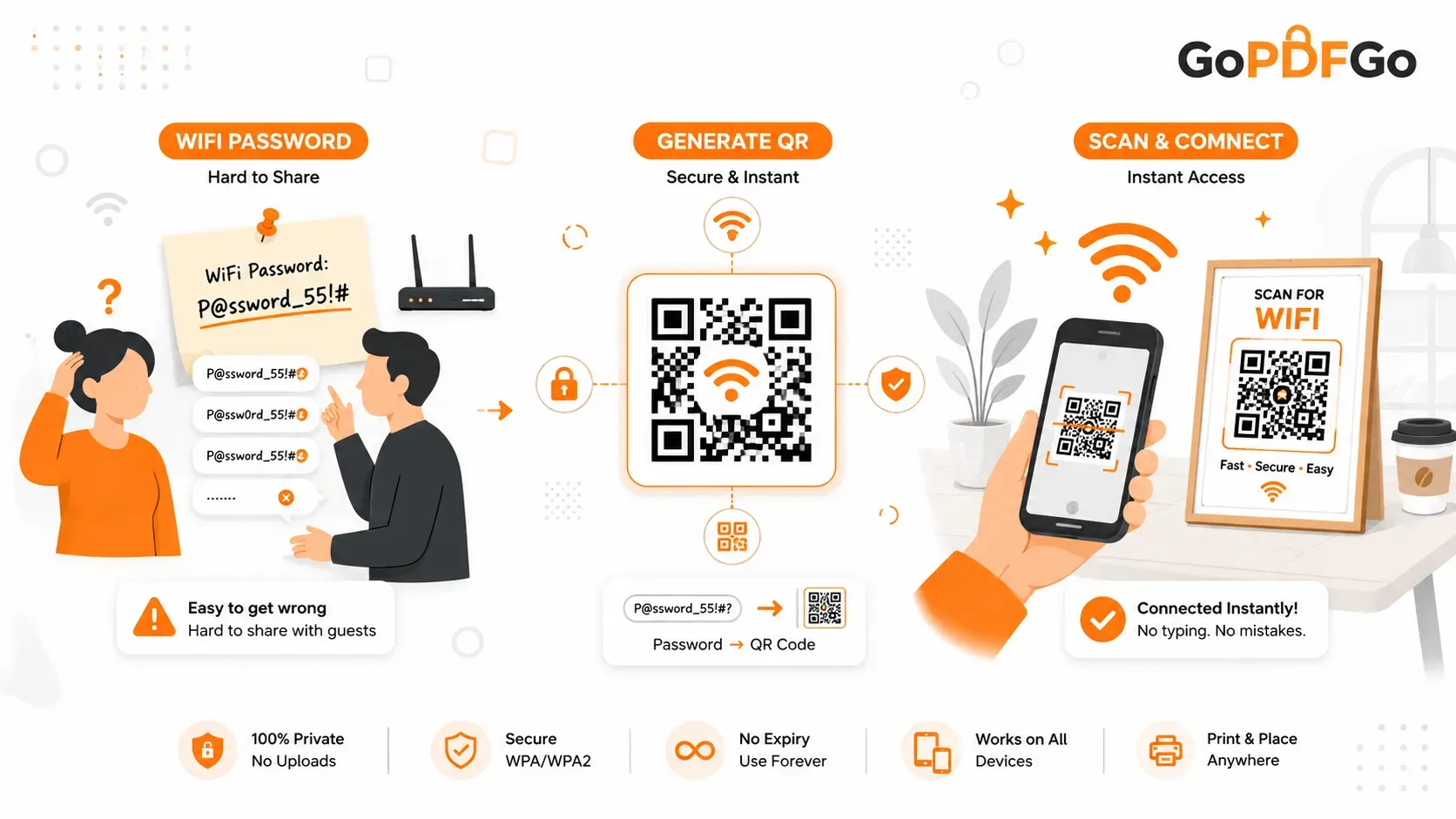
Most of us hate this awkward moment: A friend comes over, or a customer walks into your cafe, and asks for the WiFi password. You end up spelling out a messy combination like "capital P, at symbol, 55..." and they still get it wrong twice. Then you have to take their phone, type it yourself, and hope you don't mess it up either.
Whether you run a coffee shop, an Airbnb, or just have guests over frequently, handing out your raw password is outdated and insecure. The smartest, fastest solution? Just let them scan a QR code.
In less than 30 seconds, you can create a permanent QR code that connects any smartphone to your network instantly without typing a single letter. Let's break down exactly how to do this safely, and why you should never use just any random website to generate it.
The Danger of Free Cloud Generators
Writing your password on a chalkboard or a piece of paper means absolutely anyone walking by can save it. That is a basic security risk. But the digital risk is actually much bigger.
If you use a random website to generate your QR code, you might be handing your router's exact password to an unknown server. If you are like most people and use the same password for your WiFi as you do for your email or banking apps, you are walking into a massive privacy trap. Using unknown websites for sensitive credentials always carries unnecessary privacy risks.
That is why your WiFi credentials should stay private. Your network name and password belong on your own phone or laptop, not on someone else's server. You want a tool that draws the QR code directly on your screen without sending your details across the internet.
Step-by-Step: Generate Your Free WiFi Code
You don't need any technical skills for this. Just follow these quick steps using our zero-upload technology to keep your details safe:
- Step 1: Grab Your Details. Check your router for your exact Network Name (SSID) and password. Remember, the network name is highly case-sensitive. If your network is "HomeNetwork", typing "homenetwork" will break the code.
- Step 2: Open the Secure Creator. Head over to our private QR code creator. Select the "WiFi" option from the menu so the tool knows exactly how to format the data for mobile phone cameras.
- Step 3: Enter Your Credentials. Enter your SSID, choose WPA/WPA2 (the standard security for 99% of modern routers), and type your password carefully. Since everything stays on your device, your password never touches an external database.
- Step 4: Download and Print. Click the generate button, save the high-resolution image to your downloads folder, and print it out to place on your desk, cafe counter, or living room table!
Real-World Uses: Who Needs This the Most?
Print one of these and stick it where guests can reach it, and the password question more or less disappears. Here is who gets the most out of it:
- Cafe and Restaurant Owners: Stop making your busy baristas repeat the same password fifty times a shift. Tape a small QR code to every table. It speeds up service and makes customers much happier.
- Airbnb Hosts: Travelers arrive tired. The last thing they want to do is hunt for a router behind the TV. A framed "Scan to Connect" sign on the bedside table means they are online before they have even unpacked, and you skip the late-night password text.
- Offices and Co-working Spaces: Don't let visitors connect to your private employee network. Set up a "Guest Network" on your router, make a scannable code for it, and stick it on the reception desk.
Pro-Tip: Make a Beautiful Custom Sign
Don't just print a naked, ugly QR code on a blank A4 paper. Put the image inside a nice Canva or Word template that says "Scan for Free WiFi." Make it match your room's aesthetic.
If the final printed image file becomes too heavy to email to your local print shop, you can easily reduce the picture size safely right from your browser. Need to combine multiple signs for different rooms in your house? Just join them into one single document before hitting print.
Frequently Asked Questions (FAQ)
Q: Does this work if I have dual 5GHz and 2.4GHz networks?
A: Yes! However, you need to create a separate QR code for each network if they have different names (like "Home_5G" and "Home_2.4G"). Simply generate two barcodes and label them clearly on your printed sign.
Q: What if I have a hidden network?
A: Most generators have a small checkbox for "Hidden Network." If you check that box, the barcode will tell the scanning phone to actively search for your specific network name, even if your router isn't broadcasting it publicly.
Q: Why isn't my printed code scanning properly?
A: Usually, this happens for two reasons. First, you might have made a typo in the network name (remember, it's case-sensitive). Second, you might have printed it too small, or on glossy paper that is reflecting room lights directly into the phone's camera.
Q: Will this connect smart TVs and IoT devices?
A: If the smart TV or device has a built-in camera and a setup app that supports QR scanning, yes. Otherwise, for devices without cameras, you will still need to type the password manually using the remote.
Upgrade Your Setup Today
Stop repeating yourself and upgrade your digital hospitality. Create your secure, free code right now and see how much time and frustration it saves you and your guests!